
How to Add Spotify on Android Auto?

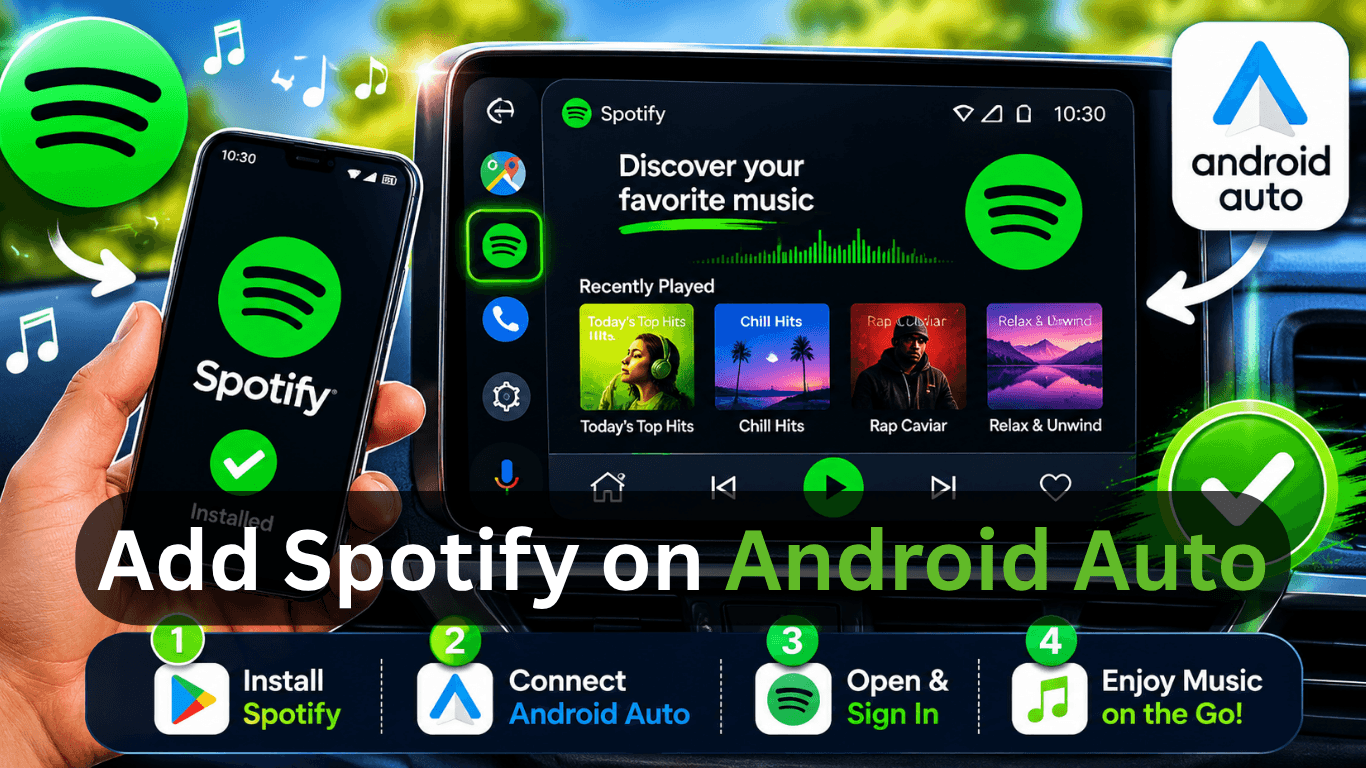
If you drive regularly, you already know how important music is on the road. Spotify Android Auto is a best option. It’s part of daily driving, morning commute, long trips, traffic jams, everything feels better with the right playlist.
But here’s the problem many users face:
Spotify is installed, Android Auto is connected but nothing shows up properly or it just doesn’t feel smooth.
This guide is written exactly for that situation. Not theory. Real setup flow. Real fixes. And how to actually make Spotify on Android Auto work without stress.
What You Need Before Setup
Before you start, make sure your setup is ready:
- Android phone (Android 8 or higher).
- Latest version of Spotify.
- Android Auto installed or built-in system.
- USB cable or wireless connection support.
- Compatible car infotainment system.
Once these are ready, Spotify for Android Auto will work smoothly in most cases.
How to Setup correctly Spotify on Android Auto
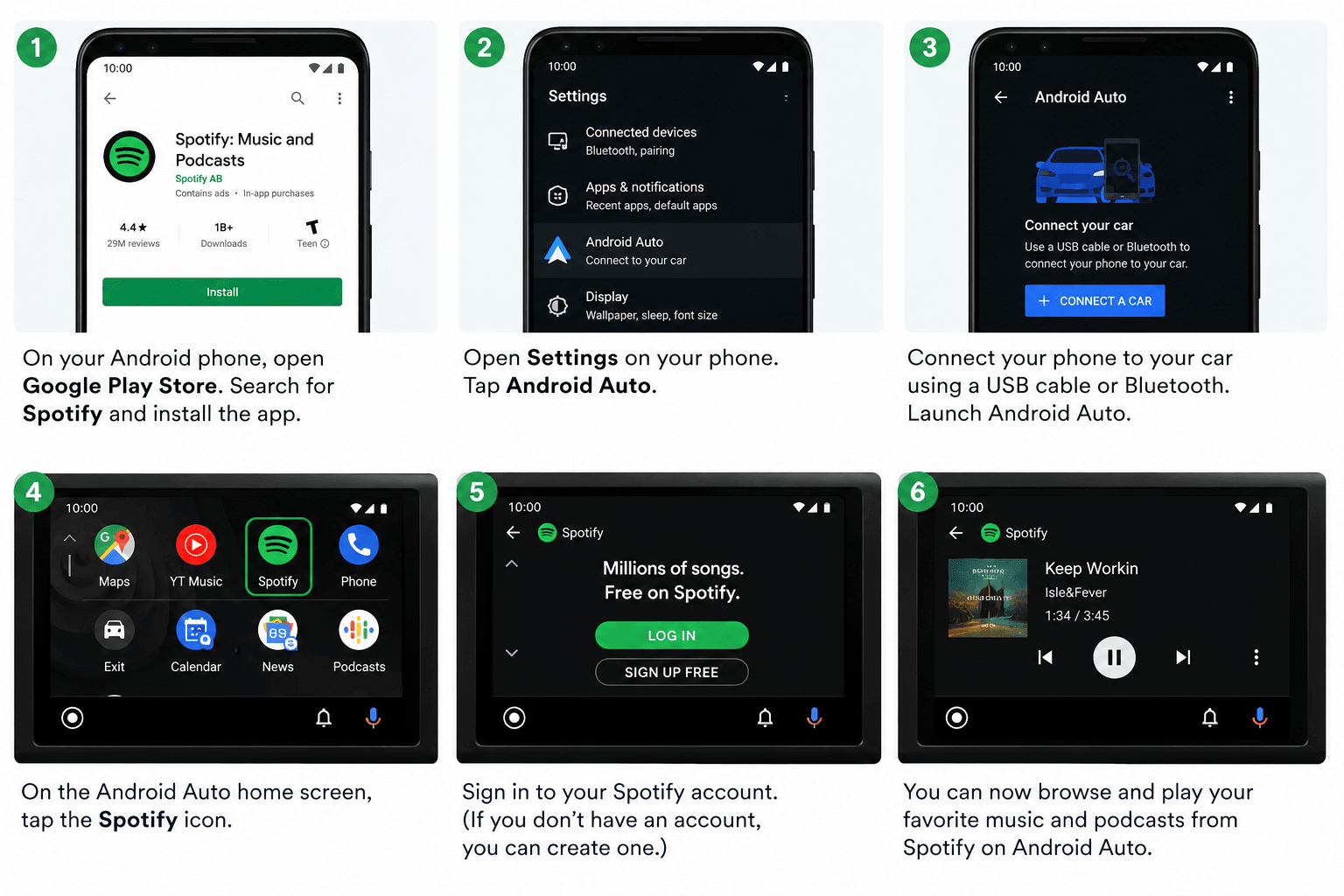
Step 1: Install and Prepare Spotify
First, install Spotify from the Play Store and sign in.
Do this properly:
- Open the app once.
- Log in to your account.
- Allow background activity.
- Update if needed.
This helps Android Auto detect Spotify in Android Auto correctly.
Step 2: Set Up Android Auto Properly
Now open Android Auto settings on your phone.
Check these:
- Permissions enabled (media, calls, contacts).
- Notifications allowed.
- Background activity ON.
Then go to:
- Customize Launcher.
Make sure Spotify is enabled here. If it is not selected, it will not appear on your car screen.
This step is where most Spotify Android Auto issues actually begin.
Step 3: Connect Spotify to Android Auto (Wired and Wireless Methods)
You can use a cable to connect your phone to your car and also can use a wireless method.
Spotify on Android Auto works the same but different way.
Method 1: Connect Spotify with Android Auto Using a USB Cable
This is the way to get a stable connection and this method because Spotify connects to Android Auto quickly.
Follow these steps:
- Unlock your Android phone.
- Connect your phone to the car using a good quality USB cable.
- Wait a few seconds for Android Auto to start automatically.
- Accept any permissions that appear on your phone screen.
- Open Android Auto on your car display.
- Tap Spotify from the app list.
Once connected, you can immediately start using Spotify with Android Auto.
Why many drivers still prefer wired connection
- More stable connection.
- Charge your phone while driving.
- Lower chance of playback interruptions.
- Faster app response in many cars.
One thing to remember is that cheap USB cables can sometimes create connection problems. If Android Auto disconnects often, the cable is worth checking first.
Method 2: Connect Spotify with Android Auto Wirelessly
Many newer cars support wireless Android Auto. This removes the need for a cable and automatically connects your phone when you enter the vehicle.
Follow these steps:
- Turn on Bluetooth on your phone.
- Turn on Wi-Fi on your phone.
- Open Android Auto settings.
- Enable wireless Android Auto.
- Pair your phone with the car system.
- Approve the connection request.
After the first setup, future connections usually happen automatically.
Open Spotify and start listening.
Step 4: Finding Spotify on the Car Screen
Now check your dashboard screen.
You should see:
- Maps
- Calls
- Music apps
- And Spotify
Tap Spotify.
This is where Spotify on Android Auto finally becomes active.
If Spotify is still missing:
- Restart car system.
- Reconnect USB.
- Restart phone.
- Recheck launcher settings.
In most cases, it appears after the first successful connection sync.
Step 5: Using Spotify While Driving
Once it works, this is where people usually get surprised.
Because using Spotify with Android Auto feels very different from normal phone use.
Playing Music
You can:
- Tap playlists.
- Open recently played songs.
- Resume where you left off.
No searching through folders. Everything is simplified.
Voice Control (Most Important Feature)
Press the voice button and try:
- “Play my chill playlist on Spotify”.
- “Play songs for driving”.
- “Play latest English hits”.
This is the safest way to use Spotify in Android Auto while driving.
Quick Access Behavior
Android Auto remembers your habits:
- Frequently played playlists show first.
- Recently played music appears instantly.
- Podcasts are grouped separately.
Over time, it feels personalized without you doing anything extra.
Issues & Fixes for Spotify Android Auto
This is the section most users actually need. If Spotify Android Auto is not working properly, check below.
Issue 1: Spotify not showing on Android Auto
This is the most common problem.
Fix:
- Open Android Auto settings.
- Go to “Customize Launcher”.
- Enable Spotify.
- Restart phone and car system.
- Reconnect USB cable.
Most cases get fixed here.
Issue 2: Spotify not playing music
Sometimes Spotify opens but no sound comes.
Fix:
- Check the car audio source (must be Android Auto mode).
- Restart Spotify app.
- Disconnect and reconnect the phone.
- Try a different playlist.
Issue 3: Android Auto not connecting at all
If nothing appears on the screen:
Fix:
- Try another USB cable.
- Restart phone.
- Restart car infotainment system.
- Check if Android Auto is updated.
Wireless users should also re-pair Bluetooth.
Issue 4: Music keeps stopping randomly
This usually happens during driving.
Fix:
- Turn off battery optimization for Spotify.
- Keep Spotify running in the background.
- Avoid switching heavy apps while driving.
- Use a stable USB connection.
Issue 5: Voice commands not working
If voice control fails:
Fix:
- Enable Google Assistant permissions.
- Check microphone access.
- Update Google app.
- Re-enable voice settings in Android Auto.
Issue 6: Lag or delay in music playback
Fix:
- Close background apps.
- Update Spotify.
- Use wired connection instead of wireless.
- Restart phone before driving.
Tips for Better Spotify Experience in Android Auto
Here are some real world tips that improve daily use:
- Download playlists for offline use before travel.
- Use “Liked Songs” for quick access.
- Keep Spotify updated for smooth performance.
- Use voice commands instead of screen tapping.
- Organize playlists for driving moods (calm, travel, focus).
These small habits make Spotify for Android Auto feel much smoother during long drives.
Using Spotify with Fermata Auto (Optional Advanced Setup)
Some users combine Android Auto with Fermata Auto for extra flexibility.
With Fermata Auto:
- You can manage media apps in a more open layout.
- Some systems allow better control over playback.
- It helps when stock Android Auto feels limited.
Even in this setup, Spotify on Android Auto still works normally. Fermata Auto only adds extra control features.
Can You Use Spotify with Fermata Auto?
Yes, you can use Spotify with Fermata Auto. Spotify already works directly with Android Auto, so Fermata Auto is not required.
However, you can use Fermata Auto because it offers extra media flexibility and additional playback control options.
In simple terms:
- Spotify handles your music streaming.
- Android Auto manages the car display.
- Fermata Auto adds extra media features and customization options.
For most users, the normal Spotify Android Auto setup works perfectly. Fermata Auto is simply an optional choice for users who want a more customized experience.
Spotify Alternatives for Android Auto
Spotify is a popular music app, for Android Auto. Here are some alternatives that work well with Android Auto.
YouTube Music
YouTube Music has a lot of songs, playlists, live performances, remixes and music videos that I can listen to. You can control YouTube Music from the display, in my car, which's really convenient.
Good for:
- Personalized music suggestions.
- Music videos and live versions.
- Users already using YouTube Premium.
Read more : YouTube Music Vanced on Android Auto
Amazon Music
If you already have an Amazon subscription, this option may save you money because some plans include music access.
The app integrates well with Android Auto and has a clean interface that is simple to use while driving.
Good for:
- Amazon users.
- Large song libraries.
- Hands free listening.
Pandora
Pandora is a music streaming platform. It makes radio stations for based on the music. Pandora gets to know what kind of music. It keeps getting better at suggesting new songs. This way can find music without having to look for it.
Samsung Music
Samsung Music is a way to listen to your favorite songs on your Samsung phone.
It helps you make playlists listen to albums and play songs offline.
This app also plays high-quality audio, which makes listening to music smooth and enjoyable every day on your Samsung device with Samsung Music you can enjoy your music.
Explore more : Best Android Auto Apps 2026
Watch YouTube on Android Auto | Watch Netflix on Android Auto
FAQs About Spotify on Android Auto
- Why is Spotify not showing in Android Auto?
Because it is disabled in launcher settings or needs updating.
- Can I use Spotify without the internet?
Yes, but only downloaded songs.
- Does Spotify work without Premium?
Yes, but with ads and limited control.
- Why does Spotify disconnect while driving?
Usually unstable USB or wireless connection.
- Can I control Spotify from the steering wheel?
Yes, most modern cars support it.
- Why is audio delayed sometimes?
Wireless Android Auto can cause slight delays.
- Does Android Auto support full Spotify features?
Core features yes, advanced browsing is limited.
- Why does Spotify stop in the background?
Battery optimization settings may block it.
- Can I switch accounts on Android Auto?
Yes, but only from a phone app.
- Is Spotify safe to use while driving?
Yes, when used with Android Auto and voice commands.
![How to Add WhatsApp on Android Auto? [2026 Guide]](/content/images/size/w600/2026/08/whatsapp.png)