How to Connect Android Auto to Kia [Complete Guide 2026]

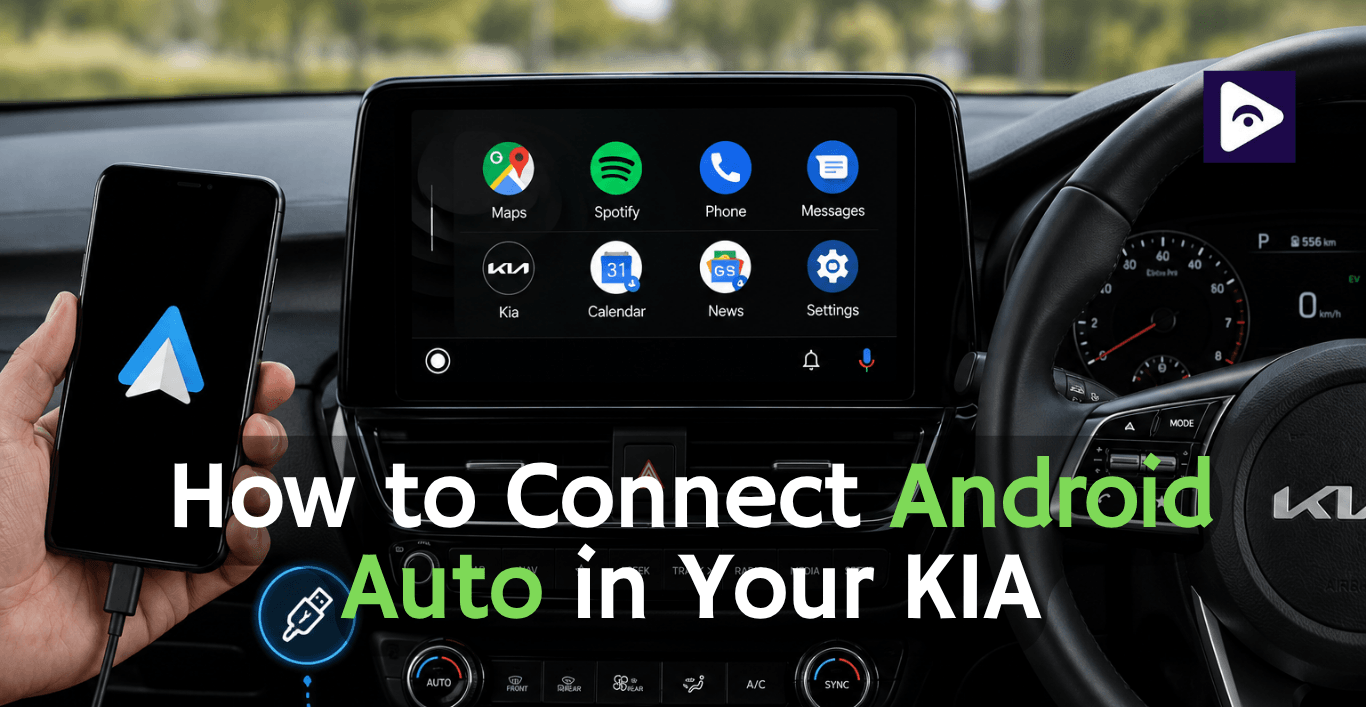
Getting Android Auto working in your Kia can make every drive a little easier. Instead of picking up your phone to check directions, change a song, or answer a message, you can handle supported features from the Kia's screen.
The good news? Setup usually takes a few minutes. You can connect your phone using a USB cable. You can go wireless if your Kia supports that feature. This guide walks you through both methods. It covers Kia models. It fixes the problems that usually get in the way. It shows how Fermata Auto can give you media options when you are parked.
How do Android Auto connect to Kia?
To connect Android Auto to a Kia:
- Start your Kia.
- Open the phone projection settings.
- Enable Android Auto.
- Connect your Android phone with a USB data cable.
- Accept the permissions on your phone.
- Select Android Auto on the Kia screen.
If your Kia supports Kia wireless Android Auto, pair your phone through Bluetooth and Wi-Fi instead.
Quick setup:
- Wired: Android phone + USB data cable
- Wireless: Compatible Kia + Bluetooth + Wi-Fi
- Navigation: Google Maps, Waze, and other supported apps
- Music: Compatible Android Auto audio apps
- Extra media: Fermata Auto on compatible setups
- Safety: Configure the system while parked
Does Kia Support Android Auto?
Android Auto is available on many Kia vehicles.
However, the available features depend on the model, model year, market, and infotainment system.
You may have:
- Wired Android Auto
- Wireless Android Auto
- Apple CarPlay
- Google Maps
- Waze
- Music apps
- Phone calls
- Voice commands
A newer Kia does not always mean it has all the Android Auto features.
For example Android Auto on a 2016 Kia Sportage can be different from Android Auto, on a Sportage.
Look at your vehicle's system before you try to set up wireless Android Auto.
Wired vs Wireless Kia Android Auto
| Feature | Wired Android Auto | Wireless Android Auto |
|---|---|---|
| USB Cable | Required | Not required |
| Initial Setup | Simple | Requires Bluetooth and Wi-Fi pairing |
| Phone Charging | Yes | No USB charging |
| Connection Stability | Usually very stable | Depends on wireless connection |
| Convenience | Good | Excellent |
| Availability | More common | Depends on Kia model and infotainment system |
| Best For | Long trips and charging your phone | Daily driving and quick trips |
How to Connect Kia Android Auto With USB
A wired connection is the easiest method to try first.
It is also useful when wireless Android Auto is not available in your Kia.
Step 1: Start Your Kia
Start the vehicle and allow the infotainment screen to load.
[Keep the vehicle parked while setting everything up.]
Step 2: Open Phone Projection
The menu name can vary.
Look for options such as:
Settings → Device Connections → Phone Projection
You may also see an Android Auto option directly.
Make sure Android Auto is enabled.
Step 3: Connect Your Phone
Plug USB cable that supports data transfer.
Unlock your phone if necessary.
Step 4: Accept the Permissions
Follow the instructions on the screen.
Step 5: Select Android Auto
Android Auto should now appear on the Kia's infotainment screen.
Tap the Android Auto icon.
Your compatible apps should appear.
Step 6: Test the Connection
Try a simple function.
For example:
- Open Google Maps
- Start music
- Make a test call
- Use Google Assistant
- Check the steering wheel voice button
If these work, your Kia Android Auto connection is ready.
How to Connect Kia Wireless Android Auto
Step 1: Turn On Bluetooth and Wi-Fi
Keep mobile data enabled.
Step 2: Open Phone Projection
On your Kia's screen, open the phone projection settings.
Look for:
Settings → Device Connections → Phone Projection
Select Android Auto.
Step 3: Add Your Phone
Choose Add New if available.
Your Kia will search for nearby Bluetooth devices.
Select your phone.
Step 4: Confirm the Pairing
A pairing code may appear.
Check that the code matches on both devices.
Then confirm the connection.
Step 5: Accept Android Auto Permissions
Follow the instructions.
Allow the required permissions.
Step 6: Open Android Auto
Android Auto may start automatically.
If it does not, select Android Auto from the Kia's screen.
You should now be able to use compatible apps without a USB cable.
Which Kia Models Support Android Auto?
| Kia Model | Android Auto | Wireless Support |
|---|---|---|
| Kia Sportage | Available on compatible systems | Model and system dependent |
| Kia Seltos | Available on compatible systems | Model and system dependent |
| Kia Telluride | Available on compatible systems | Model and system dependent |
| Kia Sorento | Available on compatible systems | Model and system dependent |
| Kia Rio | Model year dependent | Model year dependent |
| Kia Soul | Model year dependent | Model year dependent |
| Kia Niro | Available on compatible systems | Model and system dependent |
| Kia Stonic | Model year dependent | Model year dependent |
| Kia Ceed | Available on compatible systems | Model and system dependent |
| Kia EV6 | Available on compatible systems | Model and system dependent |
| Kia Picanto | Model year dependent | Model year dependent |
Kia Sportage Android Auto
The Kia Sportage Android Auto setup is different depending on the year your Kia Sportage was made and the kind of system it has for music and stuff.
If you have a Kia Sportage it might work with Android Auto without any wires.
Some older Kia Sportage models need to be plugged in with a USB cable to work with Android Auto.
If you have a Kia Sportage from 2016 and you want to use Android Auto you should check your music and navigation system first to see if it can do wireless.
Kia Sportage Android Auto Wireless
If your Sportage supports wireless Android Auto:
- Turn on Bluetooth.
- Turn on Wi-Fi.
- Open phone projection.
- Pair your phone.
- Accept the Android Auto permissions.
- Launch Android Auto.
If wireless Android Auto is not listed, your particular system may only support a wired connection.
Kia Seltos Android Auto
The Kia Seltos has Android Auto which's really helpful. It can show you the way to go, let you make calls, read your messages and play music from apps you like on the screen, in your car.
You can do it without any wires, which is pretty convenient, for the Kia Seltos.
If wireless Android Auto is not available, try a USB data cable.
Kia Telluride Android Auto
The Kia Telluride Android Auto setup is easy.
Connect your Android phone with a USB cable. Use wireless connection if the infotainment system allows it.
After you are connected you can use navigation apps, communication tools and media applications that are supported.
Kia Rio Android Auto
For Android Auto on Kia Rio whether it works depends on the year of the model and the system inside the car.
If Android Auto is available, find the option to project your phone.
A USB connection is usually the simplest way to test it.
Kia Soul Android Auto
The Android Auto Kia Soul setup also depends on the model year.
If you are looking for Apple CarPlay Kia Soul, the same entertainment system could work with both Apple CarPlay and Android Auto.
Kia Sorento Android Auto
Android Auto Kia Sorento provides access to supported smartphone features through the vehicle's display.
The basic setup is:
Enable Android Auto → connect your phone → accept permissions → open Android Auto.
Wireless support depends on the specific infotainment system.
Kia Niro Android Auto
Many compatible Kia Niro systems support Android Auto.
The Kia Niro Android Auto setup can be wired or wireless depending on the vehicle.
If you are looking for Kia Niro Apple CarPlay, that is the iPhone alternative to Android Auto.
Kia Stonic Android Auto
The Kia Stonic Android Auto setup is similar to other Kia models.
Check the phone projection settings.
Then connect your Android phone using USB or wireless pairing if supported.
Kia Ceed Android Auto
For Android Auto Kia Ceed, start by checking the infotainment system.
If Android Auto is supported, connect your phone by USB.
Compatible systems may also support wireless Android Auto.
Kia EV6 Android Auto
If the Kia EV6 has Android Auto you can use it with your Android phone by plugging it in or connecting it without a wire.
The Kia EV6 is really good, for people who drive the Kia EV6 and have to wait around while the Kia EV6 is being charged.
Kia Picanto Android Auto
Kia Picanto Android Auto is available depending on the model year. The equipment installed.
If your Picanto has Android Auto check for the phone projection feature.
Connect your phone using the supported method.
What can you do with Android Auto in a Kia?
- Use Google Maps
- Use Waze
- Voice navigation
- Listen to Music
- Make Calls
- Send Messages
Want More Media Options? Try Fermata Auto
If you want additional media options on your Kia, Fermata Auto can be useful.
Fermata Auto is a third-party Android media player designed to work with compatible Android Auto setups.
It can provide additional media playback features beyond the standard Android Auto experience.
What Can Fermata Auto Do?
Depending on your setup, Fermata Auto can support:
- Local video files
- MP4 files
- MKV files
- Subtitles
- External storage
- Additional media playback options
This can be useful when your Kia is parked and you want more entertainment options.
Never watch videos while driving. Use video features only when the vehicle is safely parked.
How to Use Fermata Auto With Kia Android Auto?

Fermata Auto for Android Auto
Fermata Auto works with compatible Android Auto vehicles. Explore our setup guides for popular car brands:
- Tesla Android Auto
- BMW Android Auto
- Honda Android Auto
- Ford Android Auto
- Hyundai Android Auto
- Mazda Android Auto
Kia Android Auto Not Working? Try These Fixes
Android Auto problems are often caused by a simple connection issue.
Try these fixes before changing anything complicated.
Android Auto is Not Showing
Check that Android Auto is enabled in your Kia's phone projection settings.
Then disconnect and reconnect your phone.
Kia Only Charges the Phone
This usually points to the USB connection.
Try another high quality USB data cable.
Also try the USB port designed for smartphone connectivity.
Kia Android Auto Keeps Disconnecting
Try:
- A different USB cable.
- Another USB port.
- Restarting your phone.
- Restarting the infotainment system.
- Updating your phone.
A damaged cable can cause repeated disconnections.
Wireless Android Auto is Not Connecting
Make sure:
- Bluetooth is enabled.
- Wi-Fi is enabled.
- Mobile data is available.
- Wireless Android Auto is supported by your Kia.
- Your phone is paired correctly.
If your Kia only supports wired Android Auto, wireless pairing will not work.
Android Auto Worked Before but Stopped
Remove the old phone connection.
Then pair the phone again.
You can also restart both devices before trying again.
Full Guide: Fermata Auto not showing in Android Auto
Tips for a better Kia Android Auto experience
Use a Quality USB Cable
A poor cable can cause connection problems.
Use the Correct USB Port
Some Kia USB ports may not support phone projection.
Keep Your Phone Updated
Updates can improve compatibility and fix connection problems.
Check Wireless Compatibility
Don't assume your phone's wireless Android Auto support means your Kia also supports it.
Delete Old Pairings
If your phone suddenly stops connecting, remove the old Bluetooth pairing and reconnect.
Check Your Kia's Model Year
Infotainment hardware can change between model years.
This is especially important with older vehicles such as the 2016 Sportage.
Use Fermata Auto APK
If you use Fermata Auto for video, keep the vehicle parked.
Frequently Asked Questions about Kia Android Auto
- How do I connect Android Auto to my Kia?
Enable Android Auto then connect your phone by USB or wirelessly if the system supports it.
- Does Kia have Android Auto?
Yes. It depends on the year and the infotainment system.
- Why is my Kia Android Auto not working?
Check the cable, the USB port, the phone permissions, Bluetooth , Wi-Fi and Android Auto settings.
- Does the 2016 Kia Sportage support Android Auto?
It depends on the system. You need to check your Kia Sportage to see if it supports Android Auto.
- Can I use wireless Android Auto in a Kia Sportage?
Yes. On compatible Sportage models. Others require a USB connection.
- Does the Kia Niro support Android Auto?
Yes Android Auto works with Kia Niro systems. Features can be different based on the model year.
- Can I use Apple CarPlay in a Kia?
Yes. Many Kia models are able to use Apple CarPlay well as Android Auto.
- Can I watch videos through Kia Android Auto?
Standard Android Auto restricts video apps. Fermata Auto can provide additional media features while parked.
- Can I use Fermata Auto with Kia Android Auto?
Yes. Fermata Auto can work with compatible Android Auto setups and provide additional media options.
- How do I install Fermata Auto for my Kia?
Follow the Fermata Auto installation guide for the latest setup steps.
![How to Add WhatsApp on Android Auto? [2026 Guide]](/content/images/size/w600/2026/08/whatsapp.png)