
How to Add Samsung Music on Android Auto?

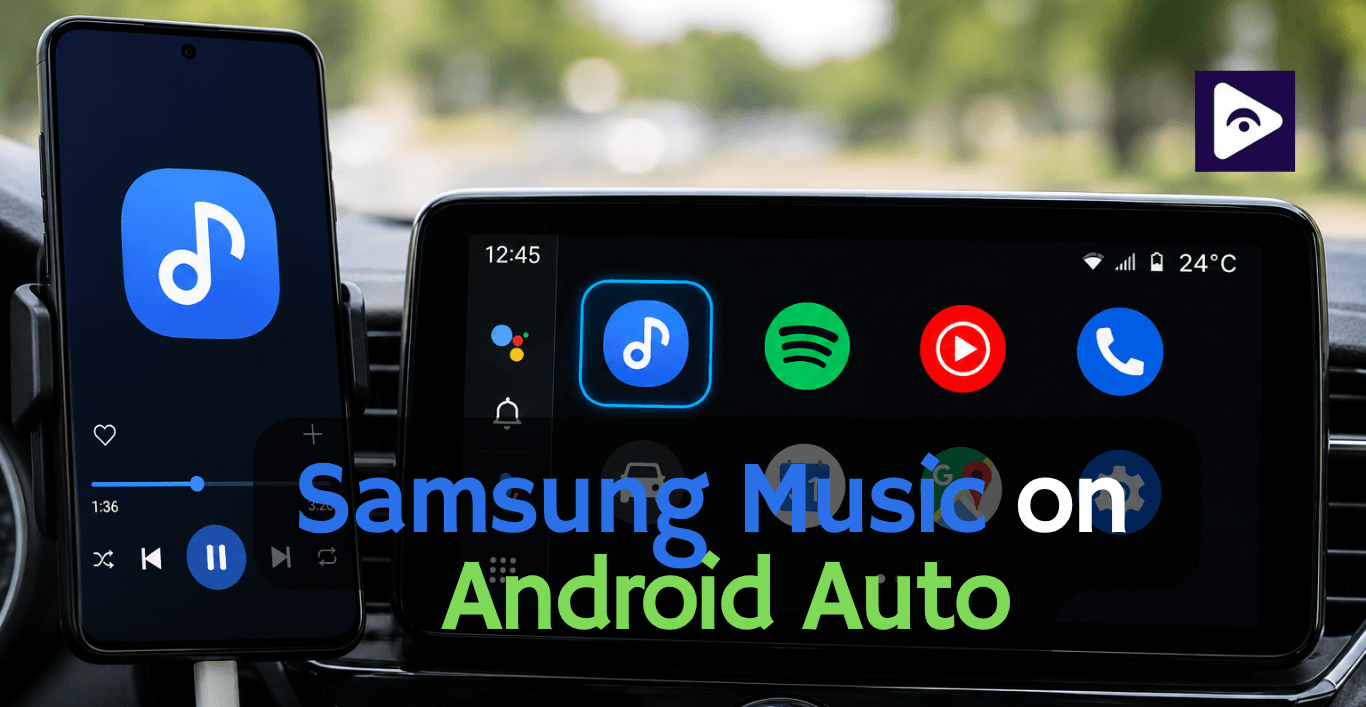
If you already use Samsung Music on your phone you have probably tried opening Samsung Music on Android Auto and noticed something is missing. It does not always show up when you use Samsung Music. That moment can be confusing.
The good news is, this is not a bug. It’s mostly about compatibility, settings, and how Android Auto handles media apps.
In this guide, I’ll walk you through exactly how to get Samsung Music Android Auto working properly, what to do if it doesn’t appear, and how to play your songs smoothly while driving.
Does Samsung Music Work with Android Auto?
Yes. Samsung Music works with Android Auto, on Samsung Galaxy devices that're compatible. When you get it set up and turned on you can look at your music library and play albums, playlists, artists and songs you played recently from the screen in your car.
The way it works depends on a things, including:
- Your Android version.
- Android Auto version.
- Samsung Music version.
- Your car's Android Auto compatibility.
- App permissions.
If everything is updated correctly Samsung Music works a lot like Spotify or YouTube Music. It focuses on music stored on your phone, not on streaming from the internet.
This makes it super useful, for people who:
- Drive in areas with poor mobile coverage.
- Prefer lossless or high-quality local audio.
- Have large MP3 or FLAC collections.
- Don't want monthly music subscriptions.
Requirements Before You Start
Before trying to fix anything, make sure your setup is ready:
Your phone should have:
- Android 9.0 or higher.
- Latest Android Auto update.
- Updated Samsung Music app.
- USB cable or wireless Android Auto support.
Your car system should support:
- Android Auto (wired or wireless).
- Media playback apps.
Permissions enabled:
- Music and audio access.
- Background app activity.
- Android Auto permissions.
If any of these are missing, Samsung Music Android Auto may not appear.
How to Add Samsung Music to Android Auto?
This is the part most users are looking for. Follow carefully.
Step 1: Update Everything
First, update:
- Samsung Music app.
- Android Auto app.
- Google Play Services.
Old versions often hide media apps.
Step 2: Enable Developer Options in Android Auto
- Open Settings on your phone.
- Go to Android Auto settings.
- Scroll down and tap Version repeatedly. (about 10 times)
- Developer mode will activate.
This unlocks hidden media options.
Step 3: Allow Unknown Media Apps
Inside Android Auto settings:
- Go to Developer settings.
- Enable Unknown sources / media apps. (if available)
- Restart your phone.
This helps Android Auto detect apps like Samsung Music.
Step 4: Check App Permissions
Go to:
- Settings → Apps → Samsung Music → Permissions
Make sure:
- Storage access is allowed.
- Music files are accessible.
- Battery optimization is turned OFF.
Step 5: Connect to Android Auto
Now:
- Connect your phone to your car.
- Open Android Auto interface.
- Check the music tab.
Samsung Music should now appear under available media apps.
How to Play Samsung Music on Android Auto
Once it shows up:
- Open Android Auto on your car display.
- Tap the music icon.
- Select Samsung Music.
- Choose a playlist or song.
- Use steering wheel controls or touch screen to manage playback.
You can:
- Skip tracks
- Pause/play
- Shuffle songs
- Control volume easily
It behaves like any other android auto samsung music supported app once active.
Samsung Music Not Working on Android Auto?
Here's How to Fix It:
Several small issues can prevent the app from showing.
The App is Disabled
Some Samsung devices automatically disable apps that haven't been used recently.
Open:
Settings → Apps → Samsung Music
Confirm that the app is enabled.
Battery Optimization
Aggressive battery management sometimes prevents Android Auto from communicating with media apps.
Go to:
Settings → Battery → Background Usage Limits
Exclude Samsung Music if necessary.
Outdated Android Auto
Android Auto receives frequent updates that improve media compatibility.
Running an older version may prevent newer Samsung Music releases from appearing correctly.
Unsupported Car Software
Some older vehicles support Android Auto but use outdated infotainment software.
Checking for a firmware update from your vehicle manufacturer can solve unexpected media issues.
Best Settings for a Better Listening Experience
After getting Samsung Music working, a few settings can noticeably improve everyday use.
Turn On Resume Playback
This allows your music to continue automatically when you reconnect your phone after stopping for fuel or running errands.
Organize Your Playlists
Instead of scrolling through hundreds of songs while parked, create playlists for:
- Daily commute
- Weekend drives
- Road trips
- Relaxing music
- Podcasts stored locally
Android Auto displays playlists much faster than huge song libraries.
Download Album Artwork
If your music files include albums If your music files have album artwork Samsung Music shows it nicely on your phone and many Android Auto head units.
Taking a few minutes to sort your library makes the in-car experience feel more polished.
Keep Your Music Folder Organized
Avoid storing music in folders with different names.
A clean folder structure helps Samsung Music find your music faster and reduces the chance of missing tracks after updates.
Key features Samsung Music
Samsung Music has a lot of features that're really helpful when you are driving every day.
Playlist Support
You can make playlists before you leave your house so you do not have to look through a lot of songs while you are driving.
Folder Browsing
Samsung Music is different from a lot of music apps because it lets you organize your music into folders.
If you sort your music by the person who made it or the album it is from, this feature makes it a lot easier to find what you want.
Shuffle and Repeat
You can quickly switch between playing songs in an order playing one song over and over or playing all the songs in a playlist over and over.
Lock Screen Controls
Even when you are not using Android Auto Samsung Music gives you easy to use controls on your phone's lock screen.
Bluetooth Compatibility
Samsung Music works with all kinds of devices whether your car uses Android Auto, Bluetooth audio or USB playback Samsung Music works with all of them.
Expert Tips for a better Samsung Music Android Auto Experience
After testing different setups, these small adjustments can make a noticeable difference.
Download Album Artwork
Album covers make browsing your music library much easier on the car display.
Organize Your Library
Remove duplicate songs and update missing artist information. A clean music library is much easier to navigate while driving.
Create Driving Playlists
Instead of scrolling through your entire library, create playlists like:
- Morning Commute
- Road Trip
- Relaxing Drive
- Workout Mix
- Favorite Songs
This saves time and reduces distractions.
Keep Samsung Music Updated
Samsung occasionally releases bug fixes and compatibility improvements. Updating the app can solve unexpected playback issues.
Samsung Music vs Alternative Music Apps
| Feature | Samsung Music | Spotify | YouTube Music | Amazon Music | Pandora |
|---|---|---|---|---|---|
| Works with Android Auto | ✅ Yes | ✅ Yes | ✅ Yes | ✅ Yes | ✅ Yes |
| Offline Playback | ✅ Local files | ✅ Premium | ✅ Premium | ✅ Subscription | ✅ Premium |
| Online Music Streaming | ❌ No | ✅ Yes | ✅ Yes | ✅ Yes | ✅ Yes |
| Play Local MP3 Files | ✅ Excellent | ⚠️ Limited | ⚠️ Limited | ❌ No | ❌ No |
| FLAC Support | ✅ Yes | ⚠️ Limited | ❌ No | ⚠️ Limited | ❌ No |
| Playlist Management | ✅ Excellent | ✅ Excellent | ✅ Excellent | ✅ Excellent | ⚠️ Basic |
| Subscription Required | ❌ No | ⚠️ Optional | ⚠️ Optional | ⚠️ For full features | ⚠️ For Premium |
| Best For | Offline music collections on Samsung devices | Streaming music and playlists | YouTube music lovers | Amazon ecosystem users | Personalized radio stations |
If you need to explore about Best android auto apps and Samsung Music Alternatives, Check this pages:
Spotify on Android Auto | Amazon Music on Android Auto | Pandora on Android Auto
How to Use Samsung Music with Fermata Auto
Samsung Music is a dedicated music player for your Samsung phone, while Fermata Auto is a tool that expands what you can access on Android Auto. If you already use Fermata Auto, you can continue using Samsung Music for audio playback and take advantage of Fermata Auto's additional media features.
Samsung Music remains your music player, and Fermata Auto helps unlock extra functionality on your car's display.
What Does Fermata Auto Add?
Fermata Auto is designed to extend the Android Auto experience beyond standard media playback. One of its most popular features is support for compatible video applications on your car's screen.
Depending on your setup, Fermata Auto can help you:
- Access supported video apps from Android Auto.
- Play local videos stored on your phone.
- Stream compatible online video content.
- Open media that isn't normally available through standard Android Auto.
This makes Fermata Auto a useful companion for users who want more than audio playback.
Why Use Samsung Music and Fermata Auto Together?
The two apps serve different purposes, so many users install both.
- Samsung Music manages and plays your local music library.
- Fermata Auto expands Android Auto by enabling supported video and media apps on your car's display.
If your primary goal is listening to music, Samsung Music is all you need. If you also want access to compatible video apps while parked, Fermata Auto adds those capabilities without replacing your music player.
This combination lets you enjoy your offline music collection while also getting more flexibility from Android Auto.
Frequently Asked Questions on Samsung Music
- Can I use Samsung Music with Fermata Auto?
Yes. Samsung Music plays the music that's on your phone and Fermata Auto adds some extra things to Android Auto. These two things do jobs so you can use Samsung Music and Fermata Auto at the same time.
- Does Fermata Auto replace Samsung Music?
No. Samsung Music is a music player, while Fermata Auto is a tool that expands Android Auto's media capabilities. It does not replace your music app.
- Can Fermata Auto play Samsung Music playlists?
No. Fermata Auto doesn't import or sync playlists created in Samsung Music. To use those playlists, open Samsung Music directly in Android Auto.
- Can I watch videos with Fermata Auto on Android Auto?
Yes. Fermata Auto can enable compatible video apps and local video playback on Android Auto.
- Is Samsung Music better than using Fermata Auto for music?
For music listening Samsung Music has a simple interface. It helps you manage playlists, albums and artists easily.
Fermata Auto is an app that adds media features to Android Auto. It does not replace a music player you use for music.
- Does Samsung Music support video playback?
No. Samsung Music is an audio player and cannot play videos. To use video apps on Android Auto that actually work you will need something like Fermata Auto.
- Do I need an internet connection to use Samsung Music?
No. Samsung Music plays songs that are stored on your device. So you can listen to music offline. You do not need to use data for it.
8. Can I use Samsung Music and Fermata Auto at the same time?
Yes. Many users keep Samsung Music for playing offline music and use Fermata Auto when they want access to compatible video apps or additional media features on Android Auto.
- Is Fermata Auto safe to use?
Yes. We should use it in a careful way. You have to keep your eyes on the road all the time. Use video features when the vehicle is stopped or for entertaining passengers.
- Why do people install Fermata Auto if they already have Samsung Music?
Samsung Music is ideal for listening to music, while Fermata Auto expands Android Auto by enabling compatible video and media apps on the car's screen. Many users install both to enjoy music and additional media features in one setup.
![How to Add WhatsApp on Android Auto? [2026 Guide]](/content/images/size/w600/2026/08/whatsapp.png)