How to Connect Android Auto to Mazda: Easy Guide
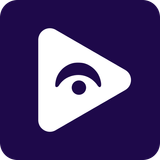
Mazda Android Auto setup is usually easier than it first looks. Connect your Android phone to the correct Mazda USB port, allow the requested permissions, and Android Auto should appear through Mazda Connect.
You can use Google Maps, Waze, music, calls and messaging apps that are supported from your Mazda's screen of always grabbing your phone.
If you also want more media options after setting up Android Auto, you can configure Fermata Auto on your Android phone and use it through the Android Auto environment when your Mazda is parked.
Does Your Mazda Support Android Auto?
Before starting the setup make sure your Mazda supports Android Auto.
Android Auto availability depends on your Mazda model, the year of the model, the trim level and the Mazda Connect system.
Android Auto is available on Mazda vehicles, including compatible versions of:
- Mazda3
- Mazda CX-5
- Mazda CX-30
- Mazda CX-50
- Mazda CX-90
- Mazda CX-9
- Mazda6
- Mazda MX-5 Miata
If you are not sure you should look at your Mazda owners manual. Check the details, for your specific car model and year.
What Needs to Connect Android Auto to Mazda?
Before starting your Mazda Android Auto setup, have these ready:
- An Android phone compatible with Android Auto.
- A reliable USB data cable.
- Bluetooth enabled on your phone.
- Wi-Fi enabled if using wireless Android Auto.
- Your Mazda parked safely.
- A Mazda Connect system that supports Android Auto.
How to Connect Android Auto in Mazda With USB
For many Mazda vehicles, a wired connection is the easiest way to get started.
Follow these steps.
Step 1: Start Your Mazda
When you do this for the time, use the parking brake and make sure your phone is unlocked.
This is helpful because you can answer the Android Auto permission requests that show up while you are setting up the Android Auto.
Step 2: Find the Correct USB Port
Some Mazda vehicles have multiple USB ports. Not every port necessarily supports Android Auto.
If your phone charges but Android Auto does not appear, try another USB port designed for smartphone connectivity.
Step 3: Connect Your Android Phone
Connect your Android phone to the correct USB port.
Use a good quality data cable.
After a few seconds, Mazda Connect should recognize the phone.
Your Android phone may display an Android Auto setup message.
Step 4: Allow Android Auto Permissions
Follow the instructions that are shown on your phone.
You may be asked to allow access, to the Facebook features such as:
- Contacts
- Phone calls
- Messages
- Notifications
- Location
- Microphone
Allow the permissions needed for the Android Auto features you want to use.
Step 5: Open Android Auto on Mazda Connect
Once the phone is connected, open Android Auto through Mazda Connect.
Depending on your Mazda system, you may see an Android Auto icon or access it through the Applications menu.
You can then use supported Android Auto apps from the Mazda display.
That's it.
Your connected Android phone to Mazda setup is complete.
How to Set Up Wireless Android Auto in Mazda
Step 1: Turn On Bluetooth and Wi-Fi
Make sure Bluetooth and Wi-Fi are turned on your Android phone.
Step 2: Open Mazda Connect
Go to the Connectivity or Device Settings menu on the Mazda Connect screen.
Step 3: Pair Your Phone
Look through the device list. Find your phone to finish the pairing process.
Step 4: Select Android Auto
Pick Android Auto. Then follow the setup instructions that appear on your phone.
Step 5: Test Android Auto
Look at the Mazda screen to confirm that Android Auto connects and functions correctly.
Mazda CX-5 Android Auto Setup
Start Mazda → Connect phone → Approve Android Auto → Open Android Auto
Android Auto for Mazda3
- Try another USB cable.
- Try the correct USB port.
- Unlock your phone.
- Check Bluetooth.
- Restart your phone.
- Restart Mazda Connect.
- Check the Android Auto connection settings.
What can you do with Android Auto in Mazda?
Once Android Auto on Mazda is working, your phone becomes much more useful from the driver's seat.
You can access supported apps without constantly handling the phone.
Using Google Maps and Waze
Navigation is one of the biggest reasons people set up Android Auto.
You can use supported navigation apps such as Google Maps and Waze for:
- Turn by turn directions
- Traffic information
- Route planning
- Saved locations
- Voice guided navigation
Listen to Music
Android Auto works with lots of music and podcast apps.
You can manage what's playing on your Mazda screen. By using your voice.
Make Calls
You can make and receive calls through your Mazda's system.
Your contacts can also be available through Android Auto after you approve the required permissions.
Handle Messages
Supported messaging apps can show alerts. Let you talk to someone using your voice.
This is much safer, than grabbing your phone to look at or send a message while you are driving.
Want More From Android Auto? Try Fermata Auto on Mazda
This is where your Mazda setup can become more useful when you're parked.
After getting normal Mazda Android Auto working, you can configure Fermata Auto on your Android phone.
Fermata Auto is not installed directly into Mazda Connect.
Instead, it is installed on the Android phone and configured to work through Android Auto.
The basic setup looks like this:
Android Phone → Fermata Auto → Android Auto → Mazda Connect
That means you should always get standard Android Auto working first.
Then configure Fermata Auto.
How to Use Fermata Auto With Mazda Android Auto
Mazda Android Auto Not Working? Try These Fixes
| Issues | Fixes |
|---|---|
| USB cable not working | Try a different USB data cable. |
| Wrong USB port | Use the USB port designed for smartphone connectivity. |
| Phone is locked | Unlock your Android phone and approve the Android Auto permissions. |
| Wireless Android Auto not connecting | Turn on Bluetooth and Wi-Fi. Remove the old connection and pair your phone again. |
| Phone connection keeps failing | Restart your Android phone and try connecting again. |
| Mazda Connect not detecting your phone | Restart Mazda Connect and reconnect your phone. |
| Android Auto still not working | Check whether Android Auto is supported on your Mazda model and year. |
| Different Mazda3 or CX-5 setup | Check your exact model year because Android Auto features can vary between versions. |
Full Guide: Fermata Auto not showing in Android Auto
Mazda Android Auto vs Fermata Auto
| Feature | Mazda Android Auto | Fermata Auto |
|---|---|---|
| Main Purpose | Connect your phone to Mazda Connect | Add extra media features |
| Installed On | Android phone | Android phone |
| Navigation | Yes | No |
| Music | Yes | Yes |
| Video | Limited | Yes, when parked |
| Root Required | No | No |
| Works With Mazda | Yes | Through Android Auto |
| Best For | Navigation, calls, messages and music | Additional media features |
Tips for a better Mazda Android Auto experience
Use a Good USB Cable
Don't keep using a cable that randomly disconnects.
A reliable data cable can make a noticeable difference.
Set Up Android Auto Before Fermata Auto
This is probably the most useful troubleshooting tip.
First make sure your phone connects normally to Mazda Connect.
Then install and configure additional tools.
Keep Your Phone Updated
Android updates can affect Android Auto behavior.
Keeping your phone and relevant apps updated can prevent avoidable compatibility problems.
Keep Your Phone in a Good Location
For Android Auto put your phone in a place where the connection is strong and where it stays still while you are driving.
Don't Use Video While Driving
This deserves repeating.
Fermata Auto's video features are intended for use when the vehicle is safely parked.
Your Mazda display should never become a distraction while you're driving.
Driving a different car? The Android Auto setup can vary between infotainment systems. Check our guides for Tesla Android Auto , BMW Android Auto , Honda Android Auto , Ford Android Auto , Hyundai Android Auto and Kia Android Auto to find the steps for your vehicle.
Frequently Asked Questions Mazda on Android Auto
- How do I connect Android Auto to my Mazda?
Connect your Android phone to the smartphone enabled USB port, give permission and open Android Auto through Mazda Connect. For Android Auto connect your phone using Bluetooth.
- Does every Mazda have Android Auto?
No. It depends on the Mazda model, year, trim, and Mazda Connect system.
- Does the Mazda CX-5 support Android Auto?
Yes. Some CX-5 models support Android Auto. Newer CX-5 models may also support Android Auto.
- Does Mazda3 work with Android Auto?
Yes. Some Mazda3 models support Android Auto. The way to connect depends on the model year.
- Why is Android Auto not showing on my Mazda?
Check the USB cable, the USB port, the phone connection and the Bluetooth and the Wi-Fi if you are using Android Auto.
- Why does my Mazda charge my phone? Not connected to Android Auto?
Your cable might only charge the phone. Try using a USB data cable and the correct smartphone-enabled USB port.
- Can I use Android Auto in my Mazda?
Yes. Only some Mazda models support Android Auto. Check your model and the year.
- Can I use Fermata Auto with Mazda Android Auto?
Yes. Install Fermata Auto on your compatible Android phone and configure it to work through Android Auto. It is not installed directly on Mazda Connect.
- Does Fermata Auto require root?
No. Fermata Auto does not require root access.
- Can I watch videos with Fermata Auto in my Mazda?
Fermata Auto can provide video features, but only use them when your Mazda is safely parked. Never watch videos while driving.
![How to Add WhatsApp on Android Auto? [2026 Guide]](/content/images/size/w600/2026/08/whatsapp.png)