How to Add WhatsApp on Android Auto? [2026 Guide]

![How to Add WhatsApp on Android Auto? [2026 Guide]](/content/images/size/w1200/2026/08/whatsapp.png)
When you plug your phone into Android Auto WhatsApp is really helpful for staying in touch while you are driving. You can get messages, respond to messages using Google Assistant and pick up calls without touching your phone.
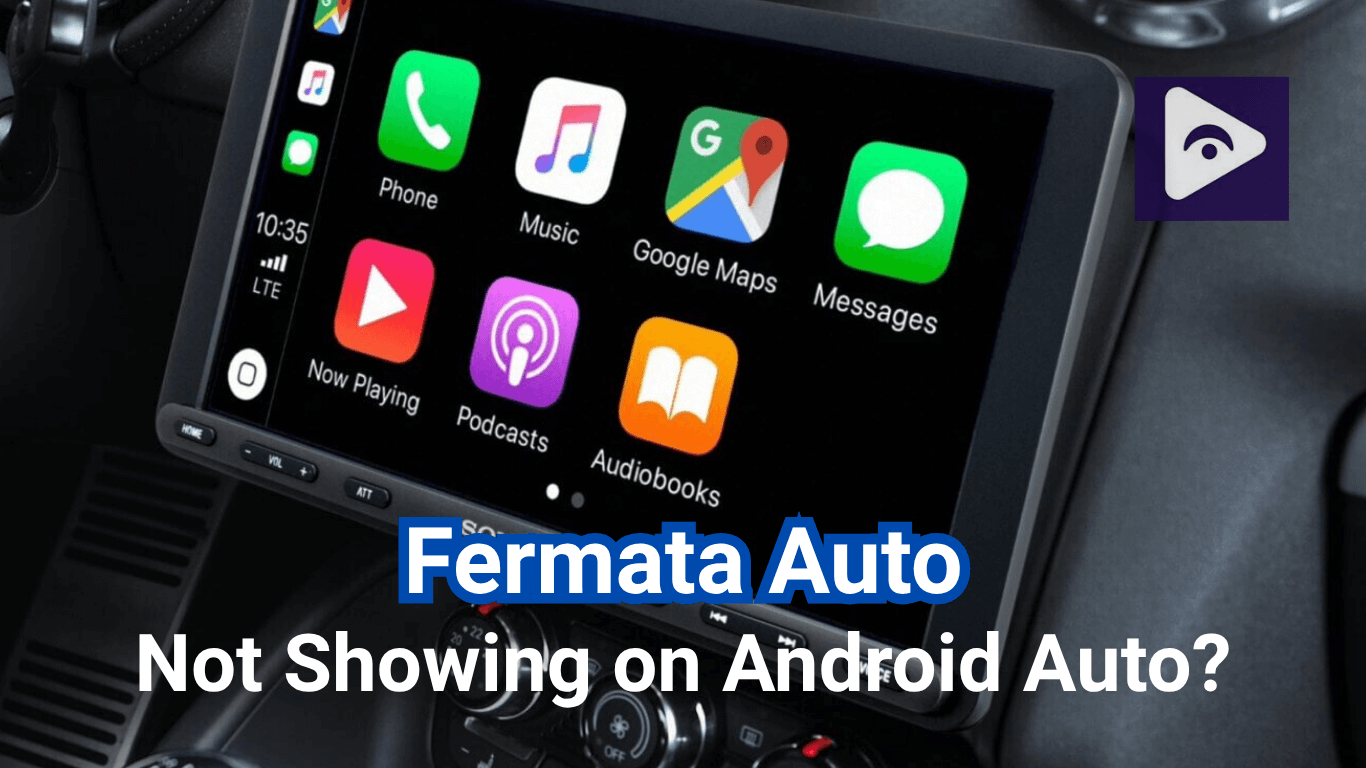
People who use Android Auto often find out that it has some limits. The screen in your car is mostly for giving directions, making calls and sending messages. If you want to be able to do things with Android Auto like play music and videos, Fermata Auto is a pretty cool app that you can add to your system.
This guide shows how to set up WhatsApp Android Auto correctly. After that, you will also learn how Fermata Auto can help you get more from your Android Auto setup.
How to Add WhatsApp on Android Auto
WhatsApp does not need an Android Auto app. If you have WhatsApp on your Android phone you just need to connect your phone and do the settings for WhatsApp. This way you can use WhatsApp with Android Auto.
Follow these steps.
Step 1: Update WhatsApp and Android Auto
Before connecting your phone, check that you have the latest versions of:
- Android Auto
- Google Play Services
Updates often fix connection problems and improve compatibility with newer Android phones.
Step 2: Connect Your Phone to Android Auto
Connect your Android phone to your car using:
- USB cable
- Wireless Android Auto (if available)
Once connected, Android Auto will automatically load supported apps.
If WhatsApp is installed on your phone, it should work through Android Auto notifications.
Step 2: Allow WhatsApp Notifications
Android Auto needs access to WhatsApp notifications to show incoming messages.
To check:
Phone Settings → Apps → WhatsApp → Notifications
Make sure notifications are turned on.
Also check:
Settings → Apps → Android Auto → Permissions
Allow the required permissions.
Step 4: Use Google Assistant for WhatsApp Messages
The easiest way to use WhatsApp Android Auto is through voice commands.
You can say:
- "Send a WhatsApp message to Mike."
- "Reply to my WhatsApp message."
- "Read my latest WhatsApp message."
Google Assistant will write the message. Then ask you to confirm before it is sent.
This helps you keep your hands on the wheel and concentrate on driving.
WhatsApp Works. Now Get More From Android Auto
After setting up WhatsApp, many users start looking for ways to improve their Android Auto experience.
The reason is simple.
Android Auto does communication very well:
- Messages
- Calls
- Navigation
- Music
But your car screen can still feel limited.
You have a large display, powerful speakers, and an Android phone full of content. Yet many features remain unavailable through the standard Android Auto interface.
This is where adding another app like Fermata Auto can improve the overall experience.
How to Add Fermata Auto to Android Auto
Some Android phones will stop apps from running when you are not using them. This helps to make the battery longer.
Make sure that WhatsApp and Android Auto are not on the list of apps.
That's why many users add Fermata Auto after setting up the basics.
Instead of replacing WhatsApp, Fermata Auto works alongside it, giving your Android Auto setup more ways to use your car display when you're parked or taking a break.
Installing Fermata Auto only takes a few minutes.
Step 1: Start the Installation
Tap the Fermata Auto Installation button.
On a computer scan the QR code using your Android phone.
On your phone you will be directed to the installation page.
Step 2: Open in Chrome
Open the installation page, in Google Chrome then press the Fermata Auto Installation button more.
Step 3: Install the App
When the installation pop-up shows up press Install.
Step 4: Wait for Installation
Take a moment while Fermata Auto is being installed on your device.
Step 5: Open Fermata Auto
Find the Fermata Auto app on your Home Screen or App Drawer, then open it.
Step 6: Activate WheelPal
Enter your email address to activate WheelPal, then tap the GET button to complete the setup.
Step 7: Start Using Fermata Auto
Reconnect your phone to Android Auto, open Fermata Auto, and enjoy more features on your car display.
Android Auto vs Android Auto With Fermata Auto
| Feature | Android Auto | Android Auto + Fermata Auto |
|---|---|---|
| Google Maps Navigation | ✅ | ✅ |
| WhatsApp Messages & Calls | ✅ | ✅ |
| Music Streaming Apps | ✅ | ✅ |
| Play Local Video Files | ❌ | ✅ |
| More Media Playback Options | Limited | ✅ |
| Better Entertainment While Parked | Limited | ✅ |
| Works Alongside WhatsApp | — | ✅ |
| Expand Your Android Auto Experience | Basic Features | More Features |
WhatsApp Not Showing on Android Auto?
Sometimes WhatsApp does not appear or messages do not show correctly.
Try these fixes:
- Check Notification Access
Android Auto needs notification permission.
Go to your phone settings and confirm that Android can access notifications.
- Update All Apps
Outdated versions can create compatibility issues.
Update:
- Android Auto
- Google Play Services
- Restart the Connection
So you need to disconnect your phone from Android Auto. Then you should reconnect it.
If you are using Android Auto without any wires you can also try turning off the Bluetooth and Wi-Fi on your phone. Then turn them on. This might help with Android Auto.
- Check Battery Settings
Some Android phones will stop apps from running when you are not using them. This helps to save the battery life of your Android phone.
Make sure that WhatsApp and Android Auto are not restricted on your Android phone.
Best WhatsApp Android Auto Alternatives
| App | Best For | Voice Messages | Voice Calls | Android Auto |
|---|---|---|---|---|
| Google Messages | SMS & RCS messaging | ✅ | ❌ | ✅ |
| Telegram | Cloud messaging | ✅ | ✅ | ✅ |
| Signal | Private messaging | ✅ | ✅ | ✅ |
| Facebook Messenger | Social messaging | ✅ | ✅ | Limited |
| Viber | International calls | ✅ | ✅ | Limited |
Explore Full Article : Best Android Auto 2026
More Alternatives Guide : Telegram on Android Auto
Tips for the Best Android Auto Experience
A few simple habits can make Android Auto work more smoothly every day.
- Keep WhatsApp updated.
- Install the latest Android Auto updates.
- If your car does not support Android Auto use a good quality USB cable.
- Keep Google Assistant turned on so you can use voice commands with Android Auto.
- Update Fermata Auto whenever a new version is available.
These small steps help keep everything running reliably.
Frequently Asked Questions on Whatsapp Android Auto
- Can I use WhatsApp on Android Auto?
Yes. WhatsApp works on Android Auto. This means you can get messages, send voice messages back and take some calls on WhatsApp.
- How do I send a WhatsApp message using Android Auto?
Use Google. Say, "Send a WhatsApp message to" then the name of the person you want to message and the message you want to send.
- Can Android Auto answer WhatsApp calls?
Yes Android Auto can answer WhatsApp calls.. This only works if your phone and your vehicle support it.
- Why is WhatsApp not showing on Android Auto?
If WhatsApp is not showing up on Android Auto you should check a things. First make sure WhatsApp is updated. Then check that you are getting notifications. Also make sure Android Auto is allowed to see your notifications.. Finally check that your phone is connected properly.
- Can Android Auto play WhatsApp voice messages?
Whether Android Auto can play WhatsApp voice messages depends on your phone the version of Android you are. The version of WhatsApp you have. If you keep all of these things updated they should work together.
- Does Fermata Auto replace WhatsApp?
No. WhatsApp is used for messaging and calls. Fermata Auto adds extra media features to your Android Auto setup.
- Can WhatsApp and Fermata Auto work together?
Yes. Many Android Auto users use WhatsApp for communication and Fermata Auto for additional media features.
- Do I need to root my phone to install Fermata Auto?
Most users can install Fermata Auto without rooting their Android device, depending on their setup.
- Is Fermata Auto useful for everyday driving?
It can be a great addition for users who want more from their Android Auto system, especially during parked situations, charging stops, or road trip breaks.
- What should I install after setting up WhatsApp on Android Auto?
After setting up WhatsApp, many users add apps like Google Maps, Spotify, and Fermata Auto to create a more complete Android Auto experience.