How to Add Pandora Music on Android Auto? Easy Setup Guide

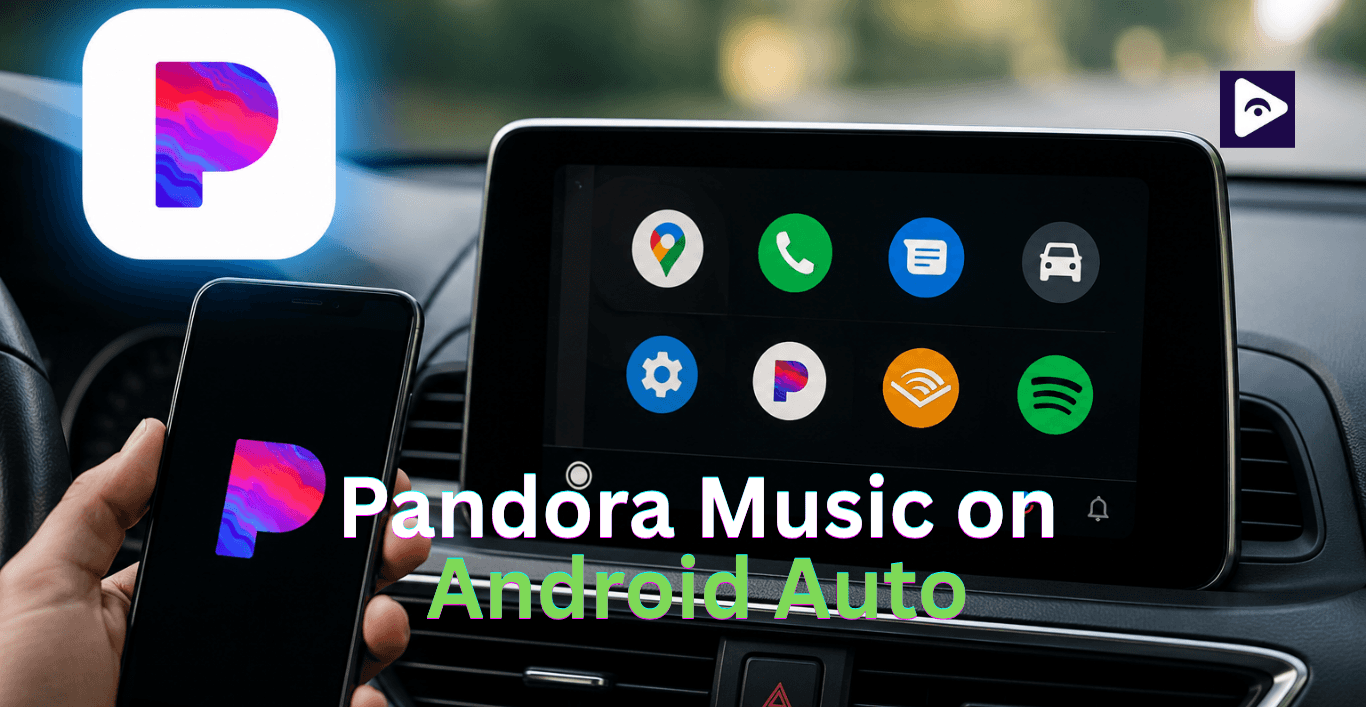
If you really like listening to music while you are driving, Pandora to work on Android Auto can completely change your driving experience. A lot of users still have problems with things like Pandora not showing up on Android Auto or they get errors when they try to connect or they have trouble with the sound or the app disappears after they update it. The good thing is that most of these problems are not that hard to fix, you just have to know where to look for the answers.
This guide will show you how to put Pandora on Android Auto one step at a time and everything that you need to know about Pandora.
What is Pandora on Android Auto?
Pandora is a popular music app that people like to use when they drive. This is because Pandora has stations that are just for each person and they play music all the time without stopping.
When both work together you can:
- Stream music hands free.
- Change stations using voice control.
- Skip tracks from the car screen.
- Listen without touching the phone constantly.
Many users prefer Pandora because it learns music taste over time. That makes long drives feel more personal and enjoyable.
How to Add Pandora to Android Auto
Setting up Pandora on Android Auto is usually simple. The problem is that many users miss one small step during setup.
Follow these steps carefully.
Step 1: Install Pandora App
Open Google Play Store and install the latest version of Pandora.
Older versions often fail to appear inside Android Auto.
After installation, open the app once on your phone. Log in to your account before connecting to the car.
This helps Android Auto recognize the app faster.
Step 2: Update Android Auto
Now check Android Auto updates.
Many connection issues happen because Android Auto itself is outdated.
Go to Play Store and update:
- Android Auto
- Google Play Services
- Pandora
Restart your phone after updating everything.
This small step fixes many hidden sync problems.
Step 3: Enable Pandora Inside Android Auto
This part is important.
Sometimes Pandora is installed correctly but disabled inside Android Auto settings.
To check:
- Open phone Settings.
- Tap Connected Devices.
- Select Android Auto.
- Open Customize Launcher.
You will now see supported apps.
Find Pandora and enable it.
If the app is unchecked it will never show on the car screen.
Many users searching “Pandora not showing on Android Auto” usually solve the issue right here.
Step 4: Connect Your Phone to the Car
Use a stable USB cable if possible.
Wireless Android Auto works too but cable connection is usually smoother during first setup.
After connecting:
- Wait for Android Auto to load.
- Open music section.
- Look for the Pandora icon.
Tap it and start playing music.
If the app still does not appear, move to the fixes section below.
Why Pandora is Not Showing on Android Auto
Here are the common causes.
Outdated App Version
Old app versions can disappear after Android updates.
Always keep Pandora updated.
App Permissions Disabled
Android sometimes blocks permissions automatically after updates or battery optimization changes.
Without proper permissions Pandora may fail to connect.
Launcher Settings Disabled
Many users accidentally disable apps inside Android Auto launcher customization.
Cache Problems
Temporary app files can become corrupted over time.
This affects app detection.
Weak USB Cable
Cheap or damaged USB cables create unstable Android Auto connections.
Sometimes the music app disconnects randomly because of this alone.
How to Fix Pandora Android Auto Problems
Now let’s fix the issues one by one.
Clear Pandora Cache
Go to:
Settings → Apps → Pandora → Storage → Clear Cache
Do the same for Android Auto.
Restart the phone afterward.
This refreshes the connection completely.
Check App Permissions
Open Pandora app settings and allow:
- Nearby devices
- Microphone
- Background activity
Without these permissions Android Auto may not load Pandora correctly.
Disable Battery Saver
Battery saver can stop music apps from running properly in the background.
Turn it off before connecting to Android Auto.
This helps prevent random music interruptions.
Reconnect Android Auto
Sometimes removing the car connection completely helps.
Delete your connected car from Android Auto settings and reconnect it again from the beginning.
This refreshes the system handshake.
Reinstall Everything
If nothing works, reinstall both apps.
Remove:
- Pandora
- Android Auto updates
Restart the phone and install them again.
This is often the final fix for stubborn connection problems.
How to Use Pandora with Fermata Auto
Some users want more flexibility than standard Android Auto allows. That is where Fermata Auto becomes useful.
Fermata Auto is a media app that extends Android Auto functions beyond normal playback options.
Many Android Auto users use it for advanced media control and streaming support.
Why People Use Fermata Auto with Pandora
There are situations where Pandora may not work directly inside Android Auto.
For example:
- Pandora disappears after updates.
- Regional restrictions affect support.
- Android Auto blocks app visibility.
- Custom Android setups fail to load Pandora.
In those situations users sometimes use Fermata Auto as an alternative access method.
How to Add Pandora with Fermata Auto
Step 1: Install Fermata Auto
Open the Fermata Auto installation page on your phone. If you are using a PC,
Scan the QR code with your phone.
Step 2: Open in Chrome
The page opens in Chrome browser.
Then tap the installation button.
Step 3: Confirm Installation
Tap Install when the popup appears.
You can also add the shortcut to your home screen.
Step 4: Open Fermata Auto
After installation, open Fermata Auto and complete the setup to use Pandora with Android Auto.
Full Guide : How to Install and Use Fermata Auto on Android Auto. (Step-by-Step Guide)
Real Issues & Fixes with Pandora Android Auto
Not every issue is technical. Some are daily usability problems that happen during real driving situations.
Here are common experiences users share.
Music Stops During Navigation
Sometimes navigation voice interrupts music and Pandora never resumes.
Usually clearing cache or disabling aggressive battery optimization fixes this.
Pandora Keeps Buffering
This happens mostly because of weak mobile signals.
Downloading stations offline helps during long trips.
App Freezes on Car Screen
This can happen after Android system updates. The phone and the car infotainment system will work properly after the restart.
Voice Commands Not Working
Google Assistant permissions may be disabled.
Enable microphone access for Android Auto and Pandora.
Best Alternatives to Pandora on Android Auto
Sometimes users simply want another option that works more smoothly.
Here are popular alternatives.
Spotify
Spotify remains one of the most stable music apps for Android Auto users.
Voice commands work well and playlists sync quickly.
YouTube Music
A strong choice for people already using Google services daily.
It integrates naturally with Android Auto.
Amazon Music
Good sound quality and reliable playback especially for Prime users.
Deezer
Simple interface and smooth car integration.
Works well for users who want lightweight streaming.
VLC Player
Perfect for offline music stored directly on the phone.
Very stable for long drives.
Explore more :
Watch YouTube on Android Auto | Watch Netflix on Android Auto
Tips for better Pandora Android Auto performance
A few small habits can prevent issues before they happen.
- Use the USB cables.
- Keep apps updated regularly.
- Restart your phone once every few days.
- Avoid opening too many apps while using Android Auto.
- Clear cache monthly to maintain smooth performance.
These small changes make a noticeable difference during daily use.
Is Pandora Android Auto Worth Using?
For drivers the answer is yes.
Pandora is great, for people who like radio-style music suggestions without having to look for playlists.
The app gets more tailored to you as you use it which makes long drives feel more relaxed and fun.
Once connected properly Android Auto gives easy access without distracting the driver.
That is why many users continue using Pandora daily even after trying other streaming platforms.
FAQs About Pandora Android Auto
- Why is Pandora not showing on Android Auto?
Usually the app is disabled in Android Auto launcher settings or needs an update.
- How do I add Pandora to Android Auto?
Install Pandora update Android Auto enable the app inside launcher settings and reconnect your phone.
- Does Pandora work with wireless Android Auto?
Yes. If your car supports wireless Android Auto Pandora should work normally.
- Why does Pandora keep disconnecting?
Weak USB cables, unstable wireless connection or battery optimization settings often cause disconnecting issues.
- Can I use Pandora with Fermata Auto?
Yes. Many users use Fermata Auto as an alternative method when Pandora fails to appear normally.
- Is Pandora free on Android Auto?
Yes. Pandora offers free streaming though premium features require a subscription.
- Why is Pandora audio not playing in my car?
Permissions or media output settings may be blocked on your phone.
- What is the best fix for Pandora Android Auto issues?
Updating apps, clearing cache and reconnecting Android Auto solves most problems.
- Which Android version works best with Pandora?
Recent Android versions generally work best because they support newer Android Auto updates.
- What are the best Pandora alternatives for Android Auto?
Spotify, YouTube Music, Amazon Music and Deezer are popular alternatives for drivers.
![How to Use Google Maps on Android Auto [Fermata Auto]](/content/images/size/w600/2026/07/google-map.png)