
How to Install and Use Fermata Auto on Android Auto. (Step-by-Step Guide)

Installing Fermata Auto on Android Auto is simple when you follow the correct steps. Since Fermata Auto is not available on the Google Play Store, you need to install it manually and enable a few Android Auto settings before it appears on your car screen.
You do not need root access to install Fermata Auto. The setup usually takes only a few minutes.
This guide shows the easiest installation method, manual APK installation, and the settings you need to enable if Fermata Auto does not appear in Android Auto.
Quick Installation Overview
Before installing Fermata Auto, make sure your phone meets these requirements.
The complete setup usually takes only a few minutes and does not require root access.
| Requirement | Details |
|---|---|
| Android Phone | Android 14, Android 15, or Android 16 recommended |
| Android Auto | Latest Android Auto version installed |
| Internet Connection | Required for downloading and completing installation |
| Browser | Google Chrome recommended |
| Car Connection | USB cable or Wireless Android Auto support required |
| Installation Time | Approximately 5 minutes |
| Root Access | Not required |
| Google Play Store | Not available — manual installation required |
Installation time: About 5 minutes
Root required: No
Play Store: Not available
How to Install Fermata Auto on Android Auto
Method 1: Our Recommendation
Step 1: Start the Installation
- Tap the "Fermata Auto Installation" button.
- If you're using a PC, a QR code will appear.
- Scan this code with your Android phone's camera to proceed on your phone.
- This will redirect you to the installation page on your phone.
Step 2: Open with Chrome
- Ensure you open a page in the Chrome browser.
- Tap the "Fermata Auto Installation" button on this page.
Step 3: Confirm Installation
- You'll see a pop up message, likely starting "Fermata Auto Android" or something similar.
- Tap the "Install" button within the pop up to begin the installation.
- If you prefer, you can also add a shortcut to your home screen by going to Chrome's settings menu and selecting "Add to Home."
Step 4: Wait for Installation
- The app will now install.
[This may take a few moments. Please wait patiently.]
Step 5: Find the App
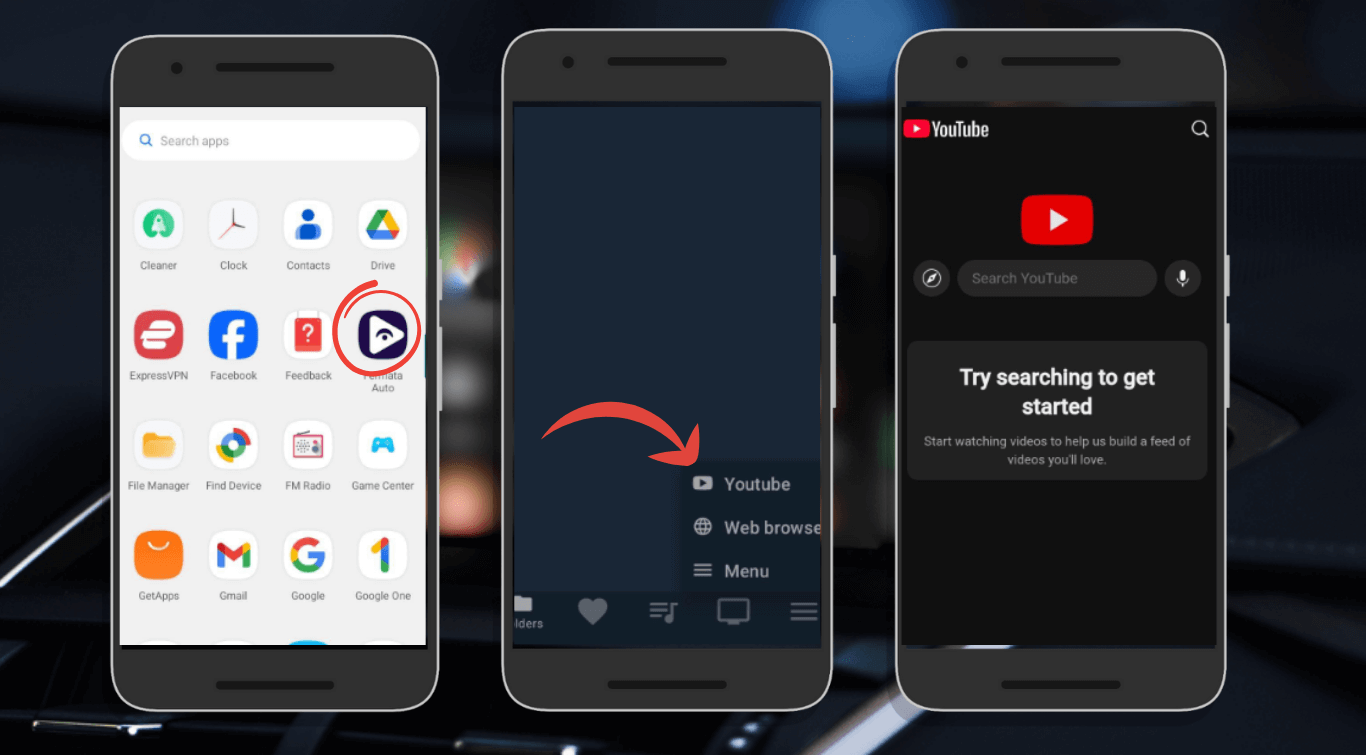
- Once the installation is complete, go to your phone's home screen or app drawer. You’ll see a list of compatible apps. You should see the Fermata Auto app icon.
Step 6: Open Fermata Auto
- Tap the app icon to launch Fermata Auto and then add your email address to activate WheelPal.
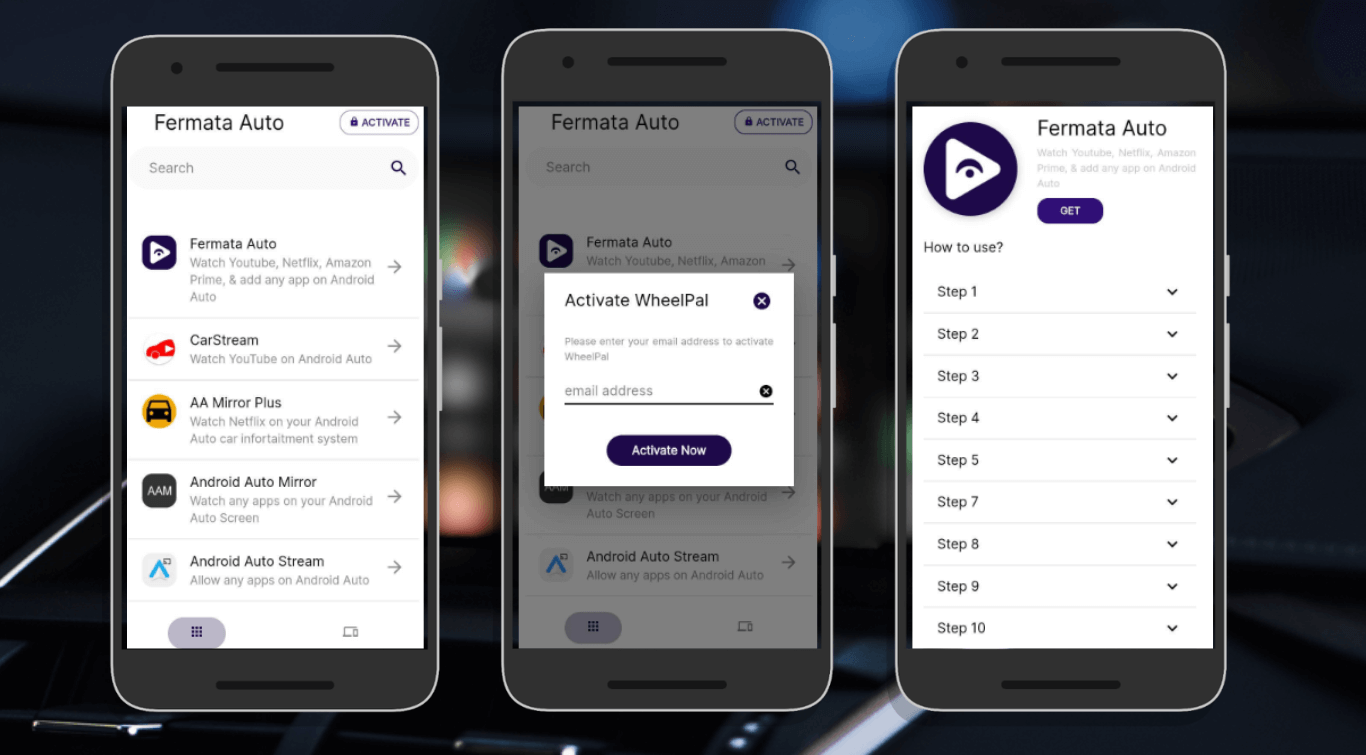
Step 7: Get button
You’ll be redirected to a page with a GET button and usage instructions.
Step 8: Start Streaming
You can now stream YouTube, Netflix, Prime, and more, or add any app manually.
If Fermata Auto Does Not Appear
Don't reinstall the app immediately.
In most cases, one Android Auto setting is missing.
Check these:
Enable Developer Mode
- Open Android Auto on your phone.
- Go to Settings.
- Tap the Android Auto version number multiple times.
- Developer Mode will activate.
Enable Unknown Sources
After enabling Developer Mode:
- Open Developer Settings.
- Find Unknown Sources.
- Turn it on.
Restart Android Auto and reconnect your phone.
Method 2:
You can install Fermata Auto manually by through GitHub. Follow these steps:
Step 1: Turn on your phone's unknown sources.
You must allow third party apps by turning on “Unknown Sources” before installing Fermata Auto.
- Go to Settings.
- Open the Security & Privacy section.
- Select "Install unknown apps."
- Choose your file manager or browser, then turn on permissions.
Step 2: Get the Fermata Auto APK.
- Go to a secure website, such as GitHub.
- Get the most recent version of the APK.
Step 3: Installing Fermata Auto and Fermata Control.
- After installing Fermata Auto APK, open it and select Install.
- Install Fermata Control as well, as it is required for Android Auto to work.
- After installation, select Settings > Apps and provide the required permissions.
Step 4: Turn on Android Auto's Developer Mode.
- Turn on Developer Mode on Android Auto to make Fermata Auto visible.
- Open the Android Auto app.
- Tap Version Number many times to activate Developer Mode
- Go to Developer Settings to enable Unknown Sources.
Step 5: Connect your phone to your car.
- Use wireless Android Auto or a USB cable.
- Open Android Auto on your car’s screen.
- You can now see Fermata Auto in the list of apps.
How to Use Fermata Auto on Android Auto
Fermata Auto has been installed, follow these instructions to start streaming.
Play Local Videos
- Launch Android Auto and Fermata Auto.
- Tap the icon for File Manager.
- Choose a video file from your phone.
- The video will start playing on your car’s screen.
Watch YouTube & Netflix
- Open Fermata Auto.
- Select YouTube or Netflix.
- Search your favorite videos.
- Press Play to start streaming!
- Changing Fermata Auto Configuration.
- Turn on full screen mode to improve your experience.
- Adjust playback speed as required.
- Add external subtitles for downloaded movies.
If you're thinking about using an Android Auto on tablet in your car, knowing how it differs from Android Auto can help you choose the setup that works best for your needs and budget.
Troubleshooting: Fermata Auto Not Working?
This list of typical issues & fixes,
1.Fermata Auto doesn't Display in Android Auto?
- Please ensure that Android Auto is in Developer Mode.
- Restart your phone and connect it to the car.
- Verify that Fermata Control has been installed.
2. Videos Play With a Black Screen?
- Give permissions for Storage & Display Overlay.
- Update to the most recent version of Fermata Auto.
- Try a different video file format.
3. Does Netflix/YouTube Not Load?
- Check your internet connection.
- Go to Settings and clear the Fermata Auto cache.
- To try again, restart Android Auto.
Fermata Auto Android 16 Compatibility
Fermata Auto works with newer Android versions, including Android 16.
However, after major Android updates, some users may need to:
- Re-enable permissions.
- Enable Unknown Sources again.
- Restart Android Auto.
- Update Fermata Auto.
Keeping both Android Auto and Fermata Auto updated helps avoid compatibility problems.
Explore more info : Fermata Auto Android 16 compatibility Guide
Is It Safe and Legal?
Fermata Auto is safe to use, however streaming movies while driving might be dangerous. Use Fermata Auto responsibly and always comply with local laws. Check your local regulations since some may prohibit it before using a video player while driving.
FAQs on Fermata Auto Installation
- How do I actually install Fermata Auto?
It’s not on the Play Store, Once you get the APK. you’ll need to download it manually, then just scan your phone to install apps from Fermata Auto site.
- Why won’t Fermata Auto install on my phone?
When your phone is blocking unknown apps, or the file didn’t download correctly. Trying again with a fresh download usually solves it.
- Do I need to change any settings before installing it?
Yes, just one. You need to allow installations from Fermata Auto app.
- Is it difficult to install Fermata Auto?
Not really. Once you’ve done it once, it only takes a couple of minutes next time.
- Why does the APK download but still not install?
This usually happens when the file is incomplete or not fully supported by your Android version. Sometimes downloading the latest version fixes it immediately.
- Do I need root access for any of this?
No need root access at all. It works on normal Android phones as long as permissions are set correctly.
- What should I do right after I install Fermata Auto?
After I install Fermata Auto I need to go into the Android Auto settings and make sure that Fermata Auto is turned on. If Fermata Auto is not enabled then it will not show up in my car.
- Can I get it from the Play Store?
No, you won’t find it there. It has to be installed manually using the Fermata Auto APK file.
- Why does it still not show up after installation?
This is usually just a settings issue. Either it’s not enabled in Android Auto or your phone needs a quick restart to refresh everything.
- Is it safe to install Fermata Auto?
Yes, as long as you download it from a trusted source. Like with any APK, just avoid random or unknown websites.
What To Read After Installing Fermata Auto
After completing the installation, these guides can help you get more from Fermata Auto: