How to Add Waze Navigation App on Android Auto?

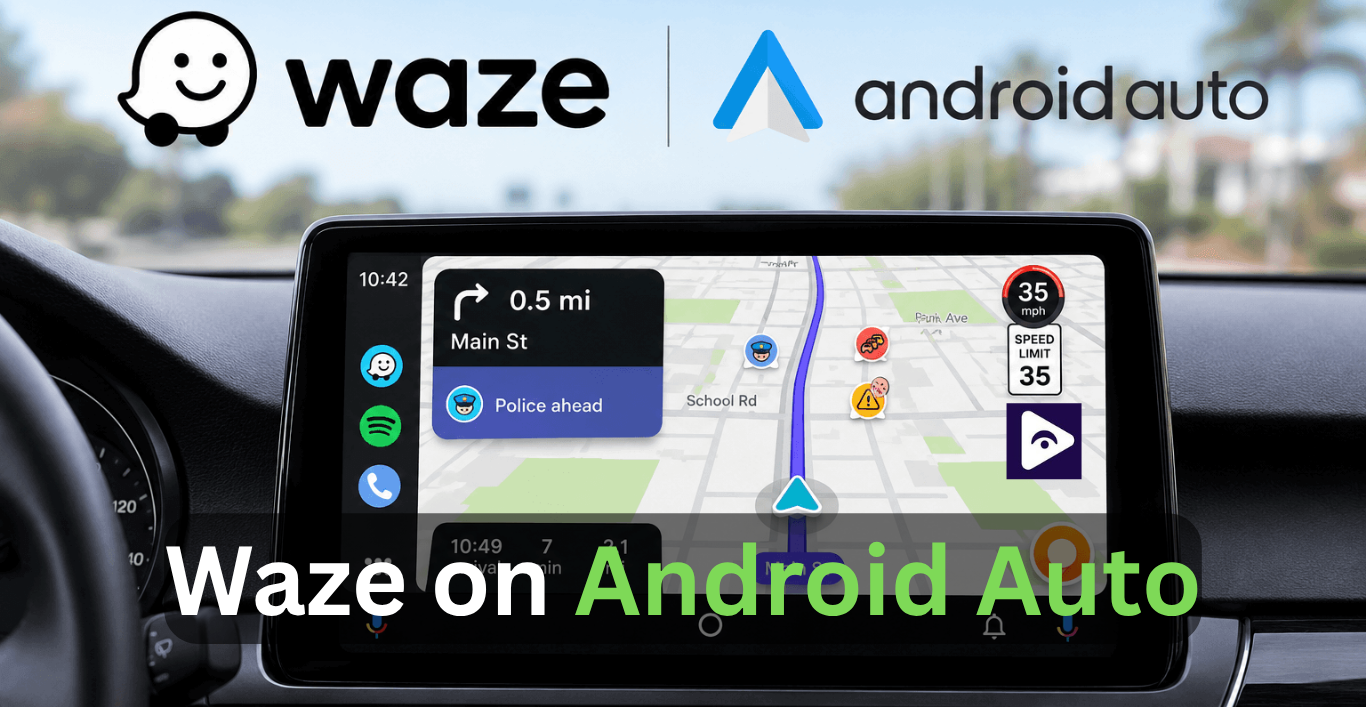
If you drive often you know how important a good navigation app. Waze is a best navigation apps.
That's why many Android Auto users choose Waze.
Waze is different from GPS apps that just show directions. Waze uses reports from millions of drivers to warn you about accidents, traffic jams, police alerts, road hazards, construction work and objects on the road.
This guide will explain everything about using Waze with Android Auto. You will learn how to get the experience while driving with Waze.
What is Waze?
Waze is a free navigation application that you can get on your Android and iPhone.
The Waze application uses data that drivers share to give you the latest traffic information. Waze does not just find the route the Waze application is always changing the routes based on what the roads are like right now.
Lots of people like using Waze on their Android devices because it does things.
- Real time traffic updates.
- Road hazard alerts.
- Police reports.
- Accident notifications.
- Speed camera warnings.
- Route optimization.
- Voice guided navigation.
- Community based reporting.
When you use Waze with Android Auto it is even easier to use. This is because Waze appears on the screen, in your car.
Why Use Waze on Android Auto?
Using Waze directly on a smartphone works well, but Android Auto provides a safer and more convenient experience.
Instead of looking down at your phone, navigation appears directly on your vehicle's display. This makes directions easier to follow while helping you keep your focus on the road.
Better Visibility
Large vehicle displays make maps easier to view compared to small phone screens.
Safer Driving
Voice commands reduce the need to interact with your phone while driving.
Faster Route Updates
Waze constantly analyzes traffic conditions and adjusts routes when necessary.
Real Time Alerts
Drivers receive notifications about:
- Accidents
- Traffic congestion
- Construction zones
- Road hazards
- Police reports
These alerts can help save time and reduce stress during daily travel.
How to Add Waze to Android Auto
Adding Waze to Android Auto is easy.
Step 1: Get Waze
Open Google Play Store.
Search & Install Waze app.
Open Waze Allow all permissions.
Make sure location access is on for navigation to work.
Step 2: Update Android Auto
Old software can cause problems.
Open Google Play Store.
Check if Android Auto needs an update.
Step 3: Connect Your Phone
Connect your phone with a USB cable
Wireless Android Auto, It depends on your car's features.
Step 4: Start Android Auto
Open Android Auto, on your cars screen.
Go to the app list.
Step 5: Open Waze
Choose Waze from the list.
Waze navigation will appear.
You have now added Waze to Android Auto.
How to Use Waze Android Auto
After installation, Waze becomes very easy to use.
Search for a Destination Tap the search button and enter:
- Home address
- Business name
- Landmark
- Street address
- Saved location
Waze will suggest available routes.
Start Navigation
Choose your preferred route and begin driving.
The app will provide spoken directions and visual guidance.
Using Voice Commands
Voice navigation makes driving safer.
Examples include:
- Navigate home
- Find a gas station
- Take me to the airport
- Find nearby parking
Google Assistant works seamlessly with Waze on Android Auto.
How to Search "Near Me" Using Waze
One helpful thing about Waze is that you can search for places.
When you're driving you often need to find services near you
Open. Tap on Search.
You can choose what you're looking for like:
- Restaurants
- Gas stations
- Hotels
- Coffee shops
- Parking
- Pharmacies
You can also tell Waze what you need using your voice:
"Find restaurants near me."
"Find gas stations near me."
"Find parking near me."
Waze will show you where these places are and figure out the way to get there.
This is super useful, on road trips. When you're driving in a new area.
Can You Use Waze and Fermata Auto Together?
Yes.
Many Android Auto users run both apps at the same time. However, they perform completely different functions.
Waze focuses on navigation.
Fermata Auto focuses on media playback.
Waze helps drivers reach their destination while Fermata Auto provides access to:
- Local videos
- Music files
- IPTV streams
- Podcasts
- Online media content
Because the apps serve different purposes, they work well together.
How to Use Waze with Fermata Auto
Waze is really helpful when you need to find your way and want to know about traffic.
Fermata Auto is great, for Android Auto users who want to listen to music or watch videos or even IPTV and other fun stuff.
You should do that first by following these steps.
Step 1: Install Fermata Auto
Just open the camera on your Android phone. Point it at the QR code. Scan this QR code
This will open the Fermata Auto installation page on your phone.
You can now install Fermata Auto from there.
Step 2: Open the Page in Chrome
Open the installation page using the Chrome browser.
Tap the Fermata Auto Installation button again.
Step 3: Confirm the Installation
A popup message will appear for installation permission.
Open Chrome settings.
Tap Add to Home Screen.
Confirm the shortcut creation.
Step 4: Wait for the Android installation
The Android installation process may take a moment to complete.
Wait until the Android installation is finished and the Android has completed installing the application.
Step 5: Find the Fermata Auto App
When you are done installing you should open the home screen or app drawer on your phone.
Locate the Fermata Auto icon.
Step 6: Open Fermata Auto
Tap the Fermata Auto icon. This will launch the application.
Enter your email address. You need to do this to activate WheelPal.
Step 7: Tap the GET Button
After you activate you will go to a page.
You need to tap the GET button.
Then follow the instructions on the screen to use it.
Step 8: Start Streaming
You can now access supported apps and services.
Many users stream:
- YouTube
- Netflix
- Prime Video
- IPTV services
- Local media files
You can also manually add compatible apps.
Step 9: Launch Waze
After setting up Fermata Auto, connect your phone to Android Auto.
Open Waze from the Android Auto app launcher.
Enter your destination and start navigation.
Step 10: Use Waze and Fermata Auto Together
Now you can use both applications simultaneously.
Waze will continue providing:
- Turn by turn navigation
- Live traffic alerts
- Road hazard notifications
- Route suggestions
At the same time, Fermata Auto can handle media playback.
How to Install and Use Fermata Auto on Android Auto. (Step-by-Step Guide)
Does Waze Affect Fermata Auto?
Most of the time the answer is no.
Waze and Fermata Auto are made to do things and they can work together just fine without any problems.
However, running both apps at the same time may increase:
Battery usage Mobile data usage Phone temperature during long trips
Modern Android devices usually handle both apps smoothly.
If you notice lag or slow performance, close unused background apps and make sure both Waze and Fermata Auto are updated to the latest version.
Android Auto vs Fermata Auto: Features and Waze Compatibility Comparison
| Feature | Android Auto | Fermata Auto |
|---|---|---|
| Main Purpose | Driving interface for supported apps | Media and entertainment application |
| Navigation Support | Yes | No |
| Waze Compatibility | Runs Waze directly | Works alongside Waze |
| Google Maps Support | Yes | Works alongside Google Maps |
| Music Streaming | Yes | Yes |
| Video Playback | No | Yes |
| IPTV Support | No | Yes |
| YouTube Support | No | Yes |
| Netflix Support | No | Yes |
| Local Video Files | No | Yes |
| Local Audio Files | Limited | Yes |
| Voice Commands | Yes | Depends on Android Auto |
| Best For | Navigation, calls, messages, and apps | Videos, IPTV, music, and media playback |
Android Auto and Waze Troubleshooting
Waze Is Not Showing on Android Auto
If Waze is not showing in the Android Auto launcher, make sure the Waze app is on your phone.
Also check that you have the version of Waze installed.
Try these steps:
- Update Waze from Google Play Store.
- Update Android Auto.
- Restart your phone.
- Reconnect Android Auto.
- Open Android Auto settings and make sure Waze is enabled in the launcher.
Waze Cannot Find Your Location
This usually happens when location permissions are disabled.
To fix it:
- Enable GPS on your phone.
- You need to let Waze access your location all the time.
- Also go to your Android settings.
- Turn on Precise Location.
- Restart the Waze app.
Android Auto Keeps Disconnecting
Frequent disconnects can be caused by:
- Damaged USB cables
- Weak wireless connections
- Outdated software
- Battery optimization settings
Try using a high-quality USB cable and disable battery restrictions for Waze and Android Auto.
Voice Commands Are Not Working
If Google Assistant cannot control Waze:
- Update Google Assistant.
- Check microphone permissions.
- Verify that Google Assistant is enabled.
- Restart Android Auto.
Waze Freezes or Crashes
If Waze becomes unresponsive:
- Clear the Waze cache.
- Update the app. Restart your phone.
- Reinstall Waze if the issue continues.
- Navigation Instructions Have No Sound
- Check your vehicle's media volume settings.
Also verify that:
- Phone volume is turned up.
- Navigation guidance is enabled in Waze settings.
- Bluetooth audio is connected correctly.
Does Waze Affect Android Auto Performance?
- Battery Usage
- Mobile Data Usage
- Device Temperature
- Running Waze with Fermata Auto
Waze Alternatives for Android Auto
There are other options you can use too.
Google Maps
Google Maps is still a popular navigation app.
Benefits include:
- Accurate directions
- Offline maps
- Business information
- Street View support
- Android Auto integration
Many users switch between Google Maps and Waze depending on their driving needs.
HERE WeGo
HERE WeGo is known for its strong offline navigation features.
They can still get info even when their phone isn't working properly.
Sygic GPS Navigation
Sygic offers:
- Offline maps
- Speed limit alerts
- Advanced driving assistance
- Android Auto compatibility
TomTom GO Navigation
TomTom GO provides premium navigation features and detailed traffic information.
It is popular among drivers who want a dedicated GPS experience.
Frequently Asked Questions on Waze
- Does Waze work with Android Auto?
Yes Waze works great with Android Auto. You can use Waze directly on Android Auto for navigation while driving.
- How do I add Waze to Android Auto?
To add Waze just. Install Waze, from the Play Store. Then connect your phone to Android Auto. Waze will show up on the Android Auto screen.
- Why is Waze not showing on Android Auto?
Usually it’s an update issue or the app is not enabled in Android Auto settings.
- Can I use Waze and Fermata Auto together?
Yes. Waze handles navigation and Fermata Auto handles media. Both work at the same time.
- Does Waze work with wireless Android Auto?
Yes. If your car supports wireless Android Auto, Waze works normally.
- Can I use Pandora with Waze?
Yes. Pandora plays music while Waze gives directions in the background.
- Does Waze use mobile data?
Yes, but it uses a normal amount just for maps and traffic updates.
- Can Waze find places near me?
Yes. You can easily search for fuel, food, parking, and other nearby places.
- Does Waze drain the battery?
A little, because GPS is always active. Most people charge their phone while driving.
- Which is better Waze or Google Maps?
Waze is better for live traffic. Google Maps is better for general navigation.
![How to Use Google Maps on Android Auto [Fermata Auto]](/content/images/size/w600/2026/07/google-map.png)