How to Add Sygic Navigation on Android Auto?

Have you ever used an app to navigate Google Maps?
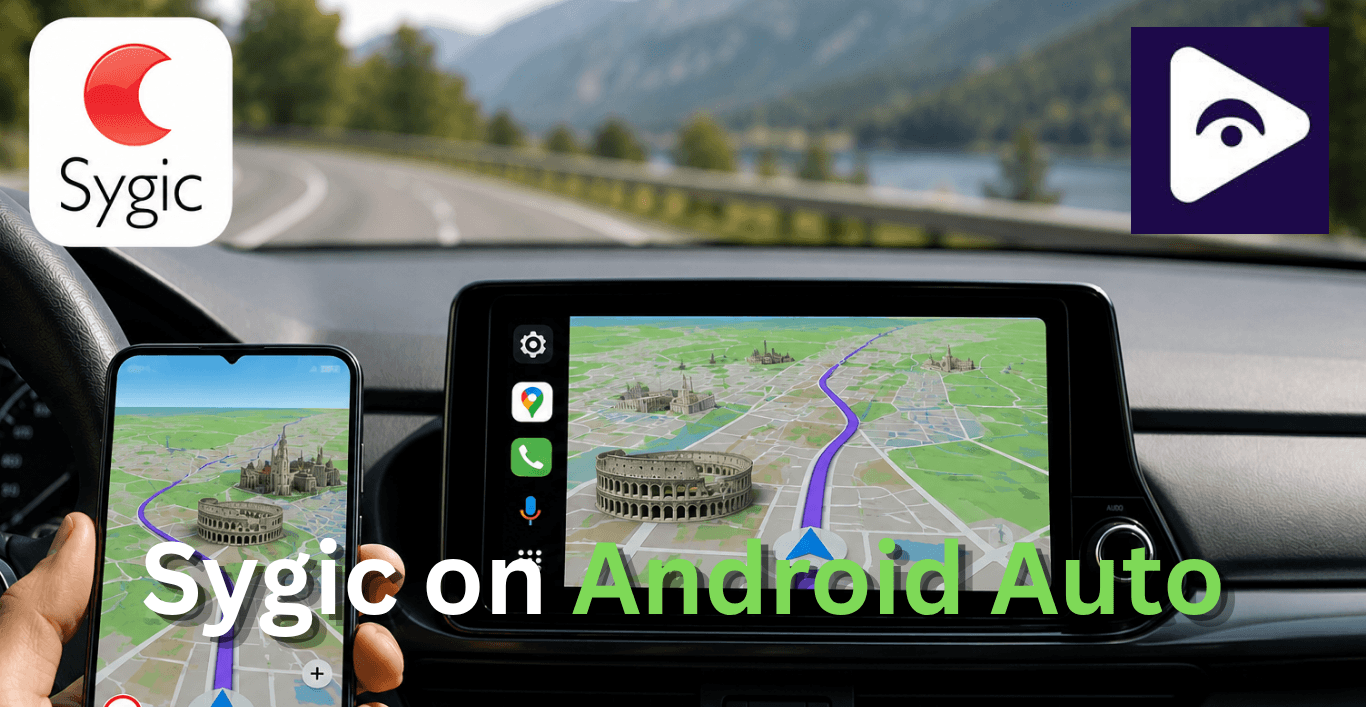
Lots of drivers prefer Sygic. The reason is that Sygic has offline maps. This is very helpful. The best part about Sygic is that it works well with Android Auto. The interface of Sygic is also very clean. It's gives you speed camera alerts and advanced navigation features.
This guide guide you everything about using Sygic Navigation with Android Auto. It does not matter if you have the Sygic or Sygic Premium the steps are easy. You can follow them. Start using Sygic Navigation with Android Auto.
What Is Sygic Navigation?
Sygic is an offline GPS navigation app.
It is different from navigation apps that require you to be online. Sygic lets you download maps to your phone. This means you can use Sygic even when your mobile signal is weak or gone.
You can still navigate with Sygic without the internet. Sygic keeps maps for use offline.
Sygic app features
- Turn by turn navigation
- Voice guidance
- Offline maps
- Real time traffic information
- Lane assistance
- Route planning
- Speed limit alerts
- Premium driving features
Does Sygic Work with Android Auto?
Yes.
Sygic officially supports Android Auto and works on most compatible Android devices.
After installation the app can appear directly inside Android Auto. This allows drivers to launch navigation from the vehicle display instead of constantly interacting with their phones.
The interface is optimized for larger screens making directions easier to follow while driving.
As long as Android Auto and Sygic are updated the setup process is usually straightforward.
Why Drivers Prefer Sygic Android Auto
Every driver has different navigation needs.
Some people want better offline support. Others want advanced driving tools or an alternative to Google Maps.
Sygic offers several advantages that make it attractive to Android Auto users.
Reliable Offline Navigation
One of the benefits of this is that you can download maps before you go on a trip.
Imagine you are driving through an area and the mobile coverage just stops working. Many online navigation apps struggle in those situations.
With Sygic downloaded maps remain available and navigation continues normally.
Easy to Read Maps
The layout is clean and simple.
You can easily see information like speed limits, lane guidance and upcoming turns, at a glance.
Helpful Driving Features
Sygic includes features designed specifically for drivers such as:
- Speed camera alerts
- Traffic updates
- Lane guidance
- Alternative route suggestions
- Route planning tools
The features of this thing are really helpful for commuting. It makes my daily commute much easier.
Better for Long Trips
Road trips and offline maps are a combination because road trips often take you to areas, with weak signal coverage. Offline maps help you on road trips.
What You Need Before Getting Started
This is important because old versions of Sygic may not work well with Android Auto. So it is an idea to have the latest Sygic version.
Update Android Auto
Many compatibility issues happen because Android Auto is outdated.
Keeping it updated helps prevent connection problems.
Enable Location Services
Navigation apps need access to GPS and location services.
Make sure these settings are enabled before using Sygic.
Check Device Compatibility
Modern Android phones work really well with Android Auto.
If your phone has an Android version, it should be okay.
Use a Good USB Cable
If you use wired Android Auto choose a high quality data cable.
A poor cable can cause connection failures even if it charges the phone normally.
How to Add Sygic Navigation on Android Auto
Step 1: Download and Install Sygic
Download Sygic app from the Google Play Store.
The app may request access to
- Location
- Storage
- Notifications
Grant the required permissions to Sygic to ensure Sygic operates properly.
Step 2: Download Offline Maps
Before connecting to Android Auto download the maps you need.
Choose your country or region and allow the download to complete.
This ensures navigation remains available even without internet access.
Step 3: Update Android Auto
Check for Android Auto updates in the Google Play Store.
Installing the version of Android Auto helps avoid compatibility issues with Android Auto.
Step 4: Connect Your Phone
Connect your Android phone to your vehicle using either:
USB connection
Wireless Android Auto
Wait for Android Auto to finish loading.
Step 5: Open the Navigation
Menu Tap the navigation icon on the Android Auto screen.
A list of supported navigation apps should appear.
Step 6: Launch Sygic
Select Sygic from the available apps.
The app should open directly on the vehicle display.
You can now enter destinations, start navigation and use Android Auto Sygic Navigation normally.
Using Sygic during daily driving
Many people think navigation apps are useful only during long journeys.
In reality they can help every day.
Traffic patterns change constantly. Roads become congested. Construction projects create delays.
Sygic can tell you a way to get there when the traffic conditions change.
Why Sygic is great for Road Trips
Road trips are where Sygic often stands out.
Long drives frequently take you through areas with weak mobile coverage. Losing navigation during those moments can be frustrating.
Because maps are stored directly on the phone Sygic continues working even when network coverage disappears.
Another advantage is reduced data usage.
Since maps are downloaded beforehand the app does not constantly stream large amounts of map data.
This is especially useful for travelers exploring unfamiliar regions.
Sygic Truck Android Auto
Professional drivers often search for Sygic Truck Android Auto because standard navigation apps are not always suitable for commercial vehicles.
Sygic Truck Navigation helps solve these problems by allowing drivers to enter vehicle information such as:
- Vehicle height
- Vehicle width
- Vehicle length
- Vehicle weight
The app then calculates routes that are more appropriate for the vehicle.
For delivery drivers, transport operators and trucking companies this feature can be extremely valuable.
Sygic vs Google Maps on Android Auto
| Feature | Sygic | Google Maps |
|---|---|---|
| Android Auto Support | Yes | Yes |
| Offline Maps | Full offline navigation | Limited offline support |
| Real-Time Traffic | Available | Excellent |
| Lane Guidance | Advanced | Available |
| Speed Limit Alerts | Yes | Region dependent |
| Speed Camera Alerts | Available | Limited by region |
| Truck Navigation | Sygic Truck available | Not designed for trucks |
| Data Usage | Low after map download | Higher during navigation |
| Best For | Road trips, offline driving, truck routes | Daily commuting, local navigation |
| Price | Free + Premium features | Free |
Using Sygic with Fermata Auto
Many Android Auto enthusiasts use both Sygic and Fermata Auto.
Although they serve different purposes they can complement each other very well.
Sygic handles navigation while Fermata Auto focuses on media playback.
This allows drivers to navigate using Sygic while listening to music podcasts or locally stored media through Fermata Auto.
For long distance drivers this combination creates a more complete Android Auto experience.
Benefits of Using Sygic and Fermata Auto Together
- Navigation through Sygic.
- Offline maps.
- Media playback through Fermata Auto.
- Support for local media files.
- More customization options.
- Better entertainment during long drives.
Most users experience no issues running both apps as long as their device has enough resources available.
Sygic with Google Maps both are excellent navigation tools but they focus on different strengths.
Sygic with Android Auto vs Sygic with Fermata Auto
| Feature | Sygic on Android Auto | Sygic with Fermata Auto |
|---|---|---|
| Main Purpose | Navigation and route guidance | Navigation plus media playback |
| Turn-by-Turn Navigation | Supported | Supported |
| Offline Maps | Available | Available |
| Traffic Updates | Available | Available |
| Voice Guidance | Yes | Yes |
| Music Playback | Limited to Android Auto apps | Enhanced media playback options |
| Local Audio Files | Limited support | Supported |
| Local Video Playback | Not supported | Supported through Fermata Auto |
| Customization | Basic | More flexible |
| Ease of Setup | Easy | Moderate |
| Best For | Daily driving and navigation | Road trips and entertainment focused setups |
Best Sygic Navigation App Alternatives
- Waze
People really like using Waze because it's very helpful to drivers.
Waze reports things like accidents and road closures and police activity and hazards, on Waze.
Best for:
- Daily commuting
- Avoiding traffic
- Real time road updates
- Google Maps
Google Maps is the navigation app that people use the most with Android Auto. It gives you directions and it also tells you about the traffic.
You can find business listings. Google Maps will even suggest the best route for you.
Android users already have Google Maps on their phone.
Best for:
- Everyday navigation
- Finding local businesses
- Travel planning
- HERE WeGo
HERE WeGo is a strong choice for users who want offline navigation similar to Sygic.
Maps can be downloaded for entire regions making it useful for travel and areas with weak mobile coverage.
Best for:
- Offline maps
- International travel
- Reducing mobile data usage
- TomTom GO Navigation
TomTom has been a known name in navigation for a long time.
The app gives you maps that work without internet updates on traffic, warnings, about speed cameras and tools to plan your route.
Many drivers think of it as a high end option compared to Sygic.
Best for:
- Long distance driving
- Premium navigation features
- Offline routing
Common Problems and Solutions
Sygic Is Not Showing on Android Auto
Update both Android Auto and Sygic.
Then restart your phone and reconnect.
GPS is Not Working
Verify that location services are turned on and you have given the required permissions.
Black Screen
Issue Restart Android Auto and check for software updates.
Frequent Disconnects
Try a different USB cable.
This simple step solves many Android Auto problems.
App Crashes
Clear the cache for both Android Auto and Sygic then restart your device.
Best Settings for Sygic Android Auto
A few small adjustments can improve your experience.
Enable Voice Guidance
Voice instructions help you focus on driving. You do not have to look at the screen.
Download Maps Before Travel
This provides reliable navigation regardless of signal strength.
Keep Maps Updated
Roads change frequently and updated maps improve accuracy.
Turn On Traffic Information
Traffic updates are really helpful because they let us know if there are any delays on the road.
Enable Speed Limit Alerts
These alerts are really helpful, for drivers because they need to know when the speed limits change.
Frequently Asked Questions on Sygic
- Does Sygic work with Android Auto?
Yes, Sygic works with Android Auto. Sygic supports Android Auto on devices that're compatible with Android Auto.
- How do I add Sygic to Android Auto?
To add Sygic to Android Auto you need to install the Sygic update. Then you need to connect your phone to Android Auto and launch Sygic from the navigation menu on Android Auto.
- Why is Sygic not showing on Android Auto?
Sygic may not show on Android Auto because the software is outdated. It could also be that Sygic is missing some permissions. Sometimes the issue is, with the setup. You need to check these things to fix it.
- Can I use Sygic offline on Android Auto?
Yes. Download maps before your trip and navigation will continue without internet access.
- Does Sygic work with wireless Android Auto?
Yes. Wireless Android Auto supports Sygic on compatible devices and vehicles.
- Is Sygic better than Google Maps?
It depends on your needs. Sygic is especially strong for offline navigation and truck routing.
- Can truck drivers use Sygic on Android Auto?
Yes. Sygic Truck Android Auto is designed specifically for commercial vehicles.
- Can I use Sygic and Fermata Auto together?
Yes. Sygic handles navigation while Fermata Auto provides media playback features.
- Does Sygic require a subscription?
Basic navigation is available for free while some advanced features require premium access.
- Does Sygic use a lot of mobile data?
No. Downloaded maps significantly reduce data usage during navigation.
![How to Use Google Maps on Android Auto [Fermata Auto]](/content/images/size/w600/2026/07/google-map.png)