How to Add Petal Maps on Android Auto

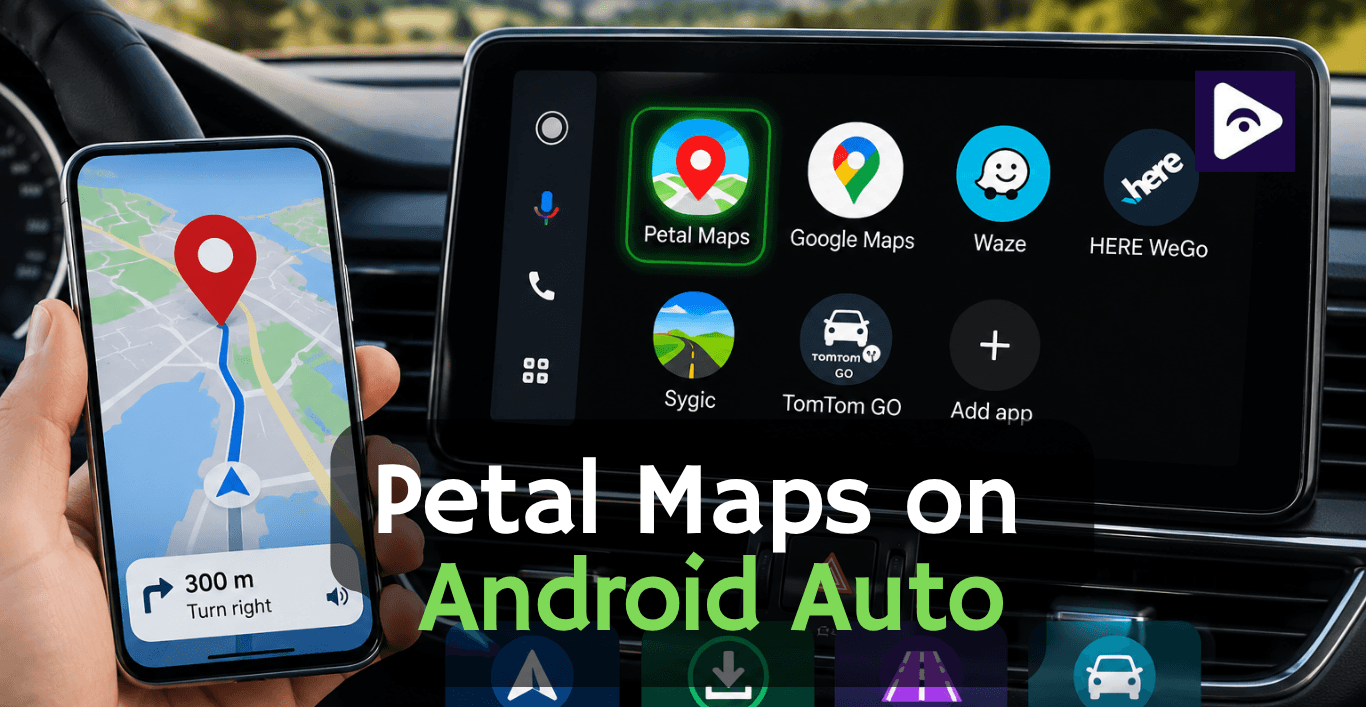
If you looked for Petal Maps Android Auto you probably want to know one thing: Can you use Petal Maps on your car's screen?
Petal Maps is an app that gives you directions, tells you which lane to be in, suggests routes and has maps that work offline along with features that show you traffic information.
The issue is that Petal Maps does not show up like an Android Auto navigation app when you use Android Auto in your car.
This guide shows the practical way to try Petal Maps on Android Auto using Fermata Auto, using the real Fermata Auto installation process. We will also cover the best alternatives if you decide Petal Maps is not worth the extra setup.
Can You Use Petal Maps on Android Auto?
Yes. but Petal Maps does not work like a normal Android Auto navigation app.
This is the first thing to understand.
You cannot usually open Android Auto settings, find Petal Maps, and simply turn it on. That is why many users search for petal maps on android auto and get confused when the app is missing.
The practical solution is to use Fermata Auto.
The setup works like this:
Install Fermata Auto → activate WheelPal → tap GET → add Petal Maps manually.
After that, Petal Maps can be accessed through the Fermata Auto setup.
This is useful if you already prefer Petal Maps and do not want to switch to another navigation app just because it is easier to find in Android Auto.
What Do You Need?
Before starting, check the following:
- An Android phone.
- Petal Maps installed on the phone.
- Android Auto working with your car.
- Chrome browser.
- Fermata Auto.
- An email address for WheelPal activation.
First, test Petal Maps on your phone.
Open the app and search for a location.
If Petal Maps cannot find your location or the app does not open correctly on the phone, fix that problem first. Adding it to Android Auto will not fix a phone level problem.
How to Install Fermata Auto for Petal Maps
The Fermata Auto installation process is simple when the steps are followed in the correct order.
Step 1: Start the Fermata Auto Installation
Tap the “Fermata Auto Installation” button.
Are you using a PC?
A QR code will appear.
Open your Android phone's camera and scan the QR code.
The QR code will take you to the Fermata Auto installation page on your phone.
Using the phone directly? Continue from the installation page on your Android device.
Step 2: Open the Page in Chrome
Make sure the installation page is open in Chrome.
This step matters.
Tap the “Fermata Auto Installation” button on the Chrome page.
The installation process will now continue on your Android phone.
Step 3: Confirm the Installation
A pop-up message will appear.
The message may start with “Fermata Auto Android” or show similar installation text.
Tap “Install.”
The Fermata Auto installation will begin.
Want quick access to the page later?
Open the Chrome menu and choose “Add to Home.”
Step 4: Wait for the Installation
Now wait for the installation to finish.
This may take a few moments.
Do not repeatedly tap the installation button while waiting.
Just allow the installation to complete.
Step 5: Find Fermata Auto
Once the installation is finished, check your phone's home screen or app drawer.
Look for the Fermata Auto app icon.
If it is not on the home screen, open the full app drawer and search for it.
Step 6: Open Fermata Auto
Tap the Fermata Auto app icon.
You will be asked to add your email address to activate WheelPal.
Enter your email address and complete the activation step.
This is a normal part of the Fermata Auto setup.
Step 7: Tap the GET Button
After WheelPal activation, you will be redirected to another page.
You will see a GET button and usage instructions.
Tap GET.
This takes you to the next part of the Fermata Auto setup.
Step 8: Start Using Fermata Auto
Fermata Auto is now ready to use.
You can stream content such as YouTube, Netflix, and Prime, depending on your setup.
You can also add apps manually.
This manual app option is the important part for adding Petal Maps.
Feramata Auto complete installation Guide
Petal Maps Features
Turn by turn navigation
Petal Maps provides navigation directions. This is the main reason most people want petal maps and android auto support.
Lane guidance
Lane guidance is really useful when you are getting close to a junction or a road, with many lanes.
Check the navigation screen before starting the trip so you know the route is working properly.
Offline maps
Offline maps are useful when mobile data is weak or unavailable.
Route planning
Petal Maps can help plan routes and find different ways to reach a destination.
This is useful when the normal route is busy or you want to check another option.
Nearby places
You can also use Petal Maps to find places that're near you.
This is really helpful when you need to find a gas station or a restaurant or some other place when you're on a trip.
Petal Maps Not Working on Android Auto? Try These Fixes
Petal Maps is not showing
- Open Petal Maps directly on your Android phone.
- Does it work? If yes, open Fermata Auto and check the manual app addition option again.
- Make sure the installed Petal Maps app is being added.
Fermata Auto installation is not starting
- Check that the installation page is open in Chrome.
- If you started on a PC, scan the QR code with your Android phone and continue the process on the phone.
Fermata Auto is missing from the phone
- Check the full app drawer.
- The app may not automatically appear on the main home screen. If the installation is finished, restart the phone and check the app list again.
WheelPal is not activated.
- Open Fermata Auto and add your email address. WheelPal activation is part of the Fermata Auto setup. After activation, continue to the next page.
The GET button is not showing
- Make sure the WheelPal activation step has been completed.
- The GET page comes after the activation process.
- If the setup was closed before activation finished, open Fermata Auto again and complete the process.
Petal Maps cannot find your location
- Test the app on the phone.
- Check the location permission for Petal Maps.
- Also make sure location services are turned on. If the map cannot find your location on the phone, the issue is not caused by Android Auto.
Petal Maps is not compatible with the phone
- Petal Maps support can depend on the phone and app version.
- Always check that the app works properly on the Android phone before trying to use it with Fermata Auto.
Best Petal Maps Alternatives for Android Auto
Petal Maps is not the only option.
If the petal maps fermata auto setup feels like too much work, these alternatives are worth checking.
Google Maps - Best for Most Drivers
Google Maps is the easiest option for Android Auto.
There is no extra Fermata Auto setup.
Connect the phone, open Android Auto, and use Google Maps.
Best for: simple everyday navigation.
Waze - Best for Traffic
Waze is a popular choice for drivers who want traffic updates and road information.
It is a good option for daily commuters.
Best for: traffic and busy roads.
HERE WeGo - Best for Offline
Maps HERE WeGo is worth considering if offline navigation is important.
Download the required map data before the trip and use it when internet access is limited.
Best for: offline navigation.
Sygic - Best for GPS Features
Sygic is focused on GPS navigation and route planning.
It may suit drivers who want a dedicated navigation app rather than a general map service.
Best for: GPS-focused navigation.
TomTom GO - Best for Dedicated Navigation
TomTom GO is another option for drivers who prefer a traditional GPS navigation experience.
Best for: regular driving and long-distance routes.
Petal Maps vs Other Android Auto Navigation Apps
| Navigation App | Android Auto Setup | Best For |
|---|---|---|
| Petal Maps | Fermata Auto setup | Petal Maps users |
| Google Maps | Easy | Everyday driving |
| Waze | Easy | Live traffic updates |
| HERE WeGo | App setup | Offline maps |
| Sygic | App setup | GPS navigation |
| TomTom GO | App setup | Dedicated navigation |
Frequently Asked Questions on Petal Maps
- Can Petal Maps work on Android Auto?
Yes. You can try using Petal Maps through Fermata Auto by installing the app, activating WheelPal, tapping GET, and manually adding Petal Maps.
- How do I add Petal Maps to Android Auto?
Install Fermata Auto and complete the setup. After WheelPal activation, tap GET and use the manual app option to add Petal Maps.
- Do I need Fermata Auto for Petal Maps Android Auto?
The method explained in this guide uses Fermata Auto to add Petal Maps manually.
- Why is Petal Maps not showing in Android Auto?
Petal Maps does not appear like a normal Android Auto navigation app. That is why you need the Fermata Auto method explained above.
- What is the GET button in Fermata Auto?
The GET button appears after the WheelPal activation step. Tap it to continue using the Fermata Auto setup.
- Do I need Chrome to install Fermata Auto?
Yes, the installation process should be opened in the Chrome browser. Tap the Fermata Auto Installation button from the Chrome page.
- Can I install Fermata Auto using a PC?
Yes. A QR code appears on the PC. Scan it with your Android phone and continue the installation on the phone.
- What is the best alternative to Petal Maps on Android Auto?
Google Maps is the easiest overall alternative. Waze is a good option for traffic, while HERE WeGo is worth considering for offline maps.
- Is Google Maps better than Petal Maps for Android Auto?
Google Maps is easier because it does not require the extra Fermata Auto setup. Petal Maps may be better for users who already prefer its navigation experience.
- Why is Petal Maps not working with Fermata Auto?
First, check that Petal Maps works on your phone. Then confirm that Fermata Auto is installed, WheelPal is activated, and Petal Maps has been added manually through the Fermata Auto setup.
![How to Use Google Maps on Android Auto [Fermata Auto]](/content/images/size/w600/2026/07/google-map.png)