How to Add TomTom GO Navigation on Android Auto?

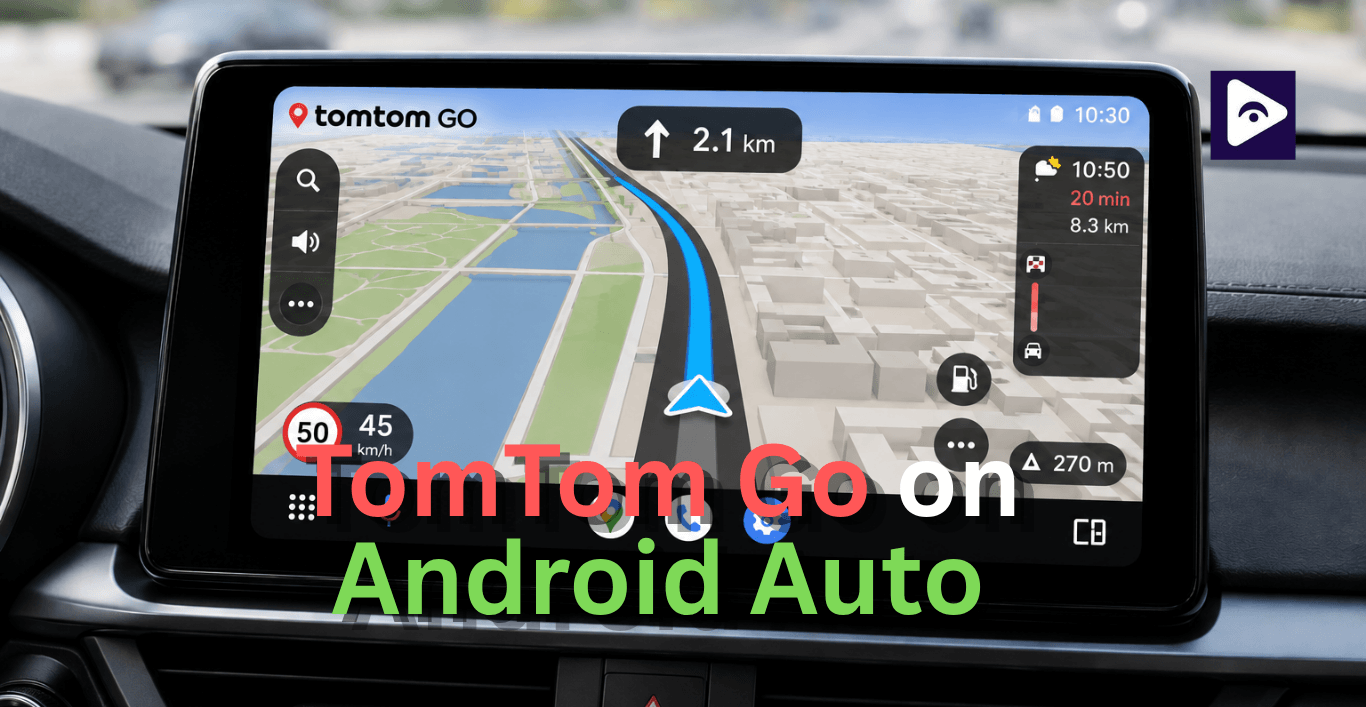
TomTom GO Navigation is used by a lot of people because TomTom GO Navigation has directions, offline maps and a clean driving interface that makes it easy to use TomTom GO Navigation.
Many users try to connect it through Android Auto but face confusion when the app does not appear or work correctly. The process is not always straightforward since Android Auto controls which apps are allowed on the car screen. This guide explains everything in simple terms. You will learn how to add TomTom GO Navigation on Android Auto, why it may not show, how to fix problems, alternatives you can try and how it compares with Fermata Auto in real usage.
TomTom GO Navigation on Android Auto
TomTom GO Navigation is a GPS app made for drivers who want steady navigation. When you connect it with Android Auto it becomes a part of your car's entertainment system. This means you do not have to use your phone.
You get directions on your car's screen. The TomTom GO Navigation app works with your car's display. It helps you navigate while driving.
The main goal is safety. You can focus on driving while TomTom handles route guidance, traffic updates, and lane assistance.
Why Some Drivers Prefer TomTom Over Google Maps
One reason many drivers switch from other navigation apps is the feature set offered by TomTom GO.
- Offline Maps
Downloaded maps continue working even when mobile coverage disappears.
- Traffic Updates
Live traffic information helps avoid delays and congestion.
- Lane Guidance
Clear lane instructions make navigating unfamiliar roads easier.
- Speed Camera Alerts
Drivers receive warnings about upcoming speed camera locations.
- Route Planning
Alternative routes are really helpful for drivers. They get to decide what works best for them when it comes to distance, traffic and travel time.
Before You Start (Important Requirements)
Before trying to use TomTom Go Android Auto, check these conditions carefully:
- Android 10 or higher.
- Updated Android Auto system.
- Latest TomTom GO Navigation installed.
- GPS set to high accuracy mode.
- Stable USB or wireless connection.
- Required permissions enabled.
If any of these are missing, TomTom Go Android may not appear on your car screen.
How to Add TomTom GO Navigation on Android Auto (Step-by-Step)
Step 1: Update All Apps
Start with updates:
- TomTom GO Navigation.
- Android Auto.
- Google Play Services.
Old versions are the most common reason TomTom Go for android auto fails.
Step 2: Enable Android Auto Settings
Open Android Auto settings on your phone:
- Enable “Add new apps to Android Auto”.
- Allow location permission (always allow).
- Enable background activity.
- Disable battery restrictions.
This ensures tom tom go android can run properly.
Step 3: Connect Phone to Car
Now connect your phone:
Use USB cable for stable connection
Or wireless Android Auto if supported.
Once connected, Android Auto should launch automatically.
Step 4: Open TomTom GO in Android Auto
On your car screen:
- Open app drawer in Android Auto.
- Look for TomTom GO Navigation to launch.
If visible, Android Auto TomTom Go is successfully activated.
Step 5: Set Navigation Preference
Inside Android Auto settings:
- Select default navigation app.
- Choose TomTom GO Navigation.
Now TomTom becomes your main routing system.
Common Issues with TomTom Android Auto
Many users think TomTom is broken, but most issues are system based.
Issue 1: TomTom GO Not Showing
This is the most reported problem.
Causes:
- App not updated.
- Android Auto cache conflict.
- Missing permissions.
- Device compatibility limitation.
Fix:
- Update both apps.
- Restart phone.
- Clear Android Auto cache.
- Reconnect USB.
Issue 2: App Works on Phone but Not on Car Screen
Sometimes TomTom runs normally on a phone but not on Android Auto.
Fix:
- Remove battery optimization.
- Reinstall Android Auto.
- Reconnect device.
Issue 3: GPS Not Accurate
Navigation may show the wrong location or delay.
Fix:
- Enable high accuracy GPS.
- Allow background location.
- Restart location services.
Issue 4: Android Auto Crashes When Opening TomTom
Fix:
- Update system apps.
- Clear cache.
- Reinstall TomTom GO.
- Use original USB cable.
Issue 5: Voice Navigation Not Working
Fix:
- Enable microphone permission.
- Check Google Assistant.
- Update voice settings.
Issue 6: Slow Performance or Lag
Fix:
- Download offline maps.
- Free storage space.
- Close background apps.
Issue 7: App Disconnects Frequently
Fix:
- Replace USB cable.
- Avoid low quality adapters.
- Reset Android Auto connection.
TomTom GO Alternatives for Android Auto
If TomTom Go Android Auto is not working properly, you can try these alternatives.
Google Maps
- Real time traffic updates.
- Deep Android Auto integration.
- Requires internet.
- Best for city driving.
Waze
- Community based alerts.
- Accident and police warnings.
- Fast rerouting system.
Sygic
- GPS Navigation Strong offline maps.
- Similar interface to TomTom.
- Premium features available.
HERE WeGo
- Simple navigation system.
- Lightweight app.
- Offline support.
Magic Earth
- Privacy focused navigation.
- Offline and online hybrid maps.
- Clean interface.
Each app has strengths, but TomTom Go Android is still preferred for stability and consistent routing.
TomTom GO vs Google Maps on Android Auto
| Feature | TomTom GO Navigation | Google Maps |
|---|---|---|
| Android Auto Support | Fully Supported | Fully Supported |
| Offline Maps | Excellent Offline Navigation | Available but More Limited |
| Real Time Traffic Updates | Accurate Traffic Data | Industry Leading Traffic Data |
| Speed Camera Alerts | Included | Limited by Region |
| Lane Guidance | Advanced | Available |
| Route Planning | Strong Focus on Drivers | Fast and Easy |
| Points of Interest | Good | Excellent |
| Business Listings | Basic | Extensive Google Database |
| Driving Experience | Navigation-Focused | General Purpose Navigation |
| Subscription Required | Premium Features Require Subscription | Free |
| Best For | Drivers Who Want Advanced Navigation and Offline Maps | Everyday Navigation and Local Searches |
TomTom GO with Fermata Auto
Fermata Auto is different. It is not a navigation app. Instead, it focuses on media and entertainment features.
Many users install Fermata Auto because it can provide features that standard Android Auto does not offer.
With Fermata Auto, you can access:
- Local video files
- IPTV streams
- Web media content
- Additional media playback options
TomTom GO still handles navigation while Fermata Auto adds extra entertainment features to your Android Auto experience.
| Feature | TomTom GO on Android Auto | TomTom GO with Fermata Auto |
|---|---|---|
| Navigation | Yes | Yes |
| Offline Maps | Yes | Yes |
| Traffic Updates | Yes | Yes |
| Voice Guidance | Yes | Yes |
| Route Planning | Yes | Yes |
| Official Android Auto Support | Full | Partial |
| Video Playback | No | Yes |
| IPTV Streaming | No | Yes |
| Local Media Files | No | Yes |
| Setup Difficulty | Easy | Moderate |
| Best For | Navigation Only | Navigation + Entertainment |
Frequently Asked Questions on TomTom Go
- Does TomTom GO work with Android Auto?
Yes, it works when fully updated.
- Why is TomTom not visible on Android Auto?
Usually due to permissions or outdated apps.
- Can I use TomTom offline?
Yes, offline maps work after download.
- Is TomTom better than Google Maps?
Depends on usage. TomTom is better for offline stability.
- Does Fermata Auto support TomTom?
Yes. TomTom works with Fermata Auto.
- Why does TomTom crash on Android Auto?
Usually due to system or cache issues.
- Can I set TomTom as default navigation?
Yes, from Android Auto settings.
- Why is TomTom slow?
Low storage or missing offline data.
- Is TomTom GO free?
The basic version is free, full features are paid.
- What is the best alternative to TomTom?
Google Maps and Sygic are top choices.
![How to Use Google Maps on Android Auto [Fermata Auto]](/content/images/size/w600/2026/07/google-map.png)