How to Add HERE WeGo Navigation on Android Auto

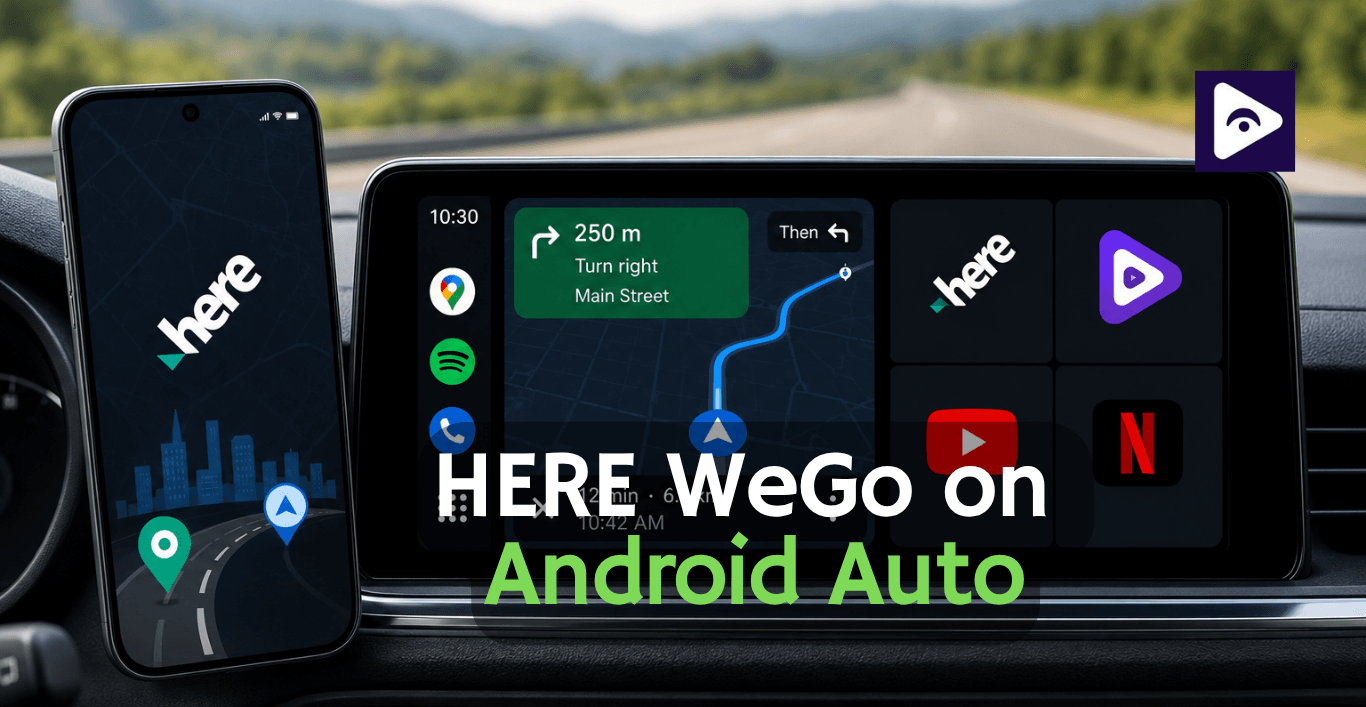
If you already use HERE WeGo for navigation on Android Auto it's makes driving much easier. You can view maps on your car's display, get voice guided directions, and use offline maps without reaching for your phone.
But navigation is only part of the Android Auto experience.
If you also want to watch local videos, stream YouTube, play IPTV, or enjoy more media features while your vehicle is parked, Fermata Auto is the perfect companion.
This guide shows you how to set up HERE WeGo Android Auto first and then install Fermata Auto to unlock even more features.
Can You Use HERE WeGo on Android Auto?
Yes. HERE WeGo works with Android Auto. This means you can use it on the screen in your car.
Once connected, you can:
- Start turn by turn navigation.
- Search for destinations.
- View live traffic information.
- Use downloaded offline maps.
- Receive voice guidance.
- Switch between navigation and other Android Auto apps.
The setup only takes a few minutes if your phone already supports Android Auto.
Before You Start
- Android 10 or newer version.
- The latest version of Android Auto.
- The latest HERE WeGo app.
- A compatible vehicle or Android Auto head unit.
- Internet connection for the initial setup.
- USB cable or wireless Android Auto support.
If everything is updated, the installation process is straightforward.
How to Add HERE WeGo to Android Auto
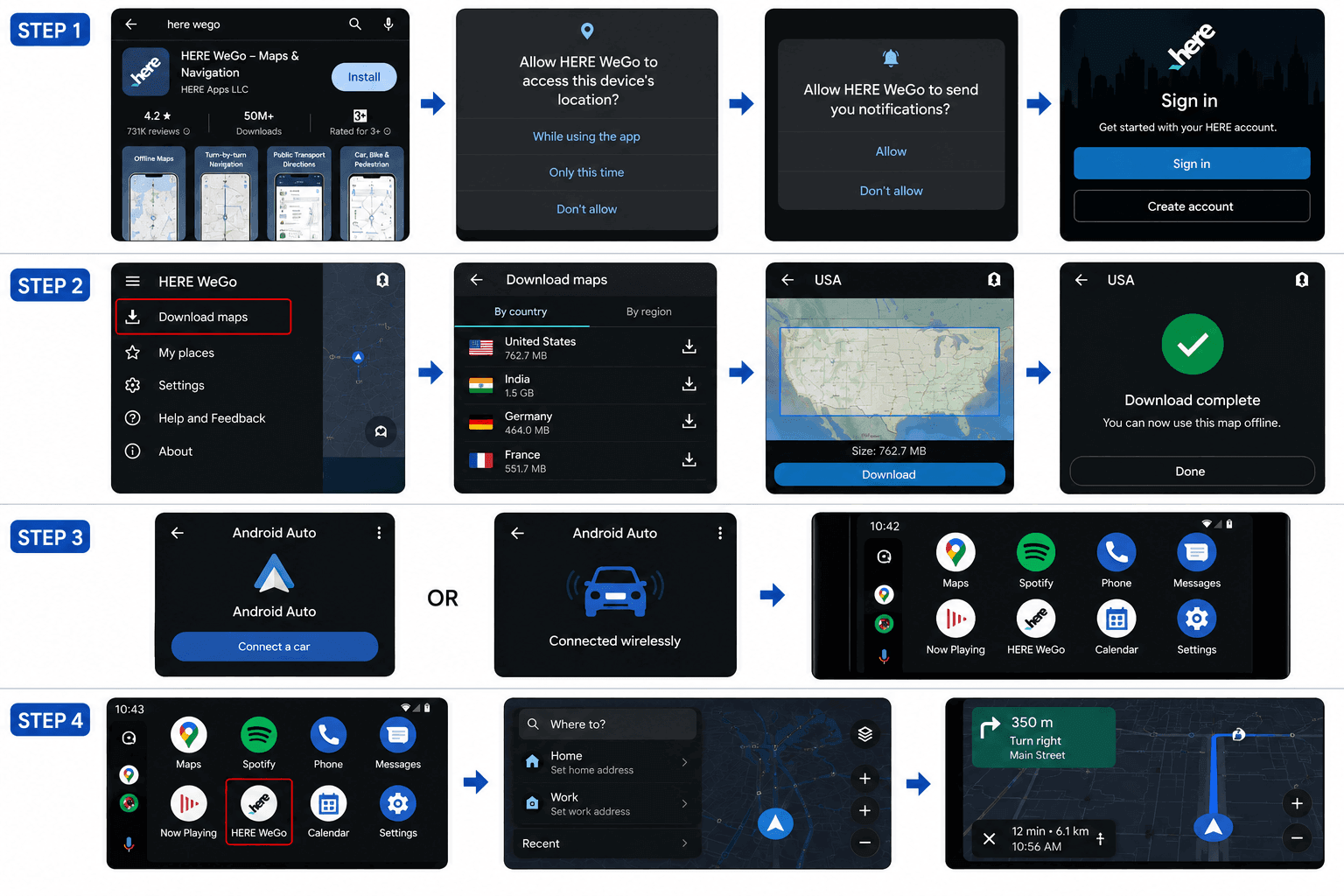
Step 1 : Install HERE WeGo
Download HERE WeGo from Google Play.
Open the app once and allow:
- Location permission
- Notifications (Optional)
If you have an account, sign in to sync your saved places.
Step 2 : Download Offline Maps
Offline maps are one of HERE WeGo's best features.
Open Download Maps and save the areas you drive most.
This lets you navigate even without mobile data.
Step 3 : Connect Android Auto
Connect your phone using:
- USB cable
- Wireless Android Auto
Wait for Android Auto to appear on your car's screen.
Step 4 : Open HERE WeGo
Tap the Apps icon.
Select HERE WeGo.
Search for your destination and start navigating.
Your setup is complete.
Want More Than Navigation?
HERE WeGo helps you reach your destination.
But Android Auto has limits.
You can't use it to:
- Play local videos
- Watch YouTube
- Stream IPTV
- Organize your media library
That's why many Android Auto users also install Fermata Auto.
It adds powerful media features while keeping HERE WeGo as your navigation app.
How to Install Fermata Auto? (Step by step guide)
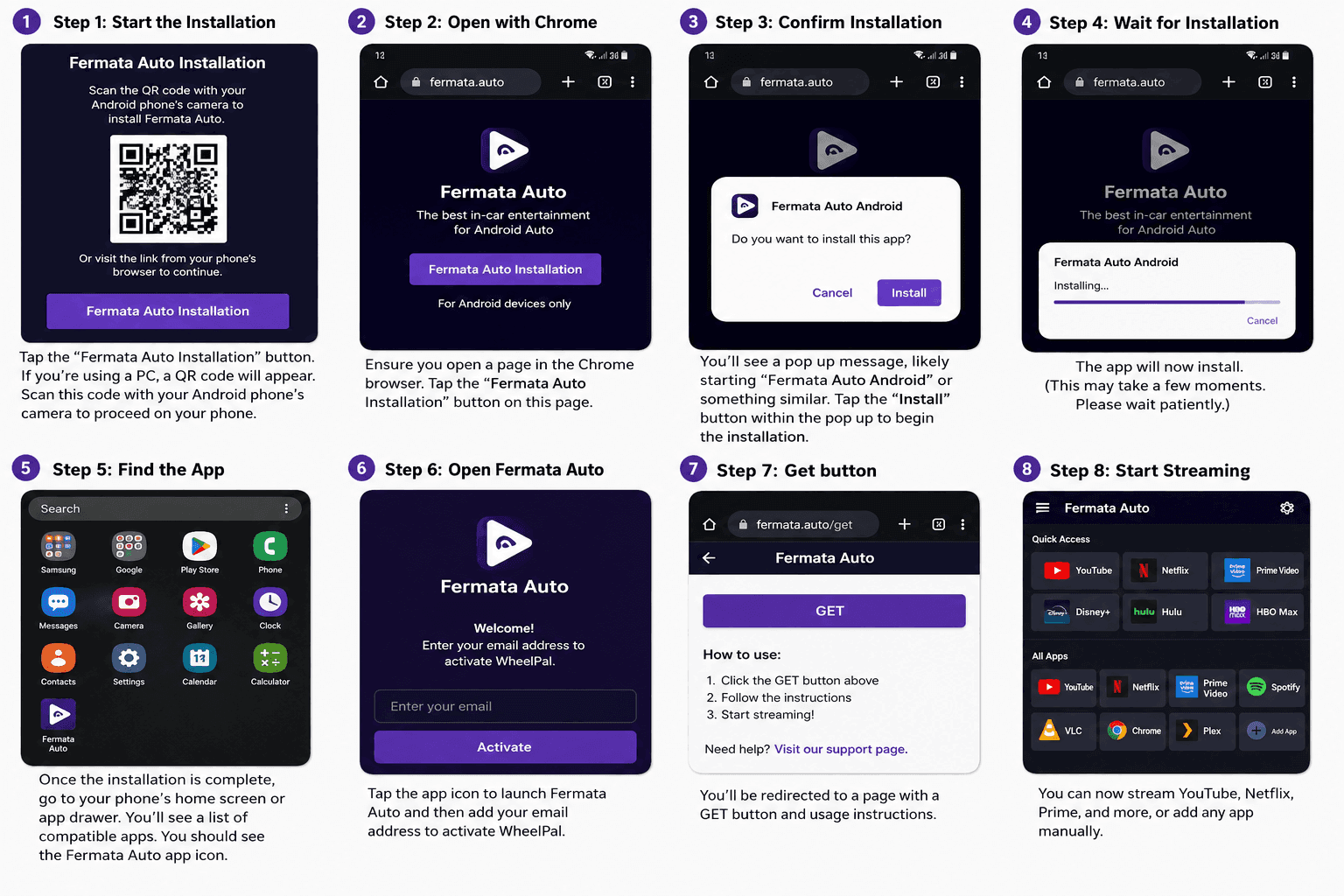
Visit the Fermata Auto Installation page.
Common HERE WeGo Android Auto Problems and Fixes
HERE WeGo issues are usually easy to fix.
You can fix HERE WeGo problems, with a few simple steps.
HERE WeGo Does Not Appear on Android Auto
Try these fixes:
- Update HERE WeGo from Google Play.
- Update Android Auto.
- Restart your phone.
- Disconnect and reconnect Android Auto.
- Check Android Auto app permissions.
After updating, open Android Auto again and check the app list.
HERE WeGo Is Not Showing the Correct Location
If your location is wrong:
- Open phone Settings.
- Go to Apps.
- Select HERE WeGo.
- Enable Location permission.
- Turn on Precise Location.
Restart the app and try again.
HERE WeGo Offline Maps Are Not Working
Check that:
- Maps are fully downloaded.
- Location services are enabled.
- You selected the correct offline region.
Download maps before starting a long trip.
HERE WeGo Alternatives for Android Auto
| Feature | HERE WeGo | Google Maps | Waze | Sygic |
|---|---|---|---|---|
| Android Auto Support | ✅ Yes | ✅ Yes | ✅ Yes | ✅ Yes |
| Offline Maps | ✅ Excellent | ✅ Available | ❌ Limited | ✅ Excellent |
| Live Traffic | ✅ Yes | ✅ Excellent | ✅ Excellent | ✅ Yes |
| Voice Navigation | ✅ Yes | ✅ Yes | ✅ Yes | ✅ Yes |
| Speed Camera Alerts | Limited | Limited | ✅ Strong | ✅ Yes |
| Traffic Reports | Limited | Good | ✅ Community Based | Good |
| Offline GPS Navigation | ✅ Best | Good | ❌ No | ✅ Best |
| Best For | Offline travel | Daily driving | Avoiding traffic | Premium GPS |
Google Maps - Best Overall Choice
Google Maps is the most popular Android Auto navigation app.
Choose Google Maps if you want:
- Accurate business searches
- Real-time traffic
- Street View
- Google Assistant integration
- Frequent map updates
It is the easiest option for most drivers.
Waze - Best for Traffic Updates
Waze is known for community-based traffic information.
It is useful for drivers who want:
- Accident alerts
- Police warnings
- Road hazard reports
- Faster route changes
If avoiding traffic is your priority, Waze is a strong HERE WeGo alternative.
Sygic - Best Premium Offline Navigation
Sygic is popular among drivers who travel where internet access is limited.
It offers:
- Offline maps
- 3D maps
- Speed limit information
- Premium navigation features
It is a good choice for frequent travelers.
Frequently Asked Questions on HERE WeGo
- Does HERE WeGo work with Android Auto?
Yes. HERE WeGo works with Android Auto. You can use it to navigate from your car screen.
- How do you get HERE WeGo to work with Android Auto?
Install the HERE WeGo app. Then connect your phone to Android Auto. After that, open the app launcher. Pick HERE WeGo.
- Can I use HERE WeGo offline with Android Auto?
Yes. You can use HERE WeGo offline with Android Auto.
- Is HERE WeGo better than Google Maps?
It really depends on what you need. HERE WeGo is very popular because it has maps. On the other hand , Google Maps has strong search and traffic features.
- Can I use HERE WeGo with Fermata Auto?
Yes. You can use HERE WeGo with Fermata Auto. HERE WeGo handles navigation while Fermata Auto handles media features.
- Does Fermata Auto replace Android Auto?
No. Fermata Auto works with Android Auto and adds extra media functionality.
- Can Fermata Auto play videos on Android Auto?
Yes. Fermata Auto allows supported video playback and media features that are not available in standard Android Auto apps.
- Does Fermata Auto need root access?
No. Fermata Auto installation does not require rooting your Android phone.
- Why is HERE WeGo not showing in Android Auto?
Usually this happens because of outdated apps, missing permissions, or connection issues. Updating both apps normally solves the problem.
- Where can I install Fermata Auto?
You can install Fermata Auto using the official installation guide. Follow the step-by-step instructions to complete the setup.
![How to Use Google Maps on Android Auto [Fermata Auto]](/content/images/size/w600/2026/07/google-map.png)