
How To Watch Live TV With Android Auto?

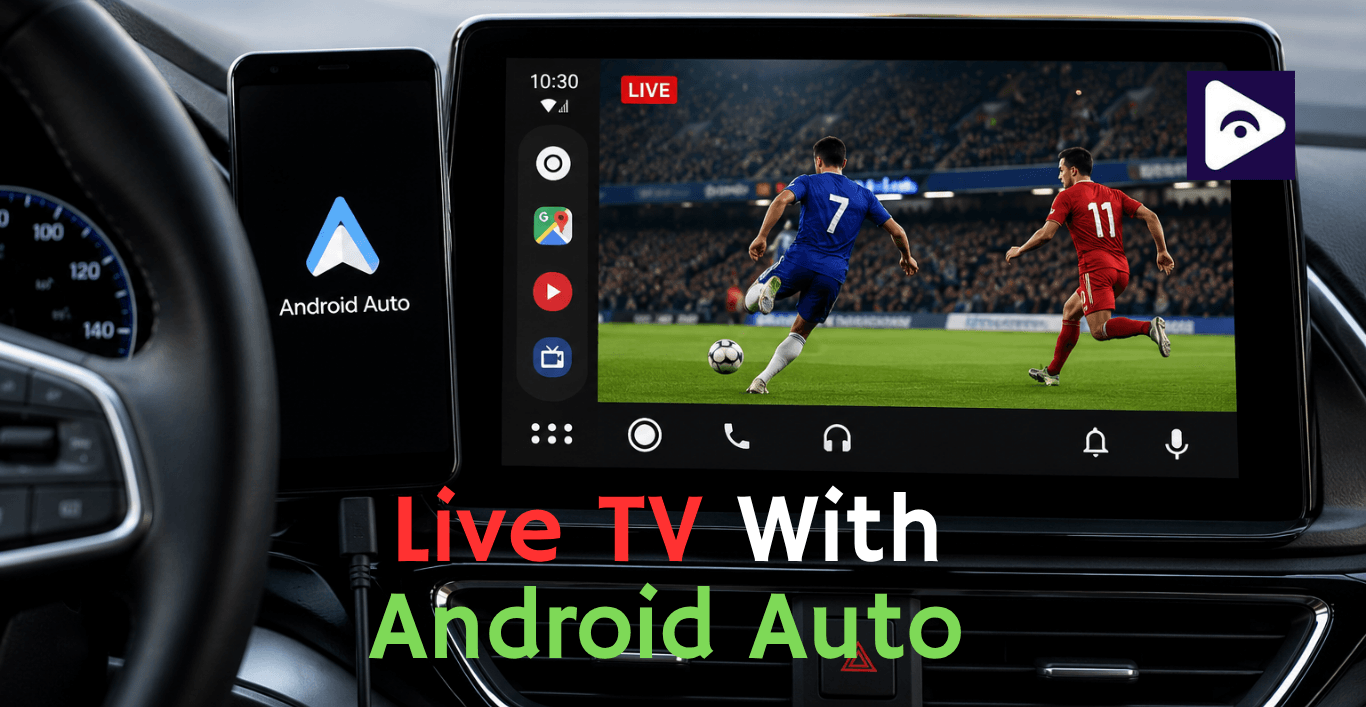
Many people who use Android Auto have a question: Can they watch live TV on the screen in their car? Android Auto is mostly about helping you with navigation and music and messaging and other apps that make driving easier.
The good thing is that you can set up Live TV on Android Auto using things like Fermata Auto. If you connect it to a list of internet TV channels or a streaming service that is compatible with it you can watch live TV on your Android Auto screen.
This guide explains how to set up Live TV on Android Auto, how Live TV on Android Auto works and everything that you need to know.
Can You Watch Live TV on Android Auto?
You can watch live TV on Android Auto with the help of compatible programs. Android Auto does not have a TV player that comes with it. The main purpose of Android Auto is to help you with things you need to do while you are driving.
However, some applications extend Android Auto features and allow media playback.
Fermata Auto is one of the popular options because it supports:
- Live TV streams
- IPTV playlists
- Online video sources
- Local video files
- Audio playback
The setup requires an Android phone, Android Auto connection and a reliable streaming source.
Real Reasons Live TV Android Auto Fails
Most users think the app is the problem, but in real cases, issues come from setup or environment.
- Android Auto restrictions
Some Android versions block video rendering inside Android Auto UI.
- Dead IPTV links
Free IPTV playlists often stop working without notice.
- Battery optimization killing app
Android shuts down Fermata Auto in the background.
- Weak internet connection
Live streams require stable, continuous data.
- USB or wireless instability
Connection drops cause playback interruptions.
What is Fermata Auto?
Fermata Auto is a multimedia application that adds extra playback features to Android Auto.
It helps users manage different types of media from their phone.
With Fermata Auto, users can access:
Live TV Channels
You can add IPTV playlists and stream available channels.
Examples include:
- News channels
- Sports channels
- Entertainment channels
- Regional television
Local Videos
The app can also play videos stored on your phone.
This is useful for:
- Travel videos
- Movies
- Personal recordings
Online Streams
Users can add supported online video sources.
The experience depends on your internet connection and stream quality.
Requirements before Setting Up Live TV Android Auto
Before starting the setup, prepare these things.
Android Phone
You need an Android device that supports Android Auto.
A newer Android version usually provides better compatibility.
Android Auto
Make sure Android Auto is installed and updated.
Old versions can cause connection issues.
Fermata Auto App
Install Fermata Auto and allow required permissions.
The app needs access to media files and connection features.
Internet Connection
Live TV requires a stable connection.
Recommended options:
- 4G LTE
- 5G
- Strong Wi-Fi hotspot
A weak connection can cause buffering.
IPTV Playlist
Most live TV content works through IPTV playlists.
Common formats include:
- M3U
- M3U8
These playlists contain channel information.
How To Set Up Live TV Android Auto With Fermata Auto
Step 1: Install Fermata Auto
Download and install Fermata Auto on your Android phone.
After installation:
- Open the app.
- Allow permissions.
- Complete the setup process.
Make sure the application is working before connecting Android Auto.
Step 2: Prepare Your TV Source
You need a live TV source.
Many IPTV services provide a playlist URL.
The playlist connects Fermata Auto with available channels.
Add the playlist inside the IPTV section.
Step 3: Connect Your Phone to Android Auto
Connect your phone using:
- USB cable
- Wireless Android Auto
Wait until the Android Auto interface appears.
Open the app list and select Fermata Auto.
Step 4: Start Watching Live TV
Open Fermata Auto.
Choose:
IPTV → Channel List
Select a channel.
The stream will begin loading.
Playback speed depends on your internet connection and channel server.
Best Uses for Live TV Fermata Auto
Many users set up live TV for entertainment during travel.
Sports Streaming
Sports channels are one of the most popular uses.
Users often watch:
- Football matches
- Cricket games
- Racing events
- Live competitions
News Updates
Live news channels help passengers stay updated during trips.
Entertainment
TV channels can make long waiting periods easier.
Always use video playback responsibly and avoid watching while driving.
How to improve Live TV Android Auto performance
These adjustments make a noticeable difference in real usage:
Use stable mobile data
4G/5G hotspot performs better than weak Wi-Fi connections.
Keep IPTV playlists small
Large channels list slow loading and increase crash chances.
Disable battery optimization
Go to settings and exclude Fermata Auto from battery saving.
Use high quality USB cable
Cheap cables often cause random disconnects.
Restart Android Auto after changes
Android Auto does not always refresh apps instantly.
Common Live TV Android Auto issues and fixes
Fermata Auto Not Showing in Android Auto
This is a common issue after installation.
Try these fixes:
- Update Android Auto
- Restart your phone
- Reconnect USB cable
- Check app permissions
Sometimes Android Auto hides unsupported apps until settings refresh.
Live TV Buffering or Freezing
This usually happens due to internet issues.
Fix it by:
- Switching to 4G/5G
- Closing background apps
- Using a stable IPTV source
- Avoiding weak Wi-Fi hotspots
Streaming quality depends heavily on server speed.
Black Screen While Playing Channels
If audio works but video does not:
- Change channel
- Restart Fermata Auto
- Test another IPTV link
Most issues come from unsupported stream formats.
Channels Not Loading
Possible reasons:
- Expired IPTV playlist
- Server downtime
- Incorrect URL
Always verify your playlist source.
Alternative Apps for Android Auto Media
Some alternatives include:
- VLC (limited use)
- Screen2Auto
- CarStream
- IPTV Smarters (not Android Auto native)
However, most users still prefer Fermata Auto for live streaming.
Explore More:
Chromecast on Android Auto | YouTube on Android Auto | Netflix on Android Auto
Frequently Asked Questions (FAQs) on Live TV
- Can I watch live TV on Android Auto?
Yes, using apps like Fermata Auto with IPTV support.
- Does Android Auto officially support TV apps?
No, video apps are restricted by Google.
- What is the best app for Live TV Android Auto?
Fermata Auto is one of the most used options.
- Do I need the internet for live TV?
Yes, streaming requires a stable connection.
- Can I use IPTV on Android Auto?
Yes, through Fermata Auto playlists.
- Why is Fermata Auto not working?
Usually due to outdated apps or permissions.
- Can passengers watch TV safely?
Yes, when the car is parked or used for passengers only.
- Does wireless Android Auto work with Fermata Auto?
Yes, if your device supports it.
- Why does live TV keep buffering?
Weak internet or overloaded IPTV servers.
- Is it legal to watch live TV in Android Auto?
It depends on content source and local laws.
![How to Use Google Maps on Android Auto [Fermata Auto]](/content/images/size/w600/2026/07/google-map.png)