
How to add Chromecast on Android Auto with Fermata Auto?

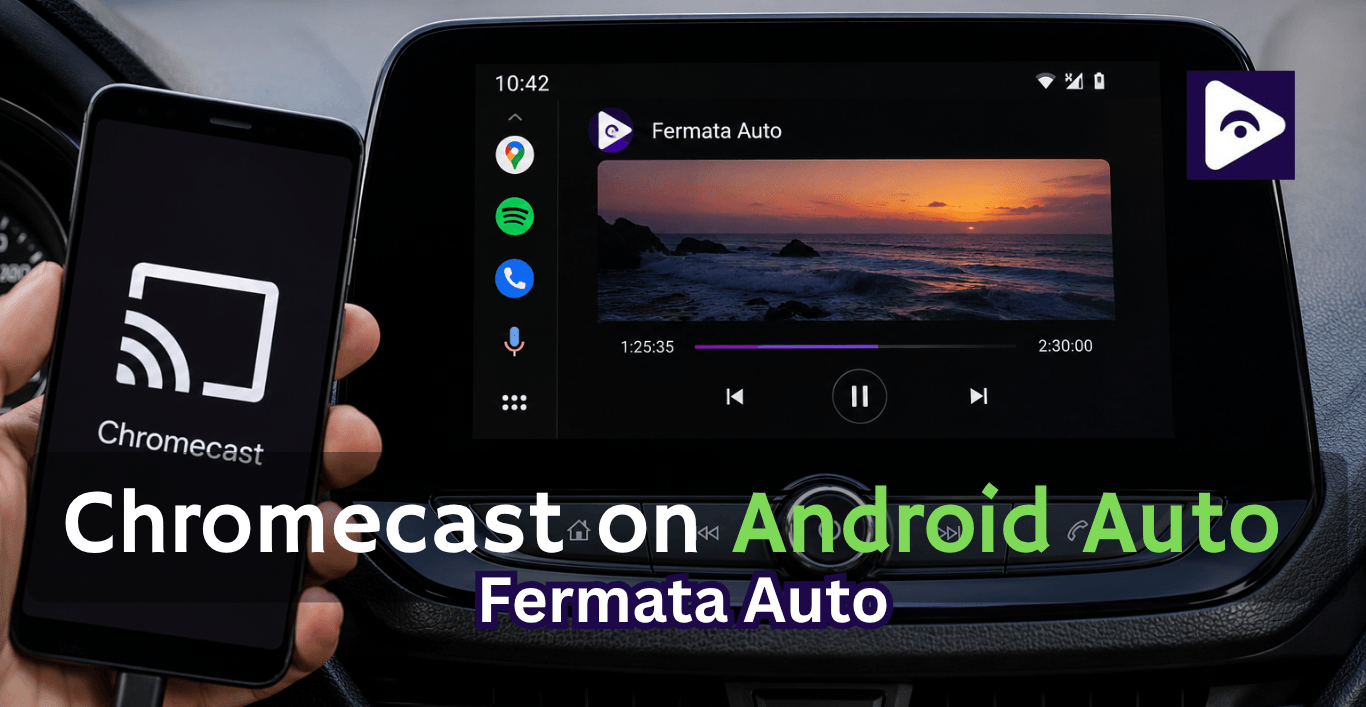
Android Auto has one annoying limitation that almost every driver eventually runs into: you can’t cast or stream video on it officially.
So when you search for Android Auto Chromecast, what you really want is simple:
- Play YouTube on the car screen.
- Cast movies from phone to infotainment.
- Watch IPTV while parked.
- Get a “Chromecast like” experience inside Android Auto.
But Google blocks all of that by default.
That’s where Fermata Auto quietly becomes one of the most used solutions in 2026. It doesn’t officially turn Android Auto into Chromecast, but it creates a workable media streaming layer inside Android Auto that feels surprisingly close to it.
This guide shows exactly how actually doing it right now.
Why Android Auto Chromecast doesn’t work
Let’s clear the confusion first.
There is no official Google Cast Android Auto support.
So you cannot:
- Cast Netflix or YouTube directly.
- Use Chromecast devices inside Android Auto.
- Mirror your phone freely.
- Install video apps from Play Store in Android Auto.
Google intentionally blocks this to avoid driver distraction.
What is Fermata Auto and Why It Matters
Fermata Auto is a third party Android Auto tool that allows extended media access inside your car screen. It is commonly used for:
- Local video playback.
- IPTV streaming.
- Browser based video viewing.
- Screen mirroring features. (in supported setups)
What makes it useful in this context is that it can act as a bridge between your phone media and your car display, which indirectly supports google Cast Android Auto style streaming.
Instead of relying on Chromecast built into Android Auto (which doesn’t exist), Fermata Auto allows media playback inside Android Auto using alternative methods.
Real advantages:
- No root required.
- Works with most Android phones.
- Supports IPTV live channels.
- Plays downloaded movies easily.
- Runs inside Android Auto screen.
Can You Really Use Chromecast with Android Auto?
There are 3 practical ways users achieve similar results:
- Using Chromecast on Phone + Fermata Auto
Display You cast content to your phone first, then use Fermata Auto to display it on Android Auto.
- Using Browser Based Streaming inside Fermata Auto
Some users open streaming sites inside Fermata Auto’s browser and play media directly.
- Using Local Network Casting + Media Relay
Advanced users use apps that send cast streams locally and then mirror output into Fermata Auto.
So while Android Auto Chromecast is not officially supported, these workarounds create a similar experience.
Before You Start,
To avoid setup failures, make sure you have:
- Android 10+ phone
- Latest Android Auto version
- USB cable (recommended)
- Fermata Auto APK installed
- Internet (for streaming)
Optional but useful:
- IPTV M3U link
- Offline video files
How to Set Up Chromecast like Streaming on Android Auto with Fermata Auto
Enable Android Auto Developer Mode
This unlocks hidden settings.
- Open Android Auto settings.
- Tap version multiple times.
- Enable developer options.
- Allow unknown apps.
Without this, Fermata Auto may not appear.
Step 1: Install Fermata Auto
First, you need to install Fermata Auto on your Android phone.
Open the Fermata Auto installation page and tap the “Fermata Auto Installation” button.
If you open the page on a PC, a QR code will appear.
Scan the QR code using your Android phone camera. You will be redirected to the installation page on your phone.
Step 2: Open the Installation Page in Chrome
On your Android phone:
- Open the page using Google Chrome.
- Tap “Fermata Auto Installation”.
- Wait for the installation prompt.
Chrome is recommended because it supports the required installation process.
Step 3: Install Fermata Auto
A pop-up message will appear, usually showing something like:
“Fermata Auto Android”
Tap Install.
If your phone asks for permission:
- Open Chrome settings.
- Allow installation from unknown sources.
- Return and continue.
Wait until the app installation completes.
Step 4: Open Fermata Auto
After installation:
- Open your app drawer.
- Find Fermata Auto.
- Launch the app.
The first time you open it, allow the required permissions.
These permissions help Fermata Auto access:
- Storage files.
- Media content.
- Streaming features.
Step 5: Activate WheelPal
Inside Fermata Auto:
- Enter your email address.
- Continue the activation process.
- You will be redirected to a page with a GET button.
- Tap GET and follow the instructions.
This enables the required Android Auto integration.
Step 6: Connect Android Auto
Now connect your phone to your vehicle.
For the best performance:
- Use a USB cable.
- Open Android Auto.
- Wait until the car display connects.
Wireless Android Auto may work, but USB usually gives better stability for streaming.
Step 7: Enable Fermata Auto in Android Auto
On your phone:
- Open Android Auto Settings.
- Select Customize Launcher.
- Find Fermata Auto.
- Enable it.
Now Fermata Auto should appear on your Android Auto screen.
Step 8: Start Chromecast like Streaming
Open Fermata Auto from your car display.
You can now:
- Play videos from your phone.
- Stream supported online content.
- Add IPTV playlists.
- Use media apps manually.
This gives you a similar experience to Google Cast Android Auto, without needing a physical Chromecast device.
How to Install and Use Fermata Auto on Android Auto. (Step-by-Step Guide)
How Fermata Auto Mimics Chromecast Behavior
Even though it’s not real casting, it creates a similar experience by:
- Central media interface
Everything runs inside Android Auto UI.
- Direct screen playback
No external casting device required.
- IPTV live streaming
Feels like smart TV casting inside a car.
- Simple media switching
Tap and play without switching apps.
So practically, it behaves like a Google Cast Android Auto workaround system.
Best Real Uses People Are Doing in 2026
IPTV Live TV in Cars
One of the most common uses. Users load IPTV lists and watch live channels.
Movie Playback During Travel Stops
Perfect for passengers during long trips or breaks.
Kids Entertainment
Mode Offline cartoons during travel stops.
Streaming Links Playback
Some users load browser based video streams.
Common Problems and Fixes
- Chromecast Not Detected
- Check Wi-Fi connection.
- Restart Google Home app.
- Ensure the same network on all devices.
- Fermata Auto Not Showing in Android Auto
- Enable permissions manually.
- Reinstall app.
- Restart Android Auto service.
- Video Plays but No Sound
- Switch audio output to the car system.
- Disconnect and reconnect Bluetooth.
- Lag or Buffering Issues
- Reduce video quality.
- Use wired connection.
- Avoid multiple apps running in the background.
- Cast Disconnects
- Frequently Keep screen active.
- Disable battery optimization for streaming apps.
Expert Tips for Better Streaming in Android Auto
Here are some helpful tips that actually work:
- Use 720p video of 1080p video, for smoother playback of the video.
- Watch IPTV or use streams instead of using heavy OTT apps.
- Prefer IPTV or lightweight streams over heavy OTT apps.
- Keep Fermata Auto updated regularly.
- Avoid switching apps while casting.
- Use a stable USB cable for wired Android Auto.
These small changes make a big difference when using Google Cast Android Auto setups.
FAQ: Android Auto Chromecast with Fermata Auto
- Can I use Chromecast with Android Auto?
Chromecast cannot connect them directly.
- What is the best workaround for Android Auto Chromecast?
Using Fermata Auto with phone casting or browser streaming works best.
- Does Google Cast work with Android Auto?
Not directly. It only works on the phone or external devices.
- Is Fermata Auto required for streaming?
Android Auto uses this tool a lot, for media access.
- Can I watch Netflix using this method?
Yes, but usually through phone casting or browser-based methods.
- Why is video blocked in Android Auto?
Google restricts video for driver safety reasons.
- Does this work wirelessly?
Yes, but wired Android Auto is more stable for streaming.
- Will Chromecast improve video quality in Android Auto?
No direct improvement since Android Auto doesn’t support native casting.
- Can I mirror my phone screen fully?
Only partially through third party tools like Fermata Auto.
- What is the most stable setup for google cast android auto?
Phone casting + Fermata Auto display with wired connection is the most stable combination.
![How to Use Google Maps on Android Auto [Fermata Auto]](/content/images/size/w600/2026/07/google-map.png)