
Fermata Auto vs Screen2Auto(2026): Which is better for Android Auto?

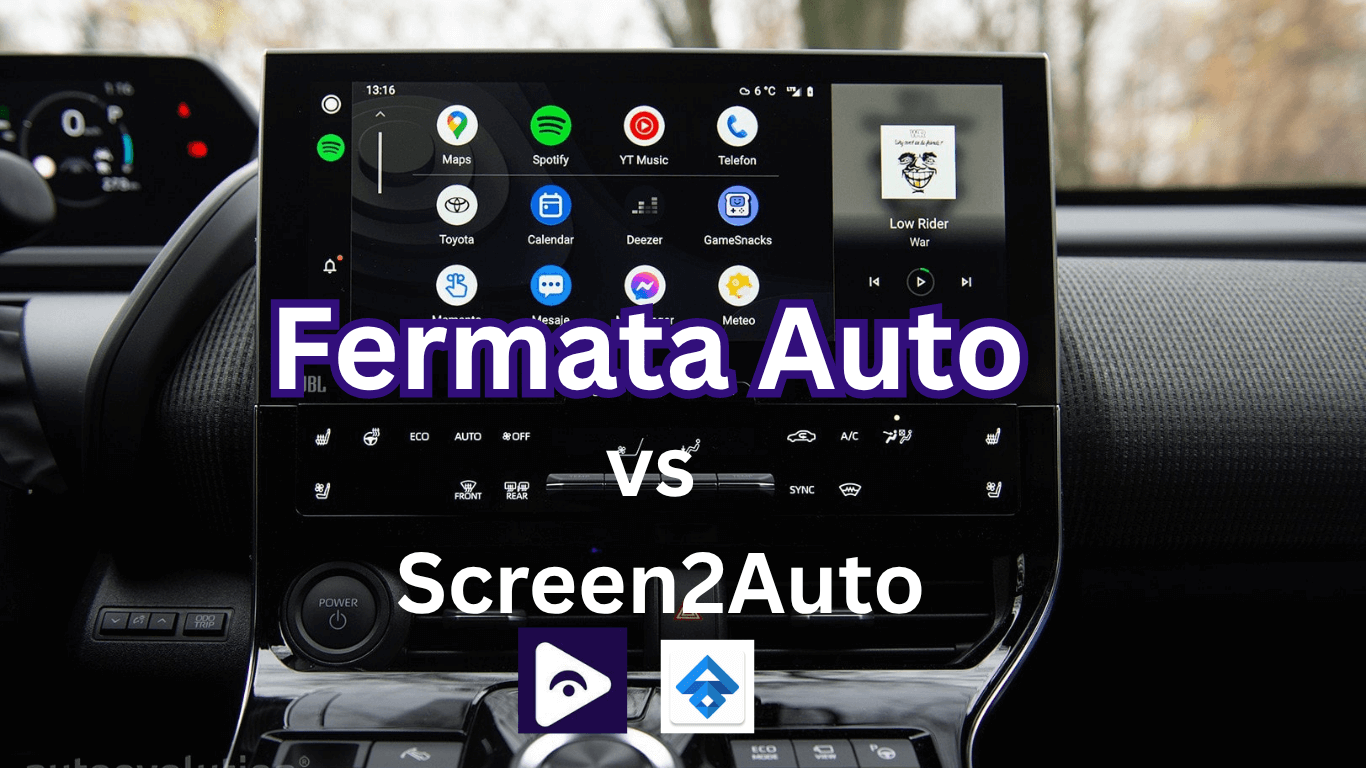
Android Auto is something that millions of drivers use every day. It puts navigation and calls and music on your dashboard. This way you can pay attention to Android Auto and the road, at the time. Android Auto helps you focus on driving. But there’s a catch Android Auto blocks most video and streaming apps for safety reasons. If you’ve ever wanted to watch YouTube, Netflix, or even mirror your phone screen in the car, you know how limiting this can be.
That’s where third party apps come in. Two of the most popular choices in 2026 are Fermata Auto and Screen2Auto. Both give you features that Google doesn’t officially allow, but they work in very different ways. I’ve spent time testing both apps across different cars and Android versions, and in this article, I’ll break down what they do, how to install them, and most importantly which one is better for you.
What is Fermata Auto?
The media player Fermata Auto was created especially for Android Auto. It focuses on streaming apps and video rather than mirroring your complete phone. This makes it safer than complete phone mirroring, more stable, and easier to use.
With Fermata Auto you can:
- Stream from YouTube, Netflix, Prime Video, Disney+ and other platforms.
- Add your favorite apps manually if they’re not listed.
- Use it without rooting your phone.
- Enjoy playback with regular updates that support Android 15 and Android Auto 12+.
I really like Fermata Auto because it feels polished. The interface looks like it belongs in Android Auto with menus and big buttons. It doesn't overwhelm you with options it just works. I think Fermata Auto is perfect for trips when passengers want to watch something, on YouTube or Netflix. It's also great when I'm parked waiting in the car. Fermata Auto makes it easy to find something to watch.
How to Install Fermata Auto (Step-by-Step)
Installing Fermata Auto is much easier than people expect. Here’s the recommended method:
Step 1: Start The Installation
To begin you need to tap the "Fermata Auto Installation" button.
If you are using a computer you should scan the QR code with your Android phone.
Step 2: Open In Chrome
You should always use Chrome because other browsers may not work properly.
Step 3: Confirm The Installation
A pop up will appear, usually saying "Fermata Auto Android".
You need to tap Install. If you want you can add a shortcut to your home screen.
Step 4: Wait For The Installation
The installation of Fermata Auto only takes a moments so you should be patient and wait.
Step 5: Find The Fermata Auto App
Once Fermata Auto is installed you will see Fermata Auto in your app list.
Step 6:. Launch Fermata Auto
You need to open Fermata Auto enter your email to activate WheelPal and then you are good to go.
Step 7: Start Streaming With Fermata Auto
You can play YouTube, Netflix, Prime video, Plex or any other app that you have added to Fermata Auto.
If the installation pop up does not show you should clear your Chrome cache. Check that you have allowed installations from unknown sources, for Fermata Auto.
Full Guide: Fermata Installation
What is Screen2Auto?
Screen2Auto takes a different approach. Instead of being a media player, it mirrors your entire phone screen to your car’s display. That means you can use any app whether it’s YouTube, TikTok, Maps, or even games.
On paper, this sounds amazing. But in practice, Screen2Auto has pros and cons.
Pros:
- Total access to your phone.
- Works with any app, not just streaming platforms.
- Flexible for advanced users who want maximum control.
Cons:
- Installation is more complex. You need developer mode and the AAAD app.
- Can lag or crash, especially on new Android versions.
- Uses more battery and data.
- Less safe, since full mirroring can distract drivers.
For tech savvy users who like to tinker, Screen2Auto is powerful. But for everyday use, it can feel unstable and harder to trust compared to Fermata Auto.
Installing Screen2Auto
Here’s how to set it up:
Step 1: Turn on developer mode in Android Auto.
To do this go to your Android Auto settings.
Step 2: Get AAAD (Android Auto Apps Downloader) on your phone.
You can download it from the website.
Step 3: Use AAAD to get Screen2Auto.
This is a download process.
Step 4: Give Screen2Auto the permissions it needs.
This will allow the app to work properly.
Step 5: Plug your phone into your cars system. Open Screen2Auto.
Make sure your phone and cars system are connected.
Depending on your phone and Android version you might have to root your device. Rooting can be tricky, for beginners.
Also note that Android Auto and AAAD are required for Screen2Auto to work. You need to have these installed and set up.
Screen2Auto vs Fermata Auto: The 2026 Showdown
| Feature | Fermata Auto | Screen2Auto |
|---|---|---|
| Ease of Setup | Quick & simple | Complicated, requires AAAD/developer mode |
| Stability | Very stable, rarely crashes | Can lag or crash |
| Safety | Safer, streams only apps | Less safe, mirrors full phone |
| Updates | Works well with Android 15 & AA 12+ | May break after updates |
| Root Needed | No | Sometimes |
| Best For | Streaming media reliably | Advanced users wanting full control |
Can Android 15 and Android Auto 12+ be used with Fermata Auto?
Yes. Fermata Auto gets updated often. It works well with the Android operating system versions. So you do not have to worry about your setup not working when your phone gets an update. Fermata Auto will keep working.
However, Screen2Auto frequently has issues following significant updates, and customers sometimes have to wait for fixes.
Which Cars Support Fermata Auto and Screen2Auto?
Both apps run on most vehicles that support Android Auto. Brands that work well include:
- Toyota
- Honda
- Hyundai
- Kia
- Nissan
- Ford
- Volkswagen
- BMW
- Mercedes-Benz
- Audi
Fermata Auto tends to be more consistent across different infotainment systems, while Screen2Auto’s performance can vary depending on the car and phone.
Alternatives to Fermata Auto
Here the Fermata Auto alternatives,
- CarStream – Streams YouTube on Android Auto but outdated and less reliable on new versions.
- AAMirror – Mirrors your phone screen to the car, but often needs root and drains more battery.
- AAAD – An installer app that helps add third party apps (like Fermata, CarStream, AAMirror) to Android Auto, but has limits in the free version.
- AA AIO - This is a rooted tweaker
Fermata Auto is still the choice because it is easy to use and very safe in 2026.
Safety and Legal Concerns
Both apps are not official. This means Google did not approve them. Passengers can use them safely. Drivers must not watch videos when the car is moving.
- Fermata Auto: Safer by design, since it only handles streaming.
- Screen2Auto: Riskier, because full mirroring can tempt you to open distracting apps.
You should always check the laws in your area before you use these apps. Some places have strict rules, about playing videos in cars.
- Data, Battery, and Performance Fermata Auto: Efficient with both battery and data. Works smoothly even on mid range phones.
- Screen2Auto: Heavier on resources. Because it mirrors the full screen, it drains battery faster and uses more mobile data.
FAQs on Fermata Auto vs Screen2Auto
- Can I add custom apps to Fermata Auto?
Yes. You can manually add any compatible app.
- Does Screen2Auto work on iPhones?
No. Both apps are Android only.
- Is rooting required for Fermata Auto?
No, it works without root.
- Can I use Fermata Auto wirelessly?
Yes, it supports both wired and wireless Android Auto.
- Which app is better for family trips?
Fermata Auto, because it’s stable, safe, and easy to use.
- Does Screen2Auto require root access?
Screen2Auto may require root access or additional setup depending on your Android version and configuration.
- Can Fermata Auto play local videos from my phone?
Yes. Fermata Auto supports local video playback from your phone storage and other supported media sources.
- Which is safer: Fermata Auto or Screen2Auto?
Fermata Auto is generally easier to use because it focuses on media playback, while Screen2Auto mirrors the full phone screen and may show more apps.
- Is Fermata Auto a good Screen2Auto alternative?
Yes. Fermata Auto is a popular Screen2Auto alternative for users who want Android Auto video playback, streaming features, and easier setup.
- Does Screen2Auto work on iPhones?
No. Screen2Auto and Fermata Auto are designed for Android devices and do not support iPhone or iOS systems.
![How to Use Google Maps on Android Auto [Fermata Auto]](/content/images/size/w600/2026/07/google-map.png)