
How to stream HBO Max on Android Auto: Setup Guide (2026)

Have you ever been stuck in traffic. Parked for a long time thinking it would be great to watch your favorite HBO shows, on your cars screen? If yes then you know how frustrating it is when you try to open HBO Max on Android Auto and it doesn't work. The reason is that Google doesn't let video streaming apps work directly on Android Auto.
But don’t worry. You can still watch Max in your car using simple tools and methods that I’ll walk you through step by step.
In this guide, I’ll show you exactly how to set up HBO streaming in your car, troubleshoot common issues, and enjoy movies and series safely while parked.
Can you use HBO Max on Android Auto?
The short answer is no - not officially.
Android Auto was made to help people who are driving stay focused on the road. Android Auto does this so people do not get into accidents. Because of this Google only lets Android Auto use kinds of apps. These apps are the ones that help people navigate, stream music send messages and use voice assistants.
Android Auto does not let people use video streaming apps, like HBO Max. This is because these apps can distract the people who are driving.
That means:
- The Max app Android Auto integration does not exist.
- The app will not appear on the Android Auto screen.
- Video streaming is restricted by default.
But here is the news: with right tools you can still watch Max on car screens when car is parked.
Why you can’t watch HBO Max directly on Android Auto
Before we start looking at the solutions we need to understand why HBO Max does not work with Android Auto. The reason is that Android Auto is made to keep drivers on the road. This is the goal of Android Auto. HBO Max and Android Auto do not work together because of this focus, on safety.
Android Auto wants to make sure drivers are not distracted while driving. This means apps are limited to:
- Navigation (Google Maps, Waze)
- Messaging (WhatsApp, SMS via voice)
- Music streaming (Spotify, YouTube Music)
- Voice assistants
Video streaming apps, like HBO Max, Netflix and YouTube are blocked to prevent distractions while driving. These apps include Hulu and Disney+ too.
They are blocked so that people do not get distracted while driving.
So if you try to open HBO Max on Android Auto it just won't appear on your cars dashboard.
But here’s the good news: with Fermata Auto or screen mirroring apps, you can stream HBO Max in your car safely, while parked. Let me guide you on exactly how to do it.
What you need to stream HBO Max in your car
To make sure your streaming setup works well you need a basic things:
| Requirement | Why It’s Needed |
|---|---|
| Android Phone | A smartphone running Android 10 or newer is recommended for stable Android Auto performance. |
| Android Auto App | The latest version ensures compatibility with third-party apps like Fermata Auto. |
| Car Head Unit | Your car needs to have Android Auto for the apps to show on the screen. |
| Max (HBO Max) Account | You need to have a subscription that's active to watch movies and series on HBO Max. |
| Stable Internet Connection | A 4G or 5G mobile data connection helps avoid buffering during streaming. |
| Fermata Auto or Mirroring App | Required to bypass Android Auto’s video restrictions and enable streaming in the car. |
Once you have these, you’re ready to start.
Why Fermata Auto is the best solution
Fermata Auto is a practical option if you want to watch videos through Android Auto. This app is different from screen mirroring apps. It works directly with Android Auto. So Android Auto and this app make videos play smoothly. You will have connection problems, with Android Auto and this app.
The app has a built-in browser. This makes it easy to open streaming sites, like Max. You can play videos on your cars screen. No need to switch between your phone and the display.
Another advantage is the simple interface. The controls are designed for car screens, so it’s easy to tap, browse, and start a video when your car is parked.
If you set it up correctly, Fermata Auto can make streaming in your car much easier and less frustrating than using typical mirroring methods.
Installing Fermata Auto : Step-by-Step Guide
There are two main methods to install Fermata Auto. I’ll explain both methods so you can pick the one that's easiest for you to do.
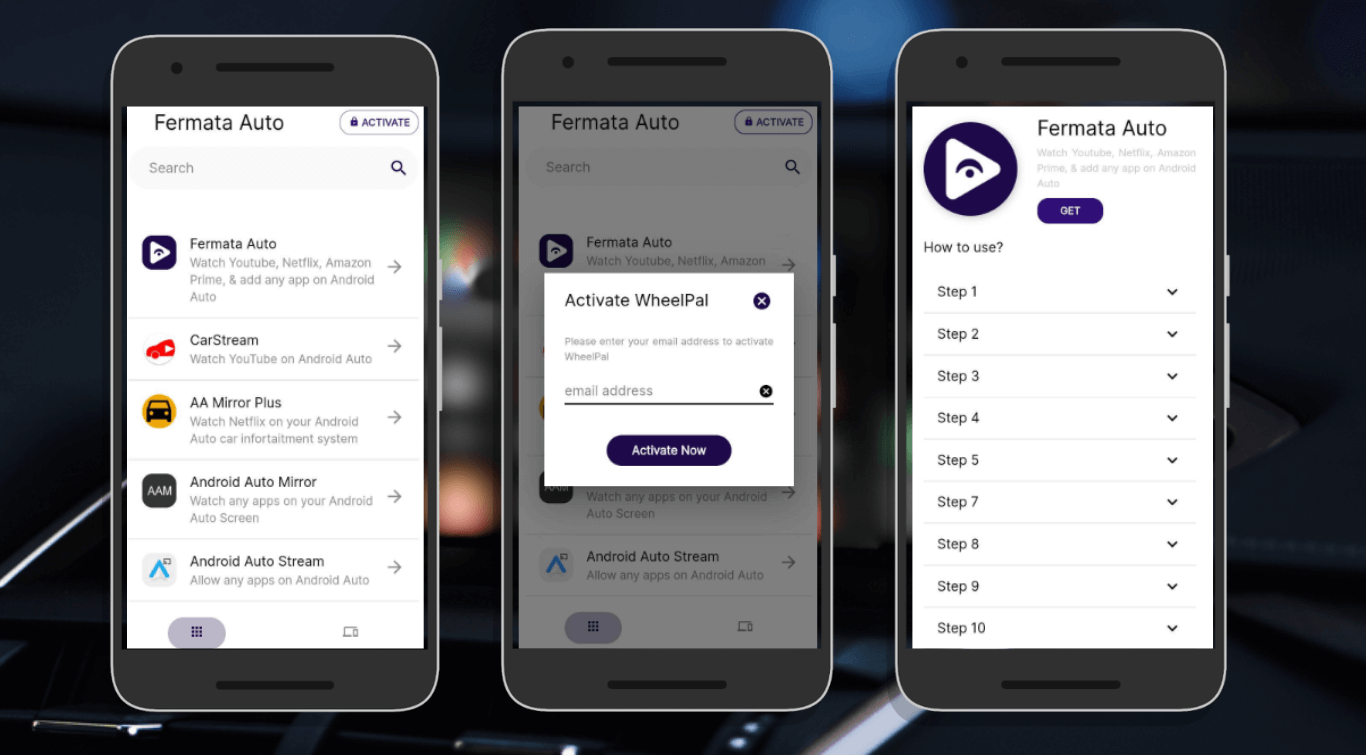
Method 1: Quick Installation (Recommended)
Step 1: Strat with the installation
Tap the Fermata Auto Installation button. If you are using a computer use your phone to scan the QR code so you can open the Fermata Auto Installation page.
Step 2: Open the Fermata Auto Installation page in Chrome
You need to open the Fermata Auto Installation page in Google Chrome. Then click on the Fermata Auto Installation link, on that page.
Step 3: Install the app
A small pop‑up will appear asking to install the app. Tap Install.
You can add a shortcut. To do this you need to go to the Chrome menu. You will find the Chrome menu. Then click on Add, to Home Screen.
Step 4: Finish the setup
Open the Fermata Auto app. Allow all the permissions it asks for.
Then just follow the steps it shows on your screen. After you do that you will be able to stream HBO Max.
Method 2: Manual APK Installation
If the web installer does not work you can try another way.
Try downloading and installing manually.
Step 1: Download the APK.
Go to the Fermata Auto GitHub page.
You can also get it from another trusted source.
Download the APK file.
Then open it on your phone.
If your device asks, enable Install from Sources.
Step 2: Enable Android Auto Developer Mode.
Open Android Auto settings.
Tap Version Number several times until Developer Mode turns on.
You need to open the developer settings on your phone.
Step 3: Now plug your phone into the car.
You can use a USB cable to connect your phone. You can use wireless Android Auto. Open Android Auto on the car screen and find Fermata Auto.
Step 4: Start streaming.
Open Fermata Auto from the Android Auto screen. Use the browser or video option, log in to HBO Max, and start watching.
Fermata Auto Installation step by step Full Guide
How to watch HBO Max using Fermata Auto
Once installed:
- Launch Fermata Auto on Android Auto.
- Navigate to the Browser section.
- Visit the official Max streaming website.
- Log in with your HBO Max username and password.
- Pick a movie or TV series. Start watching.
You can stream without any buffering if your internet is working properly.
Common Issues and Fixes
Even after you set up you might still have some issues. Here is a list of problems and how to solve them:
Alternative Method: Screen Mirroring
Screen mirroring apps replicate your phone display onto your car’s screen. Popular options include:
Steps:
- Install a mirroring app
- Enable Android Auto Developer Mode
- Launch the mirroring app
- Open HBO Max app on your phone
Screen2Auto vs Fermata Auto vs AA Mirror: Complete Comparison (2026)
Note: Mirroring may cause slight delay, resolution scaling issues, or DRM errors. That’s why Fermata Auto is usually preferred.
Tips for Smooth Streaming
To have an experience:
- Use a fast internet connection. 4G or 5G works well.
- Update apps regularly – Fermata Auto, Android Auto, and Chrome.
- Use landscape mode – Car screens are usually wide.
- Only stream while parked – Safety first!
Frequently Asked Questions on HBO Max
- Can I watch HBO Max directly on Android Auto?
No. Android Auto blocks all video streaming apps by default.
- Is there a Max app for Android Auto?
No official version exists.
- How do I stream HBO Max in my car?
Use Fermata Auto or screen mirroring apps like Screen2Auto.
- Why does HBO Max show a black screen?
Most likely due to Widevine DRM restrictions.
- Can I stream while driving?
No. Streaming is safe only when parked.
- Do I need to root my phone?
No, rooting is not required.
- Does wireless Android Auto support streaming?
Yes, if you use Fermata Auto or a mirroring tool.
- Can passengers watch HBO Max?
Yes, they can watch while the car is parked.
- What internet speed do I need?
A stable 4G/5G connection is recommended.
- Will Android Auto allow video streaming in the future?
Possibly. Future updates may support passenger mode video.
![How to Use Google Maps on Android Auto [Fermata Auto]](/content/images/size/w600/2026/07/google-map.png)