How to Enable Android Auto Developer Mode 2026

You can get more out of Android Auto experience with Android Auto Developer Mode. Android Auto has features for navigation & also supports music. You can make calls & messages with Android Auto.
Developer Mode unlocks some settings that let you do things like:
- Access advanced Android Auto configuration tools.
- Enable sideloaded apps like media or video players.
- Fix connection issues.
- Use wireless Android Auto adapters properly.
- Let us look at how to deal with the restrictions, on Android 14 and above.
What is Android Auto Developer Mode?
Android Auto Developer Mode is a menu. It is for people who make apps and users who want control, over Android Auto on their phone.
Some apps you install yourself will not show up. This is because they are not approved by Google. With Developer Mode you can see all the apps you have installed. You can even use some of them while driving. You have to be careful. Some apps can still distract you.
Enabling Android Auto Developer Mode does not make any changes to your car system. It just unlocks some settings, on your Android Auto phone that are usually hidden.
Why you need Developer Mode in 2026
Over the few Android updates the security rules have become really strict. This change started with Android 13. It got even tougher with Android 14. Now they are really cracking down on apps.
Enabling developer options android auto allows you to manually approve these apps through the Unknown Sources setting.
Without developer mode, third party apps will never show no matter how many times you reinstall them.
How to turn on Android Auto Developer Mode [Step-by-Step]
Follow these steps slowly. The process takes less than two minutes.
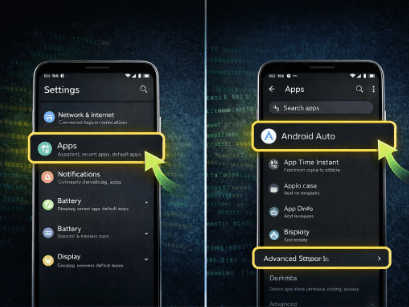
Step 1 : Open settings on your phone unlock your phone.
- Open the settings app.
- Tap apps or apps & notifications.
- Tap see all apps so you can view every installed app.
Step 2 : Find Android Auto scroll through the list and tap Android Auto.
- If you cannot see it:
Use the search bar and type “Android Auto.”
Some phones hide system apps, so turn on Show System Apps if needed.
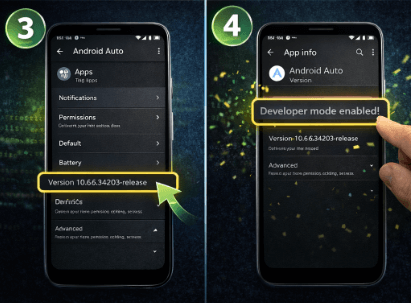
Step 3 : Find the version number inside the Android Auto app info screen:
- Scroll down until you see the version.
This is the hidden area used to activate developer mode.
Step 4 : Tap version 10 times tap the version number quickly about 10 times.
A message will appear saying:
- Developer mode enabled.
That’s it. Developer mode is now turned on.
With developer mode enabled, apps like YouTube, Netflix ,Hulu and etc can appear in Android Auto once Unknown Sources is turned on.
How to open developer settings
Now that developer mode is active:
- Open the Android Auto app on your phone.
- Now you should tap the three dot menu that's, in the top right corner of the Android Auto app.
- Select Developer Settings.
You will now see options that were previously hidden.
Turn on unknown sources (Very Important)
This is the step many people miss.
Inside Developer Settings:
- Scroll down.
- Find Unknown Sources.
- Turn it ON.
This setting helps Android Auto find apps that you installed from places not just the Play Store.
If you skip this apps, from sources will not show up even if they are installed properly.
Using Developer Mode with Fermata Auto
One of the main reasons users enable developer mode is to use Fermata Auto.
Many people install Fermata Auto and expect it to show immediately on their car screen. Instead, nothing appears. This causes confusion, but the problem is usually simple.
Android Auto hides apps that are not officially approved. After you enable developer mode and turn on Unknown Sources, Android Auto is allowed to display them.
To make Fermata Auto appear:
- Install the app on your phone.
- Open it once so Android registers it.
- Enable developer mode.
- Turn on Sources.
- Disconnect your phone from the car and then reconnect it.
When you reconnect you should see Fermata Auto in the list of apps, in Android Auto.
Make sure to check the Android Auto app list to see if Fermata Auto appears.
How to Install Fermata Auto on Android (Step by step guide)
How to Enable Android Auto Developer Mode on Samsung?
Many Samsung need to know about Samsung android auto developer mode, If you have a Samsung device the menus might look a little different.
Helpful tips:
- Enable show system apps if Android Auto is missing.
- Allow background activity for Android Auto.
- Disable battery optimization if apps disappear.
Samsung software sometimes restricts background services, which can hide apps temporarily.
How to Enable Android Auto Developer Mode on Pixel and Other Android Phones?
Google Pixel phones usually do what the steps say to do.
For Xiaomi, OnePlus, Oppo or Vivo devices:
- Look under App Management, not Apps.
- Allow background running permissions.
- Remove Android Auto from battery restrictions.
These small changes often fix visibility problems.
Using Developer Mode with wireless Android Auto
If you use a wireless adapter like AAWireless, developer settings can also help improve stability.
Developer options allow you to:
- Check connection logs.
- Fix resolution issues.
- Troubleshoot startup problems.
- Improve wireless detection.
If wireless Android Auto disconnects often, enabling developer mode is a good first step.
Apps Not Showing in Android Auto? Troubleshooting Fixes
If your apps are still not showing up in Android Auto after you turn on developer mode do not worry. This happens a lot especially when you have a version of Android.
The table below explains the problems that people have a lot and the easy things you can do to make your Android Auto apps show up right.
| Problem | Why It Happens | Simple Fix |
|---|---|---|
| Apps not visible in Android Auto | Unknown Sources is turned OFF | Enable Unknown Sources inside Developer Settings |
| App installed but not showing | Installed before enabling developer mode | Reinstall the app after enabling developer mode |
| App appears then disappears | Battery optimization blocks background activity | Disable battery optimization for Android Auto |
| Android Auto not refreshing apps | Old cache data stored | Clear Android Auto cache and reconnect |
| Wireless connection issues | Phone and car not synced properly | Connect once using USB before wireless |
| Developer settings missing | Developer mode not activated | Tap Version number 10 times again |
| Apps still hidden on Android 14+ | New Android security restrictions | Restart phone and reconnect to car |
Android Auto Developer Mode Android 15
Android 15 has stricter restrictions. Explain:
- Restricted settings
- Unknown Sources
- Allow Restricted Settings
Explore more: Android Auto 15
Developer Mode OFF vs Developer Mode ON (Feature Comparison)
| Feature | Developer Mode OFF | Developer Mode ON |
|---|---|---|
| Access to Developer Settings | Not Available | Available |
| Show Third-Party Apps | Blocked | Allowed (with Unknown Sources enabled) |
| Unknown Sources Option | Hidden | Visible and configurable |
| Fermata Auto Visibility | Does not appear | Appears in Android Auto launcher |
| Wireless Debug Options | Unavailable | Available |
| Troubleshooting Tools | Limited | Advanced options enabled |
| App Testing & Logging | Disabled | Enabled |
| Customization Control | Basic usage only | Advanced control available |
Explore more:
Android Auto Unknown Sources Guide
Fermata Auto Not Showing Fixes
Frequently Asked Questions (FAQs)
- Is Android Auto Developer Mode safe?
Yes, it’s safe. Turning on developer mode doesn’t harm your phone or car. It simply unlocks hidden settings in Android Auto so you can do more with your apps.
A few tips for safety:
- Only install apps you trust.
- Never watch videos while driving.
- Use the extra features responsibly.
Even in developer mode, Android Auto keeps safety features active to protect you on the road.
- Why aren’t my apps showing in Android Auto?
This is a common problem. Most of the time, apps don’t appear because;
- Unknown Sources isn’t turned on.
- You didn’t reconnect your phone after enabling developer mode.
- Apps were installed before developer mode was activated.
- Cached data or battery restrictions are blocking the app.
How to fix it:
- Enable Unknown Sources in the Developer Settings.
- Clear the Android Auto cache.
- Reinstall the app if needed.
- Disconnect and reconnect your phone to your car.
- Doing this usually makes the apps appear.
- What mistakes do people usually make?
Small mistakes cause most issues. Make sure you:
- Turn on Unknown Sources.
- Reconnect the phone after making changes.
- Install apps only after developer mode is active.
- Disable battery optimization that could block Android Auto.
Following these simple steps solves most problems quickly.
- What are the benefits of developer mode?
Once you turn it on, Android Auto becomes much more flexible:
- You can see apps that normally don’t show, like Fermata Auto or CarStream.
- It helps fix connection issues faster.
- You can test new features or advanced settings.
- Wireless Android Auto works more reliably.
- You get more control over how the system behaves.
For many users, developer mode turns Android Auto from a basic app into a powerful tool for media, navigation, and customization.
- Can I turn off developer mode later?
Yes. To go back to normal:
- Go to Settings → Apps → Android Auto.
- Clear the app data.
- Restart your phone.
Developer options will disappear, and Android Auto will return to its default state.
- Will enabling developer mode affect my car warranty?
No. Developer mode only changes settings on your phone. It doesn’t affect your car or its warranty in any way.
- Why is Android Auto Developer Mode Missing?
- Old Android Auto version
- Hidden system app
- Google Play Services issue
- Android Auto Developer Mode Not Working?
- Clear Android Auto cache
- Update Android Auto
- Reconnect vehicle
- Restart phone
- Do I need to enable Developer Mode every time I use Android Auto?
No you only need to turn Android Auto on one time. After that Android Auto keeps all the settings saved.
If the apps on Android Auto suddenly stop showing up it is usually because of a system update or because the permissions for Android Auto have been changed, not because the Developer Mode, for Android Auto turned off.
- Why do I still not see Fermata Auto even after enabling Developer Mode?
This happens quite often. Developer Mode alone is not always enough. You also need to enable “Unknown Sources” inside the Developer Settings and reconnect your phone to the car. Sometimes a quick restart helps Android Auto refresh the app list.
![How to Use Google Maps on Android Auto [Fermata Auto]](/content/images/size/w600/2026/07/google-map.png)