How to add Fermata Auto with AAAD APK? [Complete Guide 2026]

![How to add Fermata Auto with AAAD APK? [Complete Guide 2026]](/content/images/size/w1200/2025/03/9.-aaad.jpg)
If you selecting the right Android Auto software can make your driving experience much better. Fermata Auto & AAAD (Android Auto Apps Downloader) are two famous options, but what sets them apart & which is the better option? In this guide we will compare the features of these things the way they are installed and the best situations to use them to help you pick the one for what you need.
What is Fermata Auto?
Using Fermata Auto is really simple with Android Auto and the infotainment system in the car. Fermata Auto lets you play music and videos from your phone.
You can also use Fermata Auto to stream videos and access kinds of apps like music apps, chat apps and navigation apps, with Fermata Auto. Future updates are meant to include hardware components for enhanced functionality. Fermata Auto's user friendly interface and best performance make it an excellent choice for car enthusiasts while driving.
Key Features of Fermata Auto:
- Easy connectivity.
- User Centric Interface.
- No need for root access.
- Future Hardware Additions.
How to Install Fermata Auto on Android Auto
Step 1: Start the Installation
Tap the “Fermata Auto Installation” button on this page.
If you are using a PC, a QR code will appear.
To keep going on your Android phone you can use the camera on the Android phone to scan the QR code. The QR code will take you to the installation page, on the Android phone.
Step 2: Open the Page Using Chrome
Make sure the installation page opens in the Google Chrome browser.
Tap the “Fermata Auto Installation” button again if required to begin the process.
Step 3: Confirm Installation
A pop up message will appear, usually showing “Fermata Auto Android” or a similar name.
Tap the Install button in the pop up.
You can also add a shortcut to Chrome by opening the Chrome menu and selecting Add to Home Screen. This way you can have a shortcut, to Chrome on your home screen.
Step 4: Wait for the Fermata Auto Installation
The Fermata Auto application will now start installing on its own.
This will take a time. The time it takes depends on how fast your internet's. You need to wait until the Fermata Auto installation's complete.
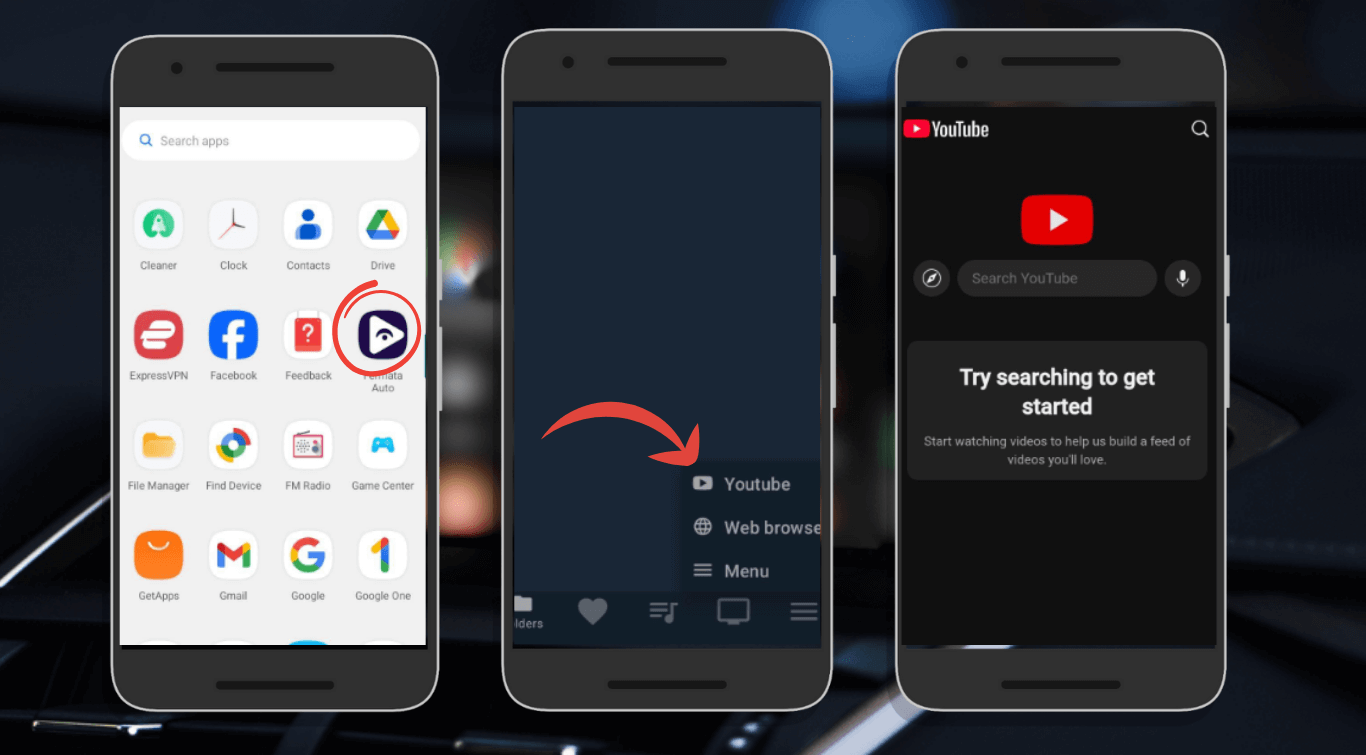
Step 5: Find the Fermata Auto App After Installation
Go to the Home Screen of your phone or open the App Drawer.
You will see the Fermata Auto app icon, with the apps that you have installed on your phone.
Step 6: Open Fermata Auto
Tap the Fermata Auto icon to launch the app.
Follow the on screen instructions and add your email address if activation through WheelPal is required.
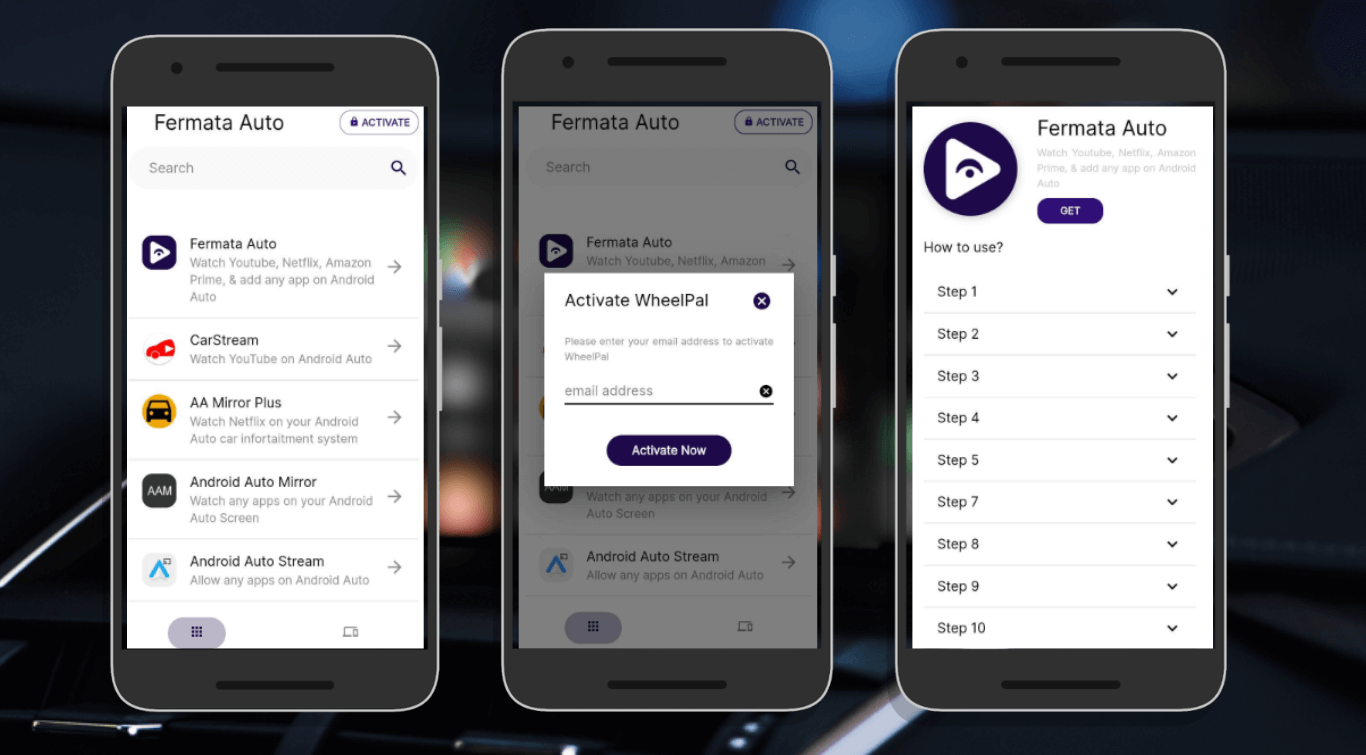
Step 7: Tap the GET Button
You will be redirected to a page containing a GET button along with usage instructions.
Tap GET to finalize access and enable the required components.
Step 8: Start Streaming
Setup is now complete.
You can start using Fermata Auto to:
- Stream YouTube
- Watch Netflix or Prime Video
- Play local media files
Add supported apps manually inside Android Auto.
What is AAAD (Android Auto for Android Devices)?
AAAD (Android Auto Apps Downloader) is a third party app store for installing Android Auto apps without root access. AAAD makes it easy to side load Android Auto compatible apps, which are not widely available in the Google Play Store.
Android Auto is a more open choice with AAAD, so you might have a little more freedom while using it. That said, this flexibility comes at the expense of Fermata Auto's streamlined experience.
Key Features of AAAD:
- Android 8.0 or higher recommended.
- Updated Android Auto version.
- Stable internet connection.
- USB cable or wireless Android Auto support.
- Developer settings enabled in Android Auto.
AAAD Installation Guide
Step 1: Visit AAAD Website
Use the AAAD Web App or Download the latest APK file from a trustworthy source, such as the Official AAAD Website.
Step 2: Make Unknown Sources Active
Go to Settings > Security and select "Unknown Sources".
Step 3: Get the APK installed
Tap to install the downloaded APK file from your Downloads folder.
Step 4: Grand Permissions
Launch AAAD and allow storage and location, among other permissions.
Step 5: Connect to Car
You can connect your Android device to the cars system using a connection or you can use the USB cable to connect your Android device to the car.
Step 6: Customize
For an Android Auto experience that is unique to you, you can optionally change the interface and settings.
Visit our page to explore more Android Auto widget guides, Google Maps tips, and step-by-step setup tutorials.
Key Differences Between Fermata Auto and AAAD
| Feature | Fermata Auto | AAAD |
|---|---|---|
| Android Auto Support | Yes, specifically optimized for Android Auto | Yes, but with broader device compatibility |
| Hardware Integration | Planned for future releases | No hardware support |
| Customization Options | Limited but easy-to-use interface | Highly customizable interface |
| Compatibility | Primarily designed for car infotainment systems | Works on a wide range of Android devices |
| User Experience | Streamlined, intuitive | Flexible, but can be more complex to use |
| Video & Media Streaming | Supports YouTube, Netflix, Prime Video, and local media | Supports YouTube and other third-party apps via APKs |
| Updates & Maintenance | Regular updates with new features and performance improvements | Updates depend on AAAD community or APK releases |
| Safety Features | Optimized to minimize driver distraction | Flexible use, but requires caution while driving |
| App Integration | Integrates with car media, navigation, and chat apps | Allows installation of multiple Android Auto-compatible apps |
Top Fermata Auto Alternatives for Android Auto Users
Fermata Auto is one of the well known apps for Android Auto but it is not the only one out there. If you use Android Auto you can also try an other apps that let you do things like stream videos with Android Auto mirror your phone with Android Auto or customize your car screen with Android Auto. The best Android Auto app, for you depends on what you want to do with Android Auto while you are driving.
CarStream
CarStream is what people use when they want to watch YouTube videos in their car. This thing is really easy to use. It does not take a lot of time to get it working. People, like CarStream because CarStream works soon as you start using it and CarStream does not make your phone slow.
Best for:
- Quick access to YouTube videos
- Works well on older phones
- Easy to use with almost no setup
The downside is that it only works with YouTube. It doesn’t have all the other features you get with Fermata Auto.
AA Mirror
AA Mirror lets you mirror your phone screen onto your car display.When you look at your phone the same thing appears on the car screen. This is really useful if you want to use apps that Android Auto does not usually let you use. Android Auto has some rules, about what you can do. This way you can use the apps that Android Auto normally does not allow. You can use the apps on your phone. They will show up on the car screen.
Best for:
- Lets you use apps that aren’t officially supported
- You can see your phone screen directly in the car
- Gives full control over your phone from the car display
So you need to remember that your phone might not work perfectly if it is old or if your internet connection is not very good. This can make your phone slow down a little.
Screen2Auto
Screen2Auto is for people who like to play around with their setup and make it their own. This thing lets you show your screen on another device open a bunch of apps at the time and change all the settings to do what you want. Screen2Auto is pretty advanced. It is really best, for people who do not mind taking a little time to figure it out and learn how to use Screen2Auto.
Best for:
- Perfect for advanced users
- Lets you customize your Android Auto interface
- Can run multiple apps at the same time
Because it’s more complex, it takes longer to set up than Fermata Auto or CarStream. But once it’s running, you have a lot of control.
Common Installation Problems & Fixes
Fermata Auto Not Showing in Android Auto
- Enable Unknown Sources in developer settings.
- Restart Android Auto.
- Reconnect USB cable.
AAAD Download Failed
- Check internet connection.
- Clear AAAD cache.
- Reinstall AAAD APK.
App Crashes on Launch
- Update Android Auto.
- Disable battery optimization for Fermata Auto.
FAQs of Fermata Auto & AAAD
- Is root access necessary for AAAD?
No, root is not necessary for AAAD to install apps.
- Can I use Fermata Auto to watch YouTube?
Yes. Fermata Auto do function as a full featured YouTube player.
- Is AAAD cost free?
One app download per month is permitted with AAAD's free edition. The pro edition allows for an infinite number of downloads.
- Which is better for AAAD, Fermata Auto, or Android Auto?
Fermata Auto is a superior choice if you're looking for a seamless, user friendly car infotainment system. AAAD might be a good option if you require customization and flexibility.
- Does the Google Play Store allow me to install AAAD?
Unfortunately, the Play Store does not offer AAAD. You need to manually install the APK after downloading it from a trustworthy source.
![How to Use Google Maps on Android Auto [Fermata Auto]](/content/images/size/w600/2026/07/google-map.png)