
How to Show Taskbar Widgets on Android Auto 2026

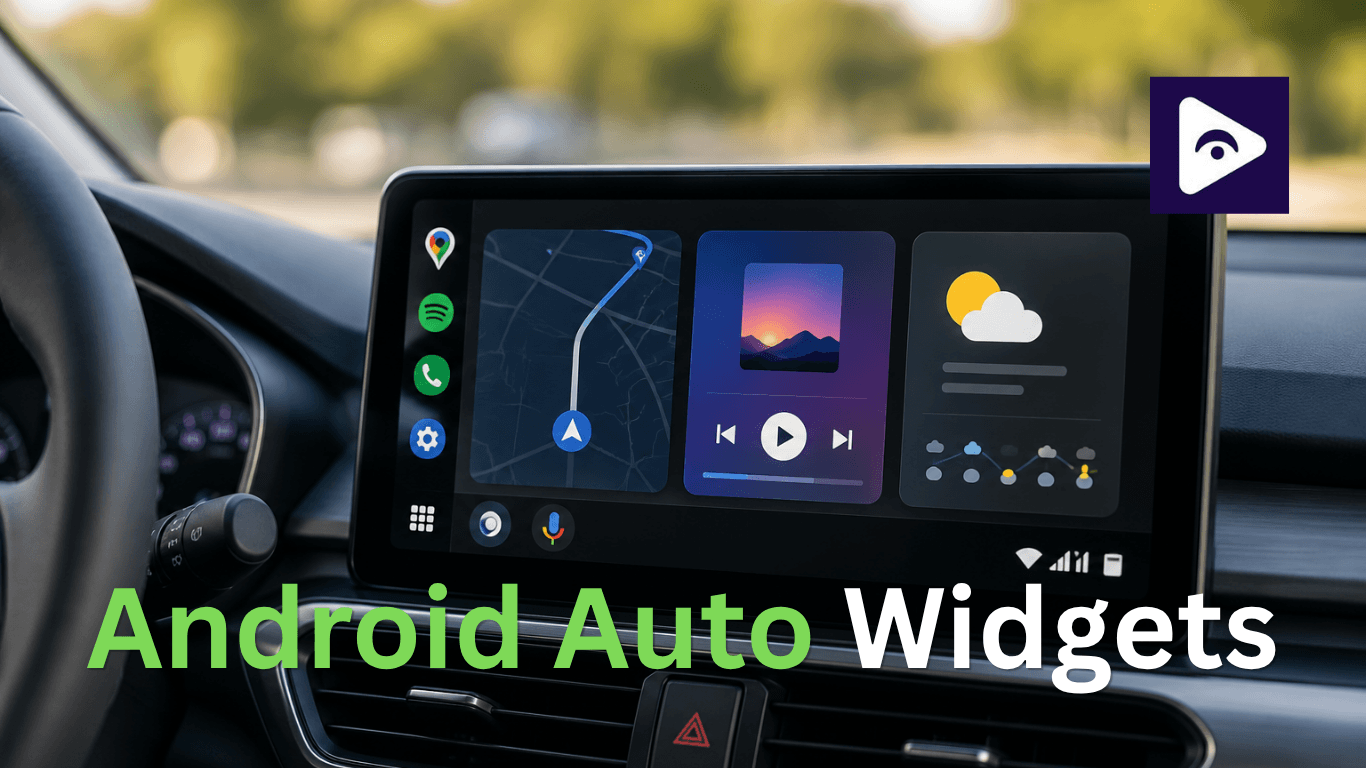
Android Auto continues to improve and drivers now want more than just maps and music on their car screen. Many users prefer quick access to useful information without opening different apps repeatedly. This is where an Android Auto Widget becomes helpful. Widgets can display important details like weather updates, media controls and app shortcuts directly on the screen. They make navigation easier and save time while driving.
In 2026 many users are looking for taskbar widget options to create a better and more convenient Android Auto experience. This guide explains how to enable and use them in a simple way.
What is an Android Auto Widget?
An Android Auto Widget is a small interactive section that appears on your Android Auto interface. It displays quick information from apps without needing to fully open those apps.
Widgets help reduce distractions because you can see important details with less effort.
Examples include:
- Weather information
- Music controls
- Navigation updates
- Calendar reminders
- Quick app shortcuts
- Media suggestions
Think of it like the home screen widgets on your phone but designed for a car display.
Why drivers want widgets on Android Auto
People spend a lot of time inside vehicles every day. Opening and closing different apps can become annoying especially during long trips. Widgets solve that problem.
Here are some reasons people want widgets:
- Faster access
You can see useful information immediately.
- Less screen switching
You do not need to jump between apps constantly.
- Better driving experience
Simple information stays visible while navigation continues.
- Cleaner interface
Instead of opening many screens everything stays organized.
Can You Add Widgets to Android Auto in 2026?
Google is doing this by adding features to Android Auto. However, Android Auto still limits direct widget placement because of safety reasons.
The good news is that newer Android Auto versions support more dashboard cards and taskbar elements.
You can also use compatible apps and supported tools to create a widget like experience.
How to Show Taskbar Widgets on Android Auto 2026
Follow these steps carefully.
Step 1: Update Android Auto First
Before changing any settings make sure Android Auto is updated.
Older versions may miss new features.
Follow these steps:
- Open Google Play Store.
- Search Android Auto.
- Tap Update if available.
- Wait for installation.
- Restart your phone.
Many problems happen simply because people are using outdated software.
After updating connect your phone to your vehicle again.
Step 2: Check Android Auto App Settings
Now open your Android Auto settings.
Follow these steps:
- Open phone Settings.
- Open Connected Devices.
- Select Android Auto.
- Scroll through available options.
Look for:
- Customize launcher.
- Connected apps.
- Taskbar options.
- App display settings.
Depending on your Android version these names may look slightly different.
If taskbar support is available you may see customization options.
Step 3: Enable Split Screen Features
Recent Android Auto versions introduced dashboard and split screen layouts.
This is important because widgets often appear within these layouts.
To enable it:
- Connect Android Auto.
- Open Android Auto dashboard.
- Open settings.
- Turn on dashboard view if disabled.
The dashboard lets multiple sections appear together.
For example:
- Google Maps on one side.
- Media on another section.
- Small information cards below.
This creates a widget style experience.
Step 4: Add Supported Apps
Some apps automatically provide widget style content.
Install apps such as:
- Weather apps
- Calendar apps
- Media apps
- Navigation apps
After installation:
- Open Android Auto settings
- Choose Customize Launcher
- Enable supported apps
Restart Android Auto after saving changes.
How to Add Widgets for Android Auto
Many people specifically search for add widgets for android auto because they want additional customization.
The process usually works like this:
- Open Android Auto settings
Locate the launcher settings menu.
- Select app visibility
Choose apps that should appear.
- Arrange app order
Move important apps to the top.
- Reconnect Android Auto
Disconnect and reconnect your phone.
Your dashboard may now show more useful information.
How to Add Widgets for Android Auto Using Supported Apps
Some apps already support dashboard information.
Examples include:
Navigation apps
Navigation apps can display:
- Estimated arrival time
- Traffic conditions
- Route updates
Music apps
Music apps often show:
- Play controls
- Recent playlists
- Song suggestions
Calendar reminders
- Useful for work schedules and appointments.
- Upcoming events stay visible while driving.
Communication widgets
Some supported apps can show:
- Recent contacts
- Messages
- Call shortcuts
Using Android Auto Weather Widget Features
An Android Auto weather widget is one of the most requested options.
Drivers often want weather updates before starting long trips.
Weather information can help with:
- Rain alerts
- Temperature checks
- Storm warnings
- Road condition awareness
Some weather apps automatically display information cards in Android Auto.
To improve results:
- Keep location services enabled
- Allow background permissions
- Allow notifications
If location permission is disabled the weather may stop updating correctly.
Can You Use Custom Widgets?
Many users want full control over Android Auto.
Unfortunately Android Auto has safety limits because Google wants to reduce distractions while driving.
Officially you cannot place random phone widgets directly on Android Auto like your home screen.
However some users use alternative solutions.
These methods often involve:
- Third party apps
- Developer settings
- Android Auto tools
Keep in mind that unsupported modifications may not work after updates.
Widget for Android Auto APK Options
Many users search for a widget for android auto apk because they want more features than official Android Auto allows.
APK files are application files installed manually outside Google Play.
People usually look for APK options to:
- Add custom tools.
- Enable extra functions.
- access unsupported features.
- expand Android Auto options.
Before installing APK files remember several things:
Downloading from trusted sources
Unknown files can create security risks.
Check compatibility
Some APK versions only work with specific Android versions.
Understand update issues
Manual installations sometimes stop working after updates.
Expect occasional bugs
Unofficial apps may not work perfectly.
Always be careful before installing apps from unknown places.
Can You Use AAAD Widgets for Android Auto?
Another popular search is AAAD widgets for Android Auto.
AAAD stands for Android Auto Apps Downloader. People use it to install additional Android Auto apps.
Users often explore AAAD because it may allow access to apps that are not available through standard installation methods.
Some users try it for:
- Extra app support
- Media tools
- Video apps
- Widget style functionality
Keep in mind that Google safety policies may limit certain features.
Some apps can stop working after Android Auto updates.
Common Reasons Widgets Are Not Showing
Sometimes users follow every step and still cannot see widgets.
Several things can cause problems.
Android Auto needs updates
Old versions often create compatibility issues.
App permissions are disabled
Apps need location and notification permissions.
Battery optimization blocks apps
Some phones stop background activity.
Unsupported vehicle systems
Not every car supports every Android Auto feature.
Phone software issues
System bugs can affect Android Auto behavior.
Corrupted app data
Clearing cache sometimes fixes problems.
Quick Fix Steps
Try these solutions if widgets still do not appear:
Restart your phone
A simple restart often solves temporary issues.
Clear Android Auto cache
Go to:
Settings → Apps → Android Auto → Storage → Clear Cache
Reconnect USB cable
Poor cables create many Android Auto problems.
Enable all permissions
Allow:
- Location
- Notifications
- Background activity
Update phone software
Software updates sometimes fix compatibility issues.
Tips for Better Android Auto Widget Performance
Small adjustments can improve your experience.
- Keep apps updated
App developers release fixes regularly.
- Use a high quality cable
Cheap USB cables often create random issues.
A stable connection matters.
- Clear Android Auto cache
Go to:
Settings → Apps → Android Auto → Storage → Clear Cache
This can solve loading problems.
- Restart devices occasionally
Simple restarts fix many connection bugs.
- Avoid too many background apps
Running many apps at the same time can reduce performance.
Android Auto Widgets vs Dashboard Cards
| Feature | Android Auto Widgets | Dashboard Cards |
|---|---|---|
| Purpose | Shows app information quickly | Shows built-in Android Auto information |
| Customization | More flexible options | Limited customization |
| Setup | May need extra apps | Works inside Android Auto |
| Stability | Depends on app support | Usually more stable |
| Best For | Extra features and customization | Simple everyday use |
Google continues moving toward dashboard cards because they create a safer driving experience.
How Fermata Auto Fits With Android Auto Widgets
Many Android Auto users also explore apps like Fermata Auto when looking for more customization options. Fermata Auto is different from the Android Auto widget. It provides users with features that are not part of the standard Android Auto experience.
Users interested in dashboard customization or expanded Android Auto functions often look at tools like Fermata Auto because the default Android Auto interface has certain limits. Keep in mind that Android Auto safety rules and app compatibility can affect how extra features work. Before using any third party app always make sure it supports your Android version and device setup.
Frequently Asked Questions
- What is an android auto widget?
An Android Auto widget is a small information section that displays app content directly on your car screen.
- Can I manually add widgets to Android Auto?
Android Auto does not allow phone style drag and drop widgets. You can use dashboard cards and supported apps.
- Does Android Auto support weather widgets?
Yes. Some apps provide android auto weather widget support through dashboard cards.
- What is a widget for Android Auto APK?
A widget APK usually refers to third party applications that add extra Android Auto features.
- Are APK widget apps safe?
Only install apps from trusted sources because unknown APK files can create security risks.
- What are AAAD widgets for Android Auto?
AAAD helps users install additional Android Auto applications and customization tools.
- Why are my widgets missing?
Possible reasons include outdated apps, disabled permissions, battery restrictions, or unsupported applications.
- Can wireless Android Auto affect widgets?
Yes. Weak connections sometimes stop dashboard elements from loading properly.
- Can I add widgets for Android Auto on every car?
Your car display system and Android Auto version both affect compatibility.
- Will Android Auto get more widget features in the future?
Google continues improving Android Auto features and dashboard customization options, so expanded widget support is possible.
![How to Add WhatsApp on Android Auto? [2026 Guide]](/content/images/size/w600/2026/08/whatsapp.png)