
How to Install ZLINK on Android Auto?

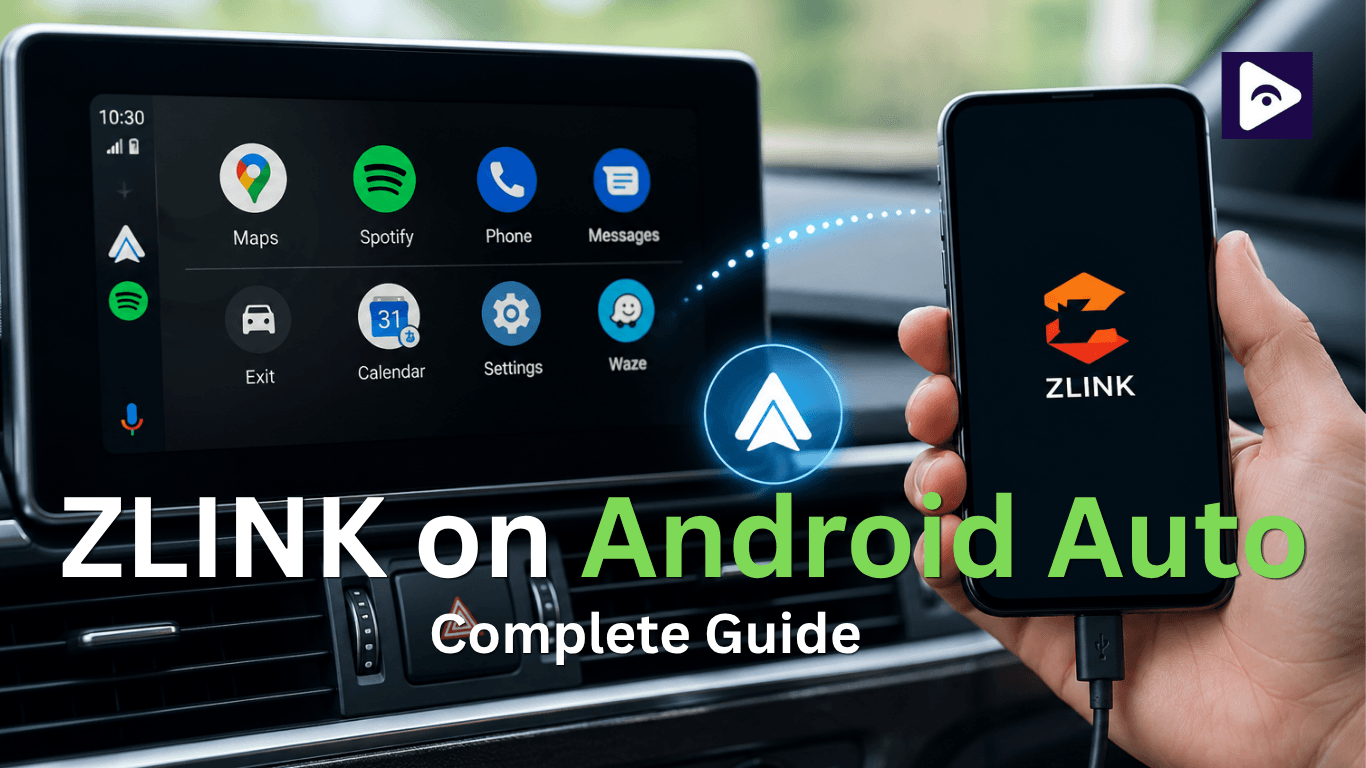
If you recently bought an Android head unit for your car, chances are you have already seen or heard about Zlink Android Auto. Many modern car screens and aftermarket infotainment systems use ZLINK to connect smartphones with Android Auto or Apple CarPlay.
For many users the first challenge is not using ZLINK. The difficult part is installing it correctly. The good news is that setting up ZLINK is usually simple when you follow the correct process.
This guide explains everything in an easy way. You will find out what ZLINK is and how ZLINK works, any issues with ZLINK.
What is ZLINK Android Auto?
ZLINK is an application that comes with many Android car head units. It acts as a bridge between your phone and your car display.
Instead of connecting directly through standard Android Auto systems, some aftermarket screens use ZLINK to launch Android Auto and Apple CarPlay features.
Once connected you can access:
- Google Maps
- Calls
- Messages
- Music apps
- Voice commands
- Navigation apps
- Podcasts
Many users choose Android Auto Zlink systems because they support both wired and wireless connections.
For example, after pairing your phone you can simply enter your vehicle and the connection starts automatically.
Why do people use ZLINK with Android Auto?
Many factory car systems do not support Android Auto directly. This is where ZLINK becomes useful.
People prefer it because:
- Simple connection process.
- Supports wireless use.
- Works with many Android head units.
- Easy interface.
- Supports different phone brands.
Drivers often choose Android Auto wireless Zlink because it removes the need for cables inside the car.
No one enjoys dealing with messy wires during every drive.
Before Installing ZLINK on Android Auto
Before you start installation make sure you have these things ready.
- Compatible Android head unit ZLINK usually works only on supported Android car systems.
Common examples include:
- T10 head units
- T3 systems
- TS10 systems
- Android multimedia screens
- Android phone
Support Android Auto. (Android 11 or later)
- Internet connection
You may need internet access for:
- Downloading ZLINK
- Updating Android Auto
- Installing system updates
- USB cable if needed If wireless setup does not work at first, use a quality USB cable.
Cheap cables often create connection issues.
How to Install ZLINK on Android Auto
Now let us go through the installation process step by step.
Step 1: Check if ZLINK is already installed
Many Android head units already come with ZLINK pre installed.
Open your app menu and look for:
- ZLINK
- ZLINK5
- ZLINK Auto
If you see it already installed, move to the setup section.
If not, continue with the next step.
Step 2: Download the ZLINK application
Some head units allow downloading the app directly.
You may find it through:
- Manufacturer website
- System update section
- App installer provided by your seller
Be careful when downloading APK files from random websites.
Unofficial files can cause:
- App crashes
- Security risks
- Activation problems
Step 3: Install the APK file
After downloading:
- Open file manager
- Locate the APK file
- Tap the file
- Press install
- Wait until installation finishes
Your device may ask for permission to install apps from unknown sources.
Enable permission temporarily if needed.
Step 4: Open ZLINK
After installation:
- Open ZLINK
- Allow requested permissions
- Accept terms if shown
Permissions may include:
- Phone access
- Contacts
- Microphone
- Location
These permissions help Android Auto work properly.
Step 5: Connect your Android phone
Take your phone and connect it through USB first.
Many systems complete the first setup using a wired connection.
After connecting:
- Unlock your phone
- Accept Android Auto permissions
- Allow pairing requests
The connection process may take several seconds.
Step 6: Launch Android Auto
After setup ZLINK should automatically detect your phone.
Your Android Auto screen should appear with:
- Google Maps
- Music apps
- Phone controls
- Messages
You can now use your system normally.
How to Set Up Android Auto Wireless ZLINK
Many users prefer Android Auto wireless Zlink because it removes the need for cables.
Wireless setup is easy.
Step 1: Enable Wi-Fi and Bluetooth
On your phone turn on:
- Bluetooth
- Wi-Fi
Keep both enabled during setup.
Step 2: Open ZLINK
Launch the ZLINK application on your head unit.
Step 3: Pair your device
Find your phone name and start pairing.
Accept requests on both devices.
Step 4: Wait for connection
The first connection may take around one minute.
Future connections are usually much faster.
After successful setup your phone should automatically connect every time you enter the vehicle.
Wired vs Wireless Zlink Connection
| Feature | Wired Connection | Wireless Connection |
|---|---|---|
| Setup | Connect USB cable once | Pair Bluetooth and WiFi once |
| Stability | Very stable connection | Depends on signal strength |
| Charging | Charges phone while using | No charging support |
| Convenience | Needs cable every time | Automatic connection after setup |
| Best Use | Long drives and stable use | Short trips and daily use |
How to Use Fermata Auto with ZLINK Android Auto (Step by Step)
Fermata Auto works as an extra media app on Android head units and can be used with Android Auto Zlink.
Step 1 :
Install Fermata Auto APK on your Android head unit and enable “Unknown Sources” in settings.
Step 2 :
Open ZLINK and connect your phone using USB or wireless connection.
Step 3 :
Wait until Android Auto fully loads on your car screen.
Step 4 :
Go to the app menu on your head unit and open Fermata Auto.
Step 5 :
Allow permissions like storage and media access when asked.
Step 6 :
Select your media files or streaming option inside Fermata Auto.
Step 7 :
Use it for playback when parked, as video features may be restricted while driving.
This setup is commonly used with zlink5 android auto for extra media support.
How to Install and Use Fermata Auto on Android Auto. (Step-by-Step Guide)
Can You Watch YouTube and Netflix on ZLINK Android Auto?
Many users think that apps like YouTube and Netflix should work on Android Auto using ZLINK. This is a common question, especially for long drives or passengers who want media playback on the car screen.
The reality is a bit different depending on your car system.
YouTube on ZLINK
In most standard Android Auto setups, YouTube does not run directly on the main driving screen. This is mainly because Android Auto is designed for safety and limits video apps while driving.
However, some Android head units with ZLINK allow:
- YouTube playback when the vehicle is parked.
- Screen mirroring features (depending on device support).
- Audio playback from YouTube Music instead of video.
In some modified Android Zlink systems, users can access YouTube through additional apps installed on the head unit, but this depends on manufacturer settings.
Netflix on ZLINK
Netflix works in a similar way.
Normally, Android Auto doesn't support Netflix directly. But on certain Android based car screens with ZLINK installed.
You may be able to:
- Open Netflix when the car is stationary.
- Watch downloaded content offline (if supported by device storage).
- Use screen mirroring from phone (not always stable).
Better Alternatives for Entertainment
Instead of video apps while driving, many users prefer:
- Spotify
- YouTube Music
- Apple Music
- Podcast apps
- Audiobooks
These work smoothly with Android Auto wireless Zlink and do not distract the driver.
Common ZLINK Installation Problems and Fixes
Installation sometimes works perfectly. Other times you may see small issues.
Here are common fixes.
- ZLINK not opening
Possible reasons:
- Corrupted installation
- Unsupported version
- Missing activation
Try:
- Restarting the head unit
- Reinstalling the app
- Updating firmware
- Android Auto not detected
Try these steps:
- Use another USB cable
- Unlock your phone
- Update Android Auto
- Restart both devices
- Wireless connection keeps disconnecting
Possible fixes:
- Remove old paired devices
- Update ZLINK
- Restart Bluetooth
- Reduce signal interference
- Black screen issue
This may happen due to compatibility issues.
Try:
- Updating software
- Reinstalling ZLINK
- Clearing app cache
Tips for Better ZLINK Performance
Small adjustments can improve your experience.
Keep apps updated
Old versions may create bugs.
Update:
- Android Auto
- ZLINK
- Head unit software
Use original cables
Low quality USB cables often cause random disconnections.
Restart occasionally
A quick restart can fix temporary issues.
Keep storage free
Very low storage can slow down app performance.
How to Choose the Right ZLINK Version for Your Car System
| ZLINK Version | Best For | Key Point |
|---|---|---|
| ZLINK3 | Old Android head units | Basic Android Auto support |
| ZLINK4 | Mid range car systems | Stable connection and better speed |
| ZLINK5 | New Android head units | Best wireless Android Auto support |
Zlink5 Android Auto - What's New in Version 5
Zlink5 is the version most people are looking for right now and for good reason. The update brought noticeably faster wireless pairing, better support for Android 12 and 13, improved stability during navigation and a cleaner user interface overall.
If you're installing Zlink for the first time go straight for Zlink5 Android Auto. There's no real reason to use an older version unless your specific car head unit has a known compatibility issue with it.
Is ZLINK Safe to Install?
Generally yes. However safety depends on where you get the application.
Install ZLINK from:
- Device manufacturer
- Trusted seller
- Official system updates
Avoid unknown websites that provide modified APK files.
Modified files may include:
- Malware
- Broken features
- Fake activation systems
Why Android Auto is better With ZLINK
Using Android Auto through ZLINK changes the driving experience.
Instead of constantly checking your phone you get:
- Bigger screen display
- Safer navigation
- Hands free communication
- Easy music control
- Voice commands
During long drives these features become very useful.
Does Every Android Head Unit Support ZLINK?
No. Some manufacturers use different systems.
Examples include:
- AutoKit
- TLink
- CarbitLink
Always verify compatibility before installation.
Frequently Asked Questions
- What is Zlink Android Auto?
ZLINK is an application that connects Android phones with Android based car systems and allows Android Auto to work on the car screen.
- Can I use ZLINK wirelessly?
Yes. Many versions support Android Auto wireless Zlink through Bluetooth and Wi-Fi.
- Does ZLINK work on all cars?
No. It mainly works with Android head units that support the application.
- What is ZLINK5?
Zlink5 android auto is a newer version of ZLINK with improved features and better wireless support.
- Why is my phone not connecting to ZLINK?
This can happen because of cable issues, permission problems or outdated software.
- Does Android Auto need the internet?
Some features such as maps, traffic updates and music streaming need internet access.
- Can I install ZLINK manually?
Yes. You can install it manually using an APK file if your system supports installation.
- Why does Android Auto disconnect often?
Common reasons include poor USB cables, weak wireless signals and battery restrictions.
- Is ZLINK free?
Some car systems include it free while others may require activation depending on the manufacturer.
- Can I update ZLINK?
Yes. Keeping the app updated helps improve stability and performance.
![How to Add WhatsApp on Android Auto? [2026 Guide]](/content/images/size/w600/2026/08/whatsapp.png)