
What is the Difference Between Fermata Auto and Fermata Media?

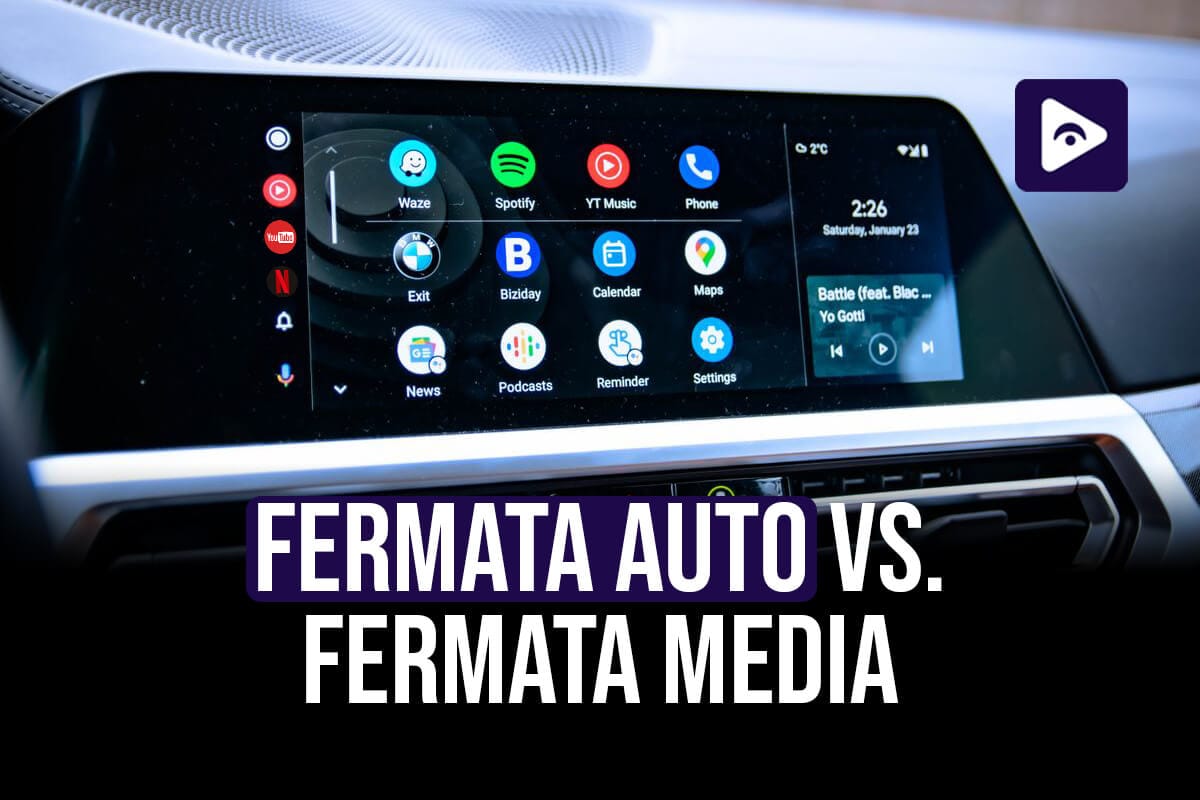
Fermata Auto and Fermata Media are two things that Android Auto users might be interested in if they want to listen to music or watch videos in their car. These two applications can make watching videos and listening to music while driving a lot better. They do some things but Fermata Auto and Fermata Media also have some different features.
This article is going to talk about the differences between Fermata Auto and Fermata Media. It will help you figure out which one of these options is better, for what you need from Fermata Auto and Fermata Media.
What is Fermata Auto?
The Fermata Auto media player has been specifically designed for use with Android Auto. Users can utilize the Android Auto infotainment system within their cars to watch videos, stream IPTV, and access media files. Fermata Auto is often the preferred choice for users in search of an advanced car video player, also to integrate effortlessly with the Android Auto interface, setting it apart from other Android media players.
Key Features of Fermata Auto
- Seamless Integration with Android Auto: This functionality works effortlessly within the Android Auto interface.
- IPTV Streaming Support : Enables the streaming of live television channels.
- YouTube and Web Video Playback: Ideal for online streaming purposes.
- Folder-based media management : allows for easy access and organization of local media files.
- Touch and Gesture Controls: An interface that is intuitively designed for use within cars.
What is Fermata Media?
Fermata Media is a good media player that works on lots of Android devices like smartphones and tablets and even Android TV. It is very flexible when it comes to playing back media. It supports many different formats. One thing Fermata Media does not have is integration, with Android Auto, which's something that Fermata Auto has when you use it with Android Auto.
Key Features of Fermata Media
- Device Compatibility : This product works with Android TVs and Android tablets and Android smartphones.
- Supports media formats : This advanced video and audio playback system supports media formats.
- Network streaming capabilities : This product plays media from servers and it plays media from cloud storage.
- Support for Subtitles : This product is perfect, for watching videos with subtitles on it.
- Media player runs independently of Android Auto.
Fermata Auto vs. Fermata Media - Key Differences
| Feature | Fermata Auto | Fermata Media |
|---|---|---|
| Device Support | Android Auto-enabled devices | Android smartphones, tablets, TV |
| Android Auto Integration | Yes | No |
| IPTV Support | Yes | Yes |
| YouTube & Web Streaming | Yes | Limited |
| Media Format Support | Video, Audio, IPTV | Video, Audio, Network Streaming |
| Subtitle Support | Limited | Yes |
| Touch & Gesture Control | Optimized for car screens | Standard smartphone controls |
| Offline & Network Streaming | Limited | Full support |
Common Installation Issues with Fermata Auto
If Fermata Auto is showing up as Fermata Media on your Android Auto system after you put Fermata Auto on your Android device you might have a problem that a lot of people have, with Android Auto when it plays videos. This usually happens because Fermata Auto does not have the permissions or because Fermata Auto was not installed correctly.
Possible Reasons and Fixes:
- Incorrect Installation of the APK.
Fermata Auto may not work properly if you download it from an unofficial source.
Solution: Before installing Fermata Auto, make sure to download it from the Fermata Auto official website.
Fermata Auto Installation Guide
- Android Auto's developer mode is not activated.
Without Developer Mode enabled, Android Auto limits access to third-party apps.
Solution: Go to Android Auto Settings → Keep tapping "Version" → Switch on Developer Mode → Go to Developer Settings and select Allow “Unknown Sources.”
- No Permissions Issued.
For Fermata Auto to function at its best, media access and file permissions are required.
Solution: Select Settings > Applications > Fermata Auto and provide the necessary permissions.
- Limitations of Google's Android Auto.
Video playback may be impeded by the more stringent security measures implemented in the latest Android versions.
Solution: Change the Developer Mode settings or use previous versions of Android Auto.
- YouTube only plays audio; not showing video.
Android Auto restricts video playback for security reasons.
Solution: Make sure Fermata Auto's "Video Playback" setting is turned on, then look into other IPTV streaming choices.
Full info: Fermata Auto not showing on Android Auto
Which One Should You Choose?
Choose Fermata Auto if:
- You need a specific media player for your car's infotainment system because you mostly use Android Auto.
- Android Auto must have YouTube and IPTV streaming capabilities.
- You favour an easy to use gesture based UI that is intended to increase convenience.
Choose Fermata Media if:
- You need a media player that works on its own for Android devices like smartphones, tablets or Android TV.
- You want to be able to play things in different ways like streaming from the internet and having options for subtitles, on your Android media player.
- You do not require Android Auto compatibility but need enhanced media capabilities.
If you’re using Fermata Media for media playback features like video and streaming inside Android Auto, you may also come across Fermata Control, which helps manage communication and system interaction between Fermata components. It works behind the scenes to support smoother operation and better stability when using Fermata-based tools in Android Auto environments.
Learn more about Fermata Control here: Fermata Control – Full Guide & Explanation
Frequently Asked Questions about Fermata Auto and Fermata Media
- What is the difference between Fermata Auto and Fermata Media?
Fermata Auto is for Android Auto. It adds media options in your car. Fermata Media is a media player. It. Plays videos, music and playlists on Android devices. You use Fermata Auto in your car. Fermata Media is, for your Android device.
- Is Fermata Media a media player?
Yes, Fermata Media works as a multimedia player that allows users to play music, videos, and supported streaming content with flexible playback options.
- Can I use Fermata Media with Android Auto?
Fermata Media can be used as part of the Fermata ecosystem, while Fermata Auto focuses on bringing media features to Android Auto-compatible car displays.
- Does Fermata Media support video playback?
Yes Fermata Media does support playing videos. It helps users to organize and watch their saved media files on their Android devices. Fermata Media is really good, for this. It lets you manage your media files. You can use it on Android.
- Can Fermata Media play music files?
Yes, Fermata Media can play music files and helps users manage audio content through playlists and media controls.
- Does Fermata Media support IPTV?
Yes, Fermata Media supports IPTV playlists, allowing users to access compatible live TV streams through the application.
- Is Fermata Auto only for cars?
Fermata Auto is mainly designed for Android Auto environments, helping users access additional media features through supported vehicle displays.
- Which one is better Fermata Auto or Fermata Media?
Well it really depends on what you're looking for. If you want to improve in-car entertainment through Android Auto then Fermata Auto is the choice.
On the hand if you are looking for a solution for personal media playback on your Android devices then Fermata Media is a better option.
So Fermata Auto is great for in-car use with Android Auto while Fermata Media is ideal for media use, on Android devices.
- Do I need both Fermata Auto and Fermata Media?
Not always. If you mainly want Android Auto features, Fermata Auto may be enough. If you want a complete media player experience, Fermata Media provides additional playback features.
- Is Fermata Media free to use?
Yes. Fermata Media is available as a free media solution that provides video, music, and media management features for Android users.
![How to Use Google Maps on Android Auto [Fermata Auto]](/content/images/size/w600/2026/07/google-map.png)