What are the Best Android Auto Video Resolution Settings for Better Video Quality?

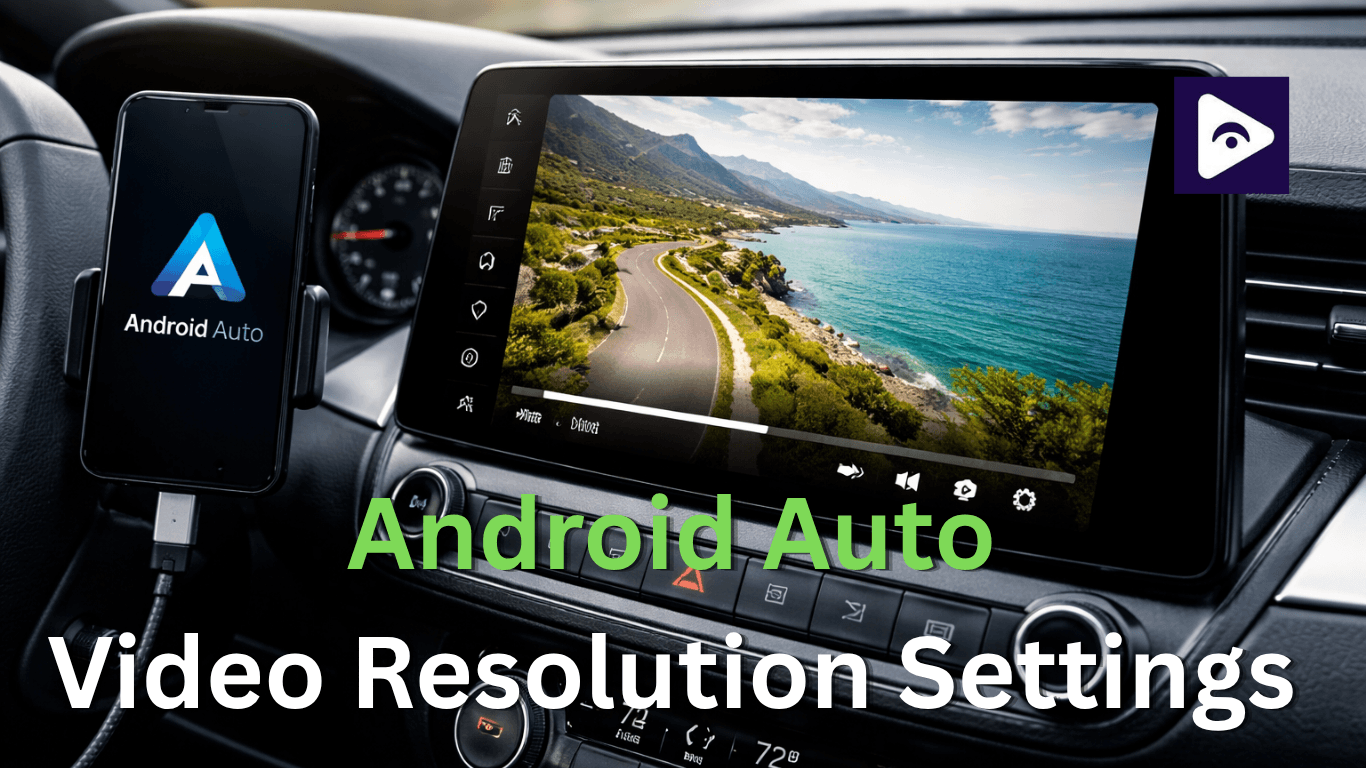
If you have tried watching videos on Android Auto you might have seen that the quality is not always sharp. When you play high definition videos they can look blurry or laggy.
This is because Android Auto is mainly for driving and not for playing videos. It has some limitations to make sure it works well and safely while you drive. Android Auto is not really meant for video playback so it can't show videos clearly as, on a phone.
If you do a few things you can make the video look a lot better. If you change the Android Auto video resolution settings and the bitrate and use apps, like Fermata Auto you can have a smoother and more enjoyable time watching videos.
In this guide we will tell you everything you need to know about Android Auto video quality in a way. We will show you how to make Android Auto videos look better so you can have an enjoyable time watching Android Auto videos.
What are Android Auto Video Resolution Settings?
When you use Android Auto, the video resolution settings are what decide how videos look on your car screen.
The video resolution settings decide what the Android Auto video looks like. You will see the Android Auto video in 480p or 720p or 1080p.
However Android Auto does not always use the resolution. It often limits video output to maintain performance and safety. This means even high quality videos may appear compressed or less sharp.
These settings depend on:
- Screen size of your car display.
- Android Auto system limitations.
- App used for video playback.
- Phone performance.
Understanding these factors helps you adjust settings correctly.
Why video quality looks different on Android Auto
The video quality on Android Auto is not the same as, on your phone. This is because Android Auto is designed to ensure everything works well and does not freeze. It prioritizes performance over showing very clear videos.
Android Auto focuses on stability, not high definition video. Android Auto does this to make sure you have an experience while using Android Auto.
Some common reasons include:
- Built-in resolution limits.
- Compression during data transfer.
- USB or wireless connection quality.
- App restrictions.
- Screen aspect ratio differences.
For example, widescreen displays stretch the video, which may reduce clarity if not optimized properly.
How resolution affects video playback
The resolution of a video is really important because it affects how clear it looks. When the resolution is higher you can see a lot of detail in the video. The thing is, higher resolution videos need a lot more power to play smoothly. The resolution is what makes a video look nice.
Common Resolution Levels:
- 480p - Basic quality, smooth performance
- 720p - Balanced quality and speed
- 1080p - High quality but may lag on some systems
Choosing the right resolution depends on your car screen and device performance.
If your system struggles, lowering resolution can actually improve the viewing experience.
Why Video Looks Blurry
Many users notice that videos do not look as sharp as on their phones. This happens because Android Auto compresses video output.
Main Reasons
- System resolution limits.
- Data compression.
- Weak connection (USB or wireless).
- App restrictions.
- Screen stretching on widescreen displays.
To fix this, you need to adjust both resolution and bitrate settings properly.
How Resolution Affects Quality
The resolution of a video is what makes it look clear or not. If you have a resolution you can see more details in the video.. You need a stronger computer to play it.
Key Points
- Higher resolution = better clarity
- Lower resolution = smoother playback
- Too high resolution = lag or buffering
For Android Auto setups 720p is the best choice. This is because it looks good and works well at the time. You get a balance between how good the video looks and how well it plays.
What is Bitrate?
Bitrate is the amount of data used to play video per second. It works together with resolution to control video quality.
Why Bitrate Matters
- High bitrate improves sharpness.
- Low bitrate reduces data usage.
- Very high bitrate can cause lag.
Recommended Settings
- 1000 - 1500 kbps (Low quality).
- 2000 - 3000 kbps (Medium quality).
- 4000 + kbps - (High quality - for powerful devices).
Choosing the correct bitrate helps avoid buffering and improves playback stability.
Hardware Acceleration Basics
Hardware acceleration allows your device to use GPU power instead of CPU for video playback.
Benefits Smooth playback
- Better performance.
- Less lag.
- When to Disable App crashes.
- Screen flickering.
- Compatibility issues.
Most users should keep hardware acceleration enabled for better results.
Best Resolution by Screen
Size Different car screens need different resolution settings.
Small Screens (7 - 8 inches)
- Use 480p or 720p
- Focus on smooth playback
Medium Screens (9 - 10 inches)
- Use 720p
- Balanced quality
Large Screens (10+ inches)
- Use 720p or 1080p
- Adjust aspect ratio carefully
Using higher resolution than needed does not always improve quality.
Fermata Auto overview
Fermata Auto is a popular app for playing videos on Android Auto. It gives users more control over playback settings.
Features
- Custom resolution control.
- Bitrate adjustment.
- Hardware acceleration option.
- Support for local and online videos.
This makes it easier to optimize android auto video quality.
Fermata Resolution Settings
To get the best results, configure Fermata Auto correctly.
Recommended Setup
- Resolution: 720p
- Bitrate: 2000 - 3000 kbps
- Hardware Acceleration: Enabled
- Aspect Ratio: Fit to screen
Extra Tips
- Avoid maximum settings on low end devices.
- Match settings with your screen size.
- Test different combinations.
These changes can significantly improve video clarity.
Fermata Auto Installation Guide
How to improve video quality easily?
Improving android auto video quality requires a combination of settings.
Simple Tips
- Use high quality video files.
- Adjust resolution properly.
- Set a balanced bitrate.
- Enable hardware acceleration.
- Use a stable USB cable.
- Close background apps.
These small adjustments can create improvements.
Common Problems and Fixes
Blurry Video
Cause: Low resolution
Fix: Increase resolution and bitrate
Lag or Buffering
Cause: High settings
Fix: Lower resolution or bitrate
No Video
Cause: App issue
Fix: Update or reinstall
Flickering Screen
Cause: Hardware acceleration
Fix: Disable and test
Full guide: Fermata Auto Common & Fixes
Frequently Asked Questions About Android Auto Video Resolution Settings
- What are the best Android Auto video resolution settings?
720p is the best option for most users because it balances quality and performance.
- Can I change Android Auto video quality?
Yes. you can adjust settings using developer options and apps like Fermata Auto.
- Does Android Auto support HD video?
Yes. but the system may limit resolution for performance reasons.
- What are Fermata Auto resolution settings?
These settings allow you to control video resolution and bitrate inside the Fermata Auto app.
5. Does bitrate affect Android Auto video quality?
Yes. A higher bitrate makes the video look clearer. It might also make it slower.
6. Why is my video on Android Auto?
This usually happens because the resolution is too low or the video is compressed too much.
7. What resolution is best for displays?
For Android Auto 720p, with the right aspect ratio works best.
8. Should I enable hardware acceleration?
Yes it usually makes video playback smoother.
9. Can Android Auto play 1080p video?
Yes. Only if your device and system can handle 1080p video.
10. How to improve video quality on Android Auto?
To get video quality on Android Auto use the right resolution, adjust the bitrate turn on hardware acceleration and make sure your connection is stable.
![How to Use Google Maps on Android Auto [Fermata Auto]](/content/images/size/w600/2026/07/google-map.png)