What are the best Android Auto Spring Road Trip Apps in 2026?
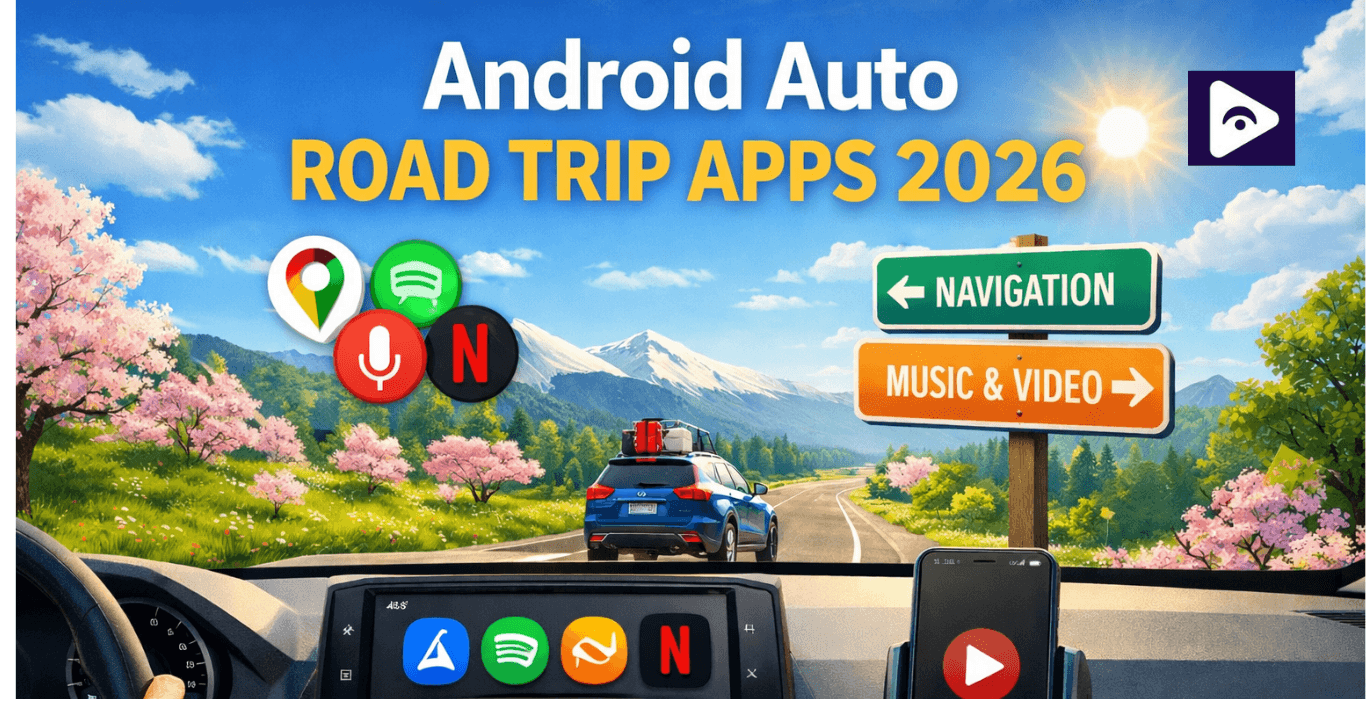
Spring is a great time for road trips. The weather is nice flowers are out. The roads are super pretty. If you have a car that works with Android Auto it can make your trip a lot better. You can use it to find your way on roads you do not know find places to visit listen to music, podcasts or audiobooks and even watch videos when you are parked.
In this guide you will learn about the apps for Android Auto that are perfect for road trips. You will also learn how to get your system ready for a drive and some tips to make your spring trip even more fun, with technology.
Why Android Auto is perfect for spring road trips
Android Auto helps you use your phone in the car. It brings phone features to your cars dashboard. This makes driving safer. You have distractions. Your road trip is fun. Android Auto helps you enjoy the drive.
Benefits of Android Auto for road trips:
- Hands navigation: Use GPS with Google Maps or Waze while driving.
- Voice commands: Control apps with Google Assistant.
- Entertainment for passengers: Play music, podcasts or audiobooks.
- Time traffic updates: Updates on traffic so avoid delays.
- Safety: The simple interface helps me stay focused, on the road, which is really important.
Long Drive Android Auto Setup (Before Your Trip)
Proper long drive Android Auto setup ensures smooth operation during your journey.
Steps to Prepare:
- Update Android Auto & apps : Fixes bugs and Make them work better together..
- Download offline maps: If you are going to be in a place where the internet's not very good.
- Prepare music & podcasts: Download playlists before you start trip.
- Check charging setup: USB cable, car charger & etc.
- Mount your phone properly: Keeps your device stable and visible.
- Test connection: Ensure navigation, music, and voice commands work better.
Best Android Auto Road Trip Apps for 2026
Navigation Apps
| App | Key Features | Why It’s Useful |
|---|---|---|
| Google Maps | Turn by turn directions, offline maps, nearby points of interest | Reliable navigation and route planning |
| Waze | Real time traffic, hazard alerts, police notifications | Avoid traffic delays |
| Sygic GPS Navigation | Offline 3D maps, voice guided navigation, live traffic info | Useful for areas with poor connectivity |
Music & Entertainment Apps
| App | Features | Tips for Road Trips |
|---|---|---|
| Spotify | Playlists, music, podcasts | Pre download playlists for offline use |
| YouTube Music | Millions of songs and live performances | Use voice commands to switch songs |
| Amazon Music | Music streaming and offline playlists | Ideal if you already use Amazon services |
Podcast & Audiobook Apps
| App | Features | Benefits |
|---|---|---|
| Audible | Thousands of audiobooks | Engages passengers or solo drivers |
| Pocket Casts | Podcast management | Resume episodes seamlessly |
| Stitcher | Variety of podcast genres | Entertainment during long drives |
Spring Road Trip Planning with Android Auto
Spring road trips are really fun. It is always a good idea to get a few things ready before you go. This makes the drive a lot easier. Before you leave for your Spring road trip you should spend a minutes setting things up on Android Auto. This way Android Auto will work properly during your road trip.
Plan Your Route Ahead
Check your route using a navigation app before starting your drive.
- Check the total driving distance.
- Look at possible traffic during busy hours.
- Review the weather along the route.
- Find gas stations. Charging stops, along your route.
Planning your trip early helps you avoid delays. It also helps you avoid surprises.
Download Offline Content
Internet signals can drop during long drives, especially in rural areas. It’s a good idea to prepare some offline content.
- Download maps, from Google Maps to use offline.
- You can also save your music playlists from Spotify or YouTube Music for offline listening.
- Download podcast episodes.
- Save audiobooks for longer drives.
This way, you still have navigation and entertainment even without internet.
Organize Your Apps
Android Auto shows several apps on your car screen. Setting them up before the trip makes them easier to use.
- Keep your navigation app ready to open
- Set your favorite music app for quick access
- podcasts or audiobooks as backup entertainment
Keeping apps organized helps reduce distractions while driving.
Essential Safety Tips for Long Android Auto Drives
Safety Tips Every Driver Should Follow
- Use voice commands whenever possible.
- Avoid touching the screen while driving.
- Make sure you set your navigation.
- Take a break every hours like every 2 or 3 hours to rest.
- Phone charged so it does not run out of power.
- Make sure your phone is properly connected to your car.
Google Assistant is really helpful because it lets Google Assistant users control features of your car without having to take your hands off the wheel which's great, for Google Assistant users.
For example, you can say:
“Navigate to the nearest gas station”
“Play my road trip playlist”
“Call home”
Using voice commands is helps you keep your eyes on the road and that makes driving a lot safer for you.
Watch Videos in Your Car with Fermata Auto
Fermata Auto unlocks video streaming on Android Auto to make in car entertainment simple and safe.
Fermata Auto Supported Apps
You can stream popular apps with Fermata Auto:
- YouTube
- Netflix
- Amazon Prime Video
- Disney+
- HBO Max (Max app)
- VLC Media Player
- Local videos stored on your phone
| App | Playback Method | Notes |
|---|---|---|
| YouTube | Direct playback | Most reliable option |
| Netflix | Browser playback | May show DRM black screen on some devices |
| Amazon Prime Video | Browser playback | Depends on device compatibility |
| Disney+ | Browser playback | May require login via browser |
| HBO Max | Browser playback | DRM may block video on some devices |
| VLC Player | Local playback | Best for offline movies |
| Local Video Files | Direct playback | Supports multiple formats |
How to Install Fermata Auto
Fermata Auto is not, on Google Play so you have to do a few steps to get it. Here are two ways to get Fermata Auto started:
Method 1: Easy Installation (Recommended)
Step 1: Start the Installation
Tap “Fermata Auto Installation”. If you’re on a PC, scan the QR code to open the page on your phone.
Step 2: Open in Chrome
Make sure to use Google Chrome to load the installer page. Tap “Fermata Auto Installation” again to continue.
Step 3: Confirm Installation
You will see a pop up message that asks for your permission to install Fermata Auto.
You need to tap the Install button. If you want to use Fermata Auto you can also add a shortcut to your home screen.
Step 4: Complete Setup
Now you have to open Fermata Auto and give it the permissions it needs. Then you have to follow the instructions that're on the screen to finish the setup of Fermata Auto.
Method 2: Manual APK Installation
Step 1: Get the Fermata Auto APK
You need to download the Fermata Auto APK. You can find it on GitHub. Get it from a source you trust.
Step 2: Allow installation from sources
Now you have to go to your phone settings. Then you have to allow your phone to install things from sources.
Step 3: Turn on Developer Mode in Android Auto
Open Android Auto settings → tap Version Number repeatedly until Developer Mode is activated.
Step 4 : Allow installation from sources.
Step 5: You need to connect your Android phone to the car.
You can use a USB cable to do this. If your phone and your car support Android Auto then you can also use Android Auto.
Step 6: Launch Fermata Auto
Open the app from Android Auto’s apps list.
Step 7: Start Watching Videos
Select YouTube, HBO Max, or any other supported video app, and enjoy content while parked safely.
Quick Comparison of Fermata Auto Alternatives
| App | Main Function | Best Use Case | Root Required | Android Auto Compatible |
|---|---|---|---|---|
| Fermata Auto | Media player and streaming support | Watching videos and local media | No | Yes |
| Screen2Auto | Full phone screen mirroring | Running multiple apps | Sometimes | Yes |
| AA Mirror | Basic screen mirroring | Simple mirroring setup | Sometimes | Yes |
| CarStream | YouTube video streaming | Watching YouTube | No | Yes |
| AAStream | Advanced screen mirroring | Running any phone app | Often | Yes |
Common Android Auto Problems During Road Trips
| Problem | Solution |
|---|---|
| Connection issues | Reconnect USB or restart devices |
| App crashes | Update apps through Google Play Store |
| GPS errors | Enable location services |
| Slow app loading | Close background apps |
Android Auto Road Trip FAQs
- What are the best apps for road trips?
Google Maps and Waze are great for finding my way. For Google Maps and Spotify and YouTube Music and Pocket Casts and Audible make a road trip really smooth.
- Can I stream music or podcasts from devices, to one Android Auto display?
No that is not possible. Android Auto can only connect to one device at a time.
So if use Fermata Auto it will only work on the phone that is connected to Android Auto.
- What is Fermata Auto?
A third party media player for Android Auto that supports video streaming.
- Is Fermata Auto on Google Play?
No. It must be installed via the Fermata Auto Official Website.
- Is Fermata Auto safe for trips?
Yes, long as you play videos only when your car is parked. You can safely play music and podcasts while driving.
- Why do some apps show a screen when I try to use them?
Some streaming services, like Netflix HBO Max and Disney+ use something called Digital Rights Management or DRM for short.
- How can I prepare for a drive with Fermata Auto?
Here are some tips:
- Update Android Auto to the version
- Download maps for use
- Prepare your playlists and audiobooks
- Install travel apps that you may need
- Test your phone and car connection before you leave
- Does Android Auto work without internet?
Yes it does. You can use maps listen to downloaded music and audiobooks without internet.. Streaming services and live traffic updates need internet.
- Will Fermata Auto work with my car?
Fermata Auto works with cars that are compatible, with Android Auto.. The quality of video playback may vary depending on your cars screen resolution and firmware.
- Are there alternatives to Fermata Auto for video in Android Auto?
Yes. Some alternatives include:
- Screen2Auto – full phone mirroring
- AA Mirror – simple mirroring functionality
![How to Use Google Maps on Android Auto [Fermata Auto]](/content/images/size/w600/2026/07/google-map.png)