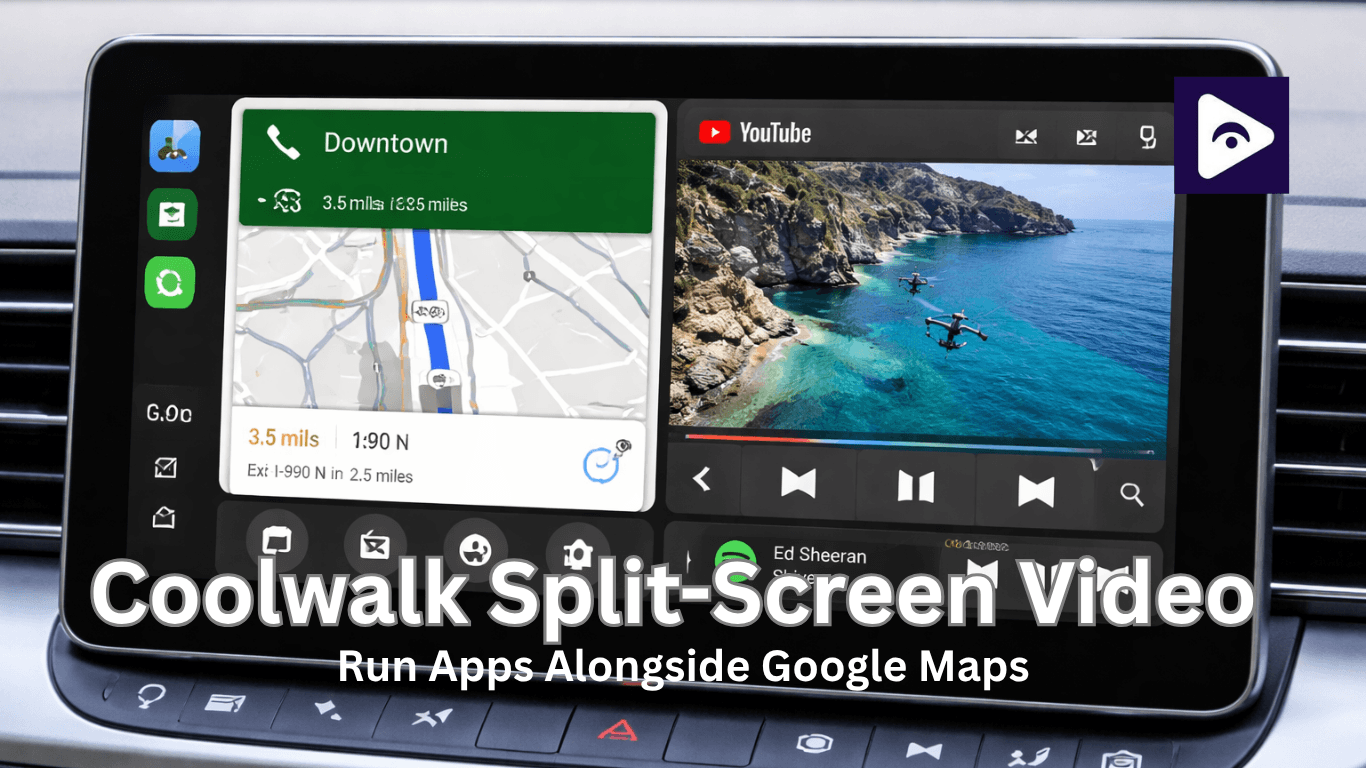
Coolwalk Split-Screen Video: Run Apps Alongside Google Maps

Why Coolwalk Feels Like a Real Upgrade.
If you’ve been using Android Auto for a while, you already know the old frustration.
You’d open navigation, then lose access to music controls. Switch to a playlist, and suddenly your map disappears. It wasn’t broken but it never felt complete.
The Coolwalk changes the way you experience things in an important way. It does not make you jump from one app to another. Instead the Coolwalk lets all your apps live together on the screen. The navigation on the Coolwalk stays active and the music on the Coolwalk continues to play. The controls for the Coolwalk remain visible without you having to tap extra times.
The Coolwalk does not try to overwhelm you with a lot of features. It simply removes friction.
What Coolwalk split screen actually means
At its core, Coolwalk introduces a flexible split screen system inside Android Auto.
Rather than displaying one app at a time, the interface intelligently divides your screen into sections. One part focuses on navigation, while another handles secondary tasks like media or calls.
You don’t need to configure layouts manually.
The system decides based on:
- Your screen size.
- The apps you open.
- The order you launch them.
In most cases, navigation takes priority, while the second app fits into the remaining space.
That’s what makes the experience feel smooth. It adapts instead of forcing you to adjust.
Coolwalk Layout Options
One of the best parts of Coolwalk is customization. The layout adjusts based on your screen size and settings.
1. Standard Split Layout
- Large map view
- Small media panel
- Best for most users
2. Media Focused Layout
- Bigger media/video section
- Smaller navigation panel
3. Full Screen Toggle
- Switch any app to full screen when needed
These layouts help users coolwalk customize their experience depending on usage.
How Android Auto Split Screen Works
How Coolwalk Split-Screen Works Coolwalk divides your car screen into three main sections:
- Main Panel (Primary App)
This is the largest area. Usually used for:
- Google Maps
- Waze
- Media apps
- Secondary Panel (Split View)
A smaller section where another app runs simultaneously:
- Music player
- Messaging
- Video apps (with supported tools)
- Taskbar (Bottom or Side)
Quick access for:
- Switching apps
- Notifications
- Assistant
This structure is what enables android auto split screen functionality.
Add CoolWalk on Android Auto
Step 1: Check If Your Phone Works
You need to make sure your phone is using Android 13 or a newer version and that it can run the Android Auto version.
Step 2: Get The Android Auto
Go to the Google Play Store and get the latest version of Android Auto. If you do not have Android Auto on your phone you should. Install it now.
Step 3: Connect Your Phone To Your Car
Use a USB cable. Connect without cables to link your phone to your car using Android Auto.
Once Android Auto opens, you’ll see apps appearing side by side that confirms Coolwalk is active.
When you see the split-screen layout, Coolwalk is successfully enabled.
Can you run video in Split Screen?
This is where things get interesting.
Many users searching for coolwalk video split screen are trying to figure out one thing:
Can I run video while using navigation?
The honest answer is straightforward.
Android Auto does not allow video playback while driving. Video apps are blocked, and they won’t appear in split view under normal conditions.
That is not a limitation, it is a design decision that is focused on safety.
Still the users have found ways around the design decision.
What Works in Split View (And What Doesn’t)
Before looking at workarounds it helps to know what the system is, for. It is good to understand what the system supports.
Works reliably Navigation, music streaming, calls, and messaging apps all function smoothly in split screen. These are considered essential driving tools.
Limited or restricted Video playback, streaming platforms, and local video players don’t appear in the standard Android Auto environment.
In practice, this means split screen is designed for utility, not entertainment.
How users run video with Navigation
Even with restrictions in place, some users look for ways to extend Android Auto’s capabilities.
This is where apps like Fermata Auto come in.
Fermata Auto works differently from traditional apps. This thing does not work like a streaming service. It works more like a player that can play videos.
Because of this it can show up in Android Auto as an app that works with it.
How Fermata Auto Fits into Coolwalk
When configured correctly, Fermata Auto can run alongside navigation in split screen mode.
Here’s what typically happens:
- Google Maps opens as the main app.
- Fermata Auto loads as a secondary app.
- Video playback appears in the smaller panel.
This setup allows users to run video with navigation, even though it’s not officially supported.
However, the experience isn’t identical across all cars. Performance and layout depend on both your phone and your vehicle’s display system.
How to Set Up Fermata Auto (Step-by-Step)
Step 1: Open Installation Page
If you’re on a PC, scan the QR code using your phone.
Step 2: Use Chrome Browser
Make sure the page opens in Google Chrome on your Android phone.
Step 3: Install the App
Tap the install button → when the popup appears, press Install.
Step 4: Wait for Installation
Give it a few seconds until the app is fully installed.
Step 5: Find the App
Go to your home screen or app drawer and locate Fermata Auto.
Step 6: Open and Activate
Open the app → enter your email address to activate.
Step 7: Tap “GET”
Follow the next screen → tap the GET button and complete instructions.
Step 8: Use in Android Auto
Connect your phone to the car
- Open Google Maps first.
- Then open Fermata Auto.
It should now appear in split screen with navigation.
Common Issues and Fixes
Here are the most common problems users face with coolwalk video split screen and Fermata Auto along with quick, practical fixes.
- Split Screen Not Showing
Issue: Only one app appears, no split layout
Fix:
- Update Android Auto to the latest version
- Open Google Maps first, then another app
- Restart phone and reconnect
- Fermata Auto Not Appearing in Android Auto
Issue: App is installed but not visible in car screen
Fix:
- Enable Developer Settings in Android Auto
- Turn on Unknown Sources
- Reconnect your device
- Video Not Playing
Issue: App opens, but video doesn’t load
Fix:
- Check internet connection or file source
- Try a different video link/file
- Restart the app
- Lag or Slow Performance
Issue: Video stutters or freezes
Fix:
- Lower video resolution (720p works best)
- Close background apps on your phone
- Use a stable USB connection instead of wireless
- App Crashes or Closes Automatically
Issue: Fermata Auto keeps stopping
Fix:
- Clear app cache
- Reinstall the app
- Make sure your Android version is compatible
- No Audio from Video
Issue: Video plays but no sound
Fix:
- Check car volume and media output
- Restart Android Auto session
- Switch audio source and back
- Split Screen Layout Looks Wrong
Issue: Apps are not properly aligned
Fix:
- Disconnect and reconnect Android Auto
- Rotate phone (if using wireless projection)
- Check car display compatibility
- App Not Installing Properly
Issue: Installation fails or doesn’t complete
Fix:
- Use Google Chrome only
- Enable install permissions
- Retry installation from the official page
- “Unknown Sources” Option Missing
Issue: Can’t find the setting
Fix:
- Enable Developer Mode (tap version multiple times)
- Then go to developer settings → turn it on
- Fermata Not Showing in Split Screen
Issue: App opens but doesn’t go into split view
Fix:
- Open navigation first, then Fermata
- Use a wider screen if available
- Try switching apps using the taskbar
FAQs: Coolwalk Split-Screen Video
- What is a coolwalk video split screen?
It refers to using Android Auto’s split layout to run multiple apps, including attempts to run video alongside navigation.
- Can I run video with navigation?
Not officially, but third-party apps like Fermata Auto make it possible.
- Does Android Auto support split screen?
Yes, Coolwalk introduced built-in split-screen functionality.
- How do I enable android auto split screen?
It activates automatically when you open more than one supported app.
- What apps work in split view?
Navigation, music, calls, and messaging apps work best.
- What is Coolwalk customize?
It’s the way Android Auto adjusts layout based on app usage and screen size.
- Why is video blocked in Android Auto?
To reduce distraction and improve driving safety.
- Does Fermata Auto work on all vehicles?
No, compatibility depends on your car system and Android Auto version.
- Can I watch YouTube using Fermata Auto?
Yes, you can watch YouTube using Fermata Auto
- Is it safe to use video while driving?
No, video should only be used when the vehicle is parked.
![How to Use Google Maps on Android Auto [Fermata Auto]](/content/images/size/w600/2026/07/google-map.png)