How to watch Plex Video on Android Auto: Stream Your Media Server in the Car

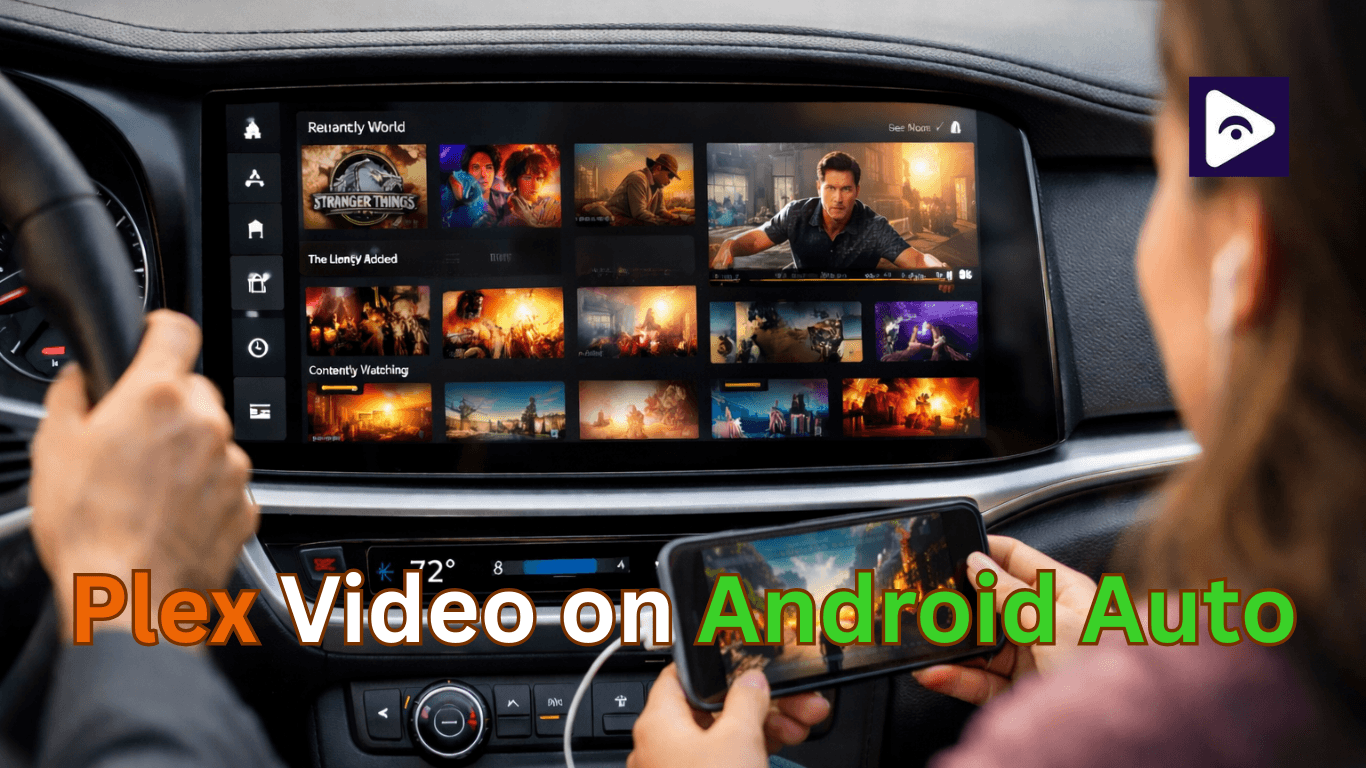
Many drivers like to keep a personal collection of movies, TV shows, and videos on their Plex server. Being able to access that library while traveling can make long trips more enjoyable, especially when passengers want something to watch. However, Android Auto does not officially support video streaming apps like Plex for safety reasons. This means you cannot simply open the Plex app and play videos on your car screen. Fortunately, there are workarounds that allow plex android auto video streaming using third party tools. One of the most popular solutions is Fermata Auto, which allows a browser based method to access Plex from your car display. With the right setup, you can stream your media library safely while parked.
What is Plex and How does it work?
Plex is a media platform that lets you organize and stream your personal content from a central server. Instead of storing movies and TV shows only on one device, Plex turns your computer or NAS into a media server that can be accessed from different devices.
When Plex Media Server is installed, it scans and organizes your content into a clean library. From there, you can watch your videos on smartphones, smart TVs, tablets, and web browsers.
Supported Devices and Compatibility
Before you start streaming Plex videos in your car, it’s important to ensure your devices and car system are compatible. Not all Android phones or car infotainment systems support plex android auto video streaming with Fermata Auto. Here’s what you need to know:
Compatible Android Devices
- Android 10 or higher is recommended for smooth performance.
- Fermata Auto works on most smartphones that can run Android Auto.
- Devices with strict manufacturer restrictions may have limited functionality.
Car Infotainment System Requirements
- Must support Android Auto version 7.3 or higher.
- Both wired (USB) and wireless Android Auto connections are possible, but wireless support depends on your car model.
- Some older infotainment systems may not display third party apps properly.
Internet and Network Considerations
- For live streaming from your Plex server, a stable internet connection is required.
- If you plan to use offline media, ensure you download content to your phone before leaving areas with poor reception.
- Hotspot or mobile data connections can work, but higher speeds reduce buffering and improve video quality.
Using Plex With Fermata Auto
One of the easiest methods for plex android auto video streaming is using Fermata Auto.
What Is Fermata Auto?
Fermata Auto is a third party media player designed to work with Android Auto. It supports several playback features including:
- Local video playback.
- IPTV streaming.
- Browser based video playback.
- Media library access.
Because it includes a built in browser, users can open websites directly from the car display. This makes it possible to open the Plex web interface and stream videos.
How Plex Fermata Integration Works
The concept is simple.
Instead of launching the official Plex app, you open the Plex web player inside Fermata Auto’s browser. Once logged in, your Plex library appears just like it does on a computer browser.
From there, you can select movies or TV shows and start playback.
This method effectively creates a bridge between Android Auto and Plex.
How to Install Fermata Auto
Method 1: Easy Installation (Recommended)
This method installs Fermata Auto directly from a web page and usually works on most Android phones.
Step 1: Start the installation
Tap “Fermata Auto Installation.” If you’re reading this guide on a computer, scan the QR code with your phone. It will open the installer page on your device.
Step 2: Open the page in Chrome
Make sure the page opens in Google Chrome. Tap “Fermata Auto Installation” again and Chrome will begin preparing the installer.
Step 3: Install the app
Your phone will show a small pop up asking for confirmation. Tap Install to proceed.
Step 4: Finish the setup
Once the installation is done, open Fermata Auto, allow the permissions it requests, and follow the steps shown on the screen. After that, the app will be ready to use.
Method 2: Manual APK Installation
Step 1: Download and Install APK
Visit the official Fermata Auto GitHub page or a trusted mirror site and download the APK. Open the file on your phone. If prompted, enable Install from Unknown Sources.
Step 2: Enable Android Auto Developer Mode To allow third party apps:
Open Android Auto Settings
Tap Version Number repeatedly until Developer Mode activates
Open Developer Settings
Enable Unknown Sources
This lets Fermata Auto appear in Android Auto.
Step 3: Link Phone and Car
Connect your phone via USB or wireless Android Auto. Open Fermata Auto in the app list.
Step 4: Enable Browser Playback
Launch Fermata Auto and select the browser. Open the Plex web app, sign in, and start streaming. You can also watch YouTube , Netflix or other supported services using the same method.
How to Stream Plex Video
Through Fermata Auto Once Fermata Auto is installed, accessing your Plex server becomes straightforward.
- Open Android Auto in your car.
- Launch Fermata Auto.
- Select the browser option.
- Open the Plex web app.
- Sign in to your Plex account.
- Browse your library and start streaming.
Your server library should appear exactly like it does on a desktop browser.
Plex Server Setup for Car Streaming
Install Plex Media Server
Install Plex Media Server on your computer, NAS, or home server and add your media folders.
Enable Remote Access
Turn on Remote Access in Plex settings so you can access your library outside your home network.
Adjust Streaming Quality
Lower the streaming resolution or enable adaptive bitrate to reduce buffering when using mobile data.
Alternatives to Fermata Auto
| App / Tool | Function | Pros | Cons |
|---|---|---|---|
| Fermata Auto | Stream apps on Android Auto | Easy to use, supports multiple apps | Limited customization, some apps may not work |
| Screen2Auto | Mirror entire phone screen | Any phone app can appear on car screen | Needs extra setup, may not work on all devices |
| AA Mirror | Mirror apps from phone to car | Works with many apps not supported by Android Auto | Performance depends on phone model |
Explore more comparisons : Fermata Auto vs. AAMirror | Fermata Auto vs. AAAD | Fermata Auto vs. Screen2Auto
Full guide : Fermata Auto alternatives
Tips for Better Plex Car Streaming
Helpful tips include:
- Download movies before long road trips.
- Reduce streaming resolution to avoid buffering.
- Use a strong mobile data connection or hotspot.
- Keep your Plex server updated.
- Organize media folders clearly for easy browsing.
- Always watch videos only when the car is parked.
These small changes can make plex android auto video playback more reliable.
Common Issues and Fixes
- Plex Server Not Loading.
Make sure remote access is enabled and your server is online.
- Video Buffering.
Lower the streaming quality inside Plex settings.
- Login Issues.
Clear the browser cache in Fermata Auto and sign in again.
Server Connection Errors Check your internet connection and verify that the Plex server is reachable from outside your home network.
FAQs on Plex Video on Android Auto
- Can I watch Plex videos on Android Auto?
No, the official Plex app only lets you play music on Android Auto. To watch videos, you’ll need a third party tool like Fermata Auto.
- What’s the easiest way to stream Plex in the car?
The simplest way is to use Fermata Auto along with the Plex web player. It works well on most Android Auto setups.
- Do I need the internet to stream Plex in the car?
Yes. Streaming from your Plex server usually requires an internet connection. If you download videos to your phone ahead of time, you can watch offline.
- What does Plex + Fermata Auto mean?
It’s when you open Plex in Fermata Auto’s built in browser. This lets you stream videos from your Plex library on your car screen.
- Is Fermata Auto safe?
Fermata Auto is popular among Android Auto users. It’s a third party app, so make sure to download it from trusted sources and keep your phone secure.
- Can I watch Plex offline in the car?
Yes. Download your media to your phone, and you can play it without the internet while on the road.
- What is a local media server setup for a car?
This setup lets your car access your Plex server’s media files directly. You can stream online or play downloaded content offline.
- Why does Plex buffer in the car?
Buffering usually happens because of slow mobile data or high quality streaming settings. Reducing the video quality can fix this.
- Are there alternatives to Fermata Auto?
Yes. Many users try Screen2Auto or AA Mirror to mirror apps or stream video on Android Auto.
- Can passengers watch Plex videos during trips?
Yes. Passengers can enjoy videos while the car is parked or when the driver is not distracted.