
How to Fix Android Auto Not Working?

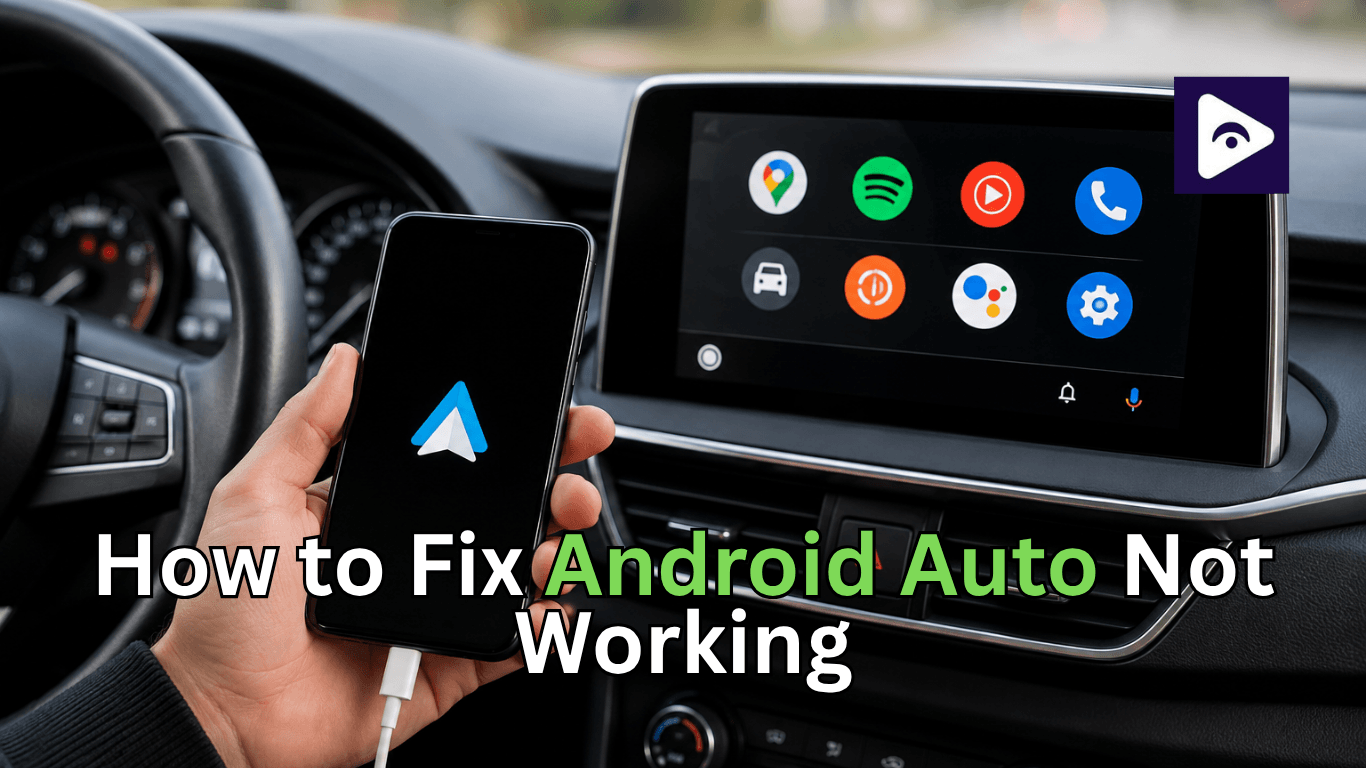
If Android Auto suddenly stops working it can ruin your whole drive. Maps stop loading. Music freezes. Calls disconnect. Sometimes the screen stays black. Sometimes the app keeps disconnecting. In other cases the phone charges but Android Auto never starts.
The good news is most Android Auto problems are easy to fix once you know where the issue starts.
This guide explains the top fixes for Android Auto not working issues. These steps are simple beginner friendly and work for most cars and Android phones including Samsung Google Pixel Xiaomi OnePlus and more.
Why Android Auto Stops Working?
Android Auto depends on several things working together at the same time:
- Your Android phone.
- USB cable or wireless connection.
- Car infotainment system.
- Android Auto app.
- Google services.
- Phone permissions.
If one part fails Android Auto may stop connecting completely.
Common signs include:
- Android Auto cannot connect.
- Android Auto connection failed message.
- Black screen on car display.
- Music or Maps not loading.
- Android Auto won't connect after an update.
- Random disconnections while driving.
Before trying advanced fixes, start with the basics.
1. Restart Your Phone and Car
This sounds basic but it fixes Android Auto problems more often than people expect.
Your phone and car system can both get temporary bugs or frozen background services. A quick restart refreshes everything.
What to do
- Turn off your car completely.
- Restart your Android phone.
- Wait one minute.
- Start the car again.
- Connect Android Auto.
If Android Auto was stuck on a loading screen or failed to launch this may solve it instantly.
2. Check Your USB Cable
One of the biggest reasons for Android Auto not connecting via USB is a damaged or low quality cable.
Many cheap cables only support charging. Android Auto needs a cable that supports both charging and data transfer.
Signs your cable is the problem
- Phone charges but Android Auto does not open.
- Connection keeps disconnecting.
- Android Auto works only at certain cable angles.
- Random connection failed errors.
Best fix
Use:
- Original phone cable.
- High quality USB cable under 3 feet.
- USB IF certified cable if possible.
Avoid:
- Very long cables.
- Cheap cables from unknown brands.
- Loose adapters.
If possible test with another cable before changing phone settings.
3. Clean the USB Port
Dust inside the USB port can block data transfer even when charging still works.
This is extremely common and many users overlook it.
How to clean safely
- Turn off the phone.
- Use a soft brush or wooden toothpick.
- Remove lint carefully.
- Avoid metal objects.
After cleaning, reconnect Android Auto.
4. Update Android Auto
Older app versions may stop working correctly especially after Android system updates.
Google regularly releases fixes for bugs and connection issues.
How to update Android Auto
- Open the Google Play Store.
- Search for Android Auto.
- Tap Update if available.
Also update:
- Google Play Services.
- Google Maps.
- Your phone software.
Running outdated apps together often causes Android Auto not working problems.
5. Make Sure Android Auto Is Enabled
Some phones disable Android Auto permissions automatically after updates or inactivity.
Check these settings
Go to:
Settings → Apps → Android Auto
Make sure:
- App permissions are enabled.
- Notifications are allowed.
- Background activity is enabled.
Then open:
- Android Auto Settings
Turn on:
- Start Android Auto automatically.
- Wireless Android Auto if supported.
Without proper permissions Android Auto can’t connect to your car screen correctly.
6. Clear Android Auto Cache
Corrupted cache files can break the connection process.
This fix works surprisingly well for repeated connection failures.
Steps
- Open Settings.
- Tap Apps.
- Select Android Auto.
- Tap Storage.
- Choose Clear Cache.
You can also clear storage if problems continue.
After clearing data, reconnect your phone and set up Android Auto again from the beginning.
7. Try Another USB Port
Some cars have multiple USB ports but not all support Android Auto. One port may only charge the phone while another handles data transfer.
This is a common issue in newer vehicles.
What to do
- Test every USB port in the car.
- Avoid USB hubs or adapters.
- Connect directly to the main port.
If Android Auto works in another port the issue is not your phone.
8. Disable Battery Optimization
Battery saver settings often stop Android Auto from working in the background. Brands like Samsung, Xiaomi, OnePlus and others are really strict, with battery management.
This causes:
- Android Auto won’t connect.
- Music apps closing.
- GPS freezing.
- Random disconnects.
Fix battery settings
Go to:
Settings → Battery → Battery Optimization
Find:
- Android Auto.
- Google Maps.
- Google Play Services.
Set them to:
- Unrestricted.
- Not optimized.
This prevents Android from shutting down important services while driving.
9. Reconnect Your Car From Scratch
Sometimes saved car profiles become corrupted.
Removing the connection and starting fresh can solve stubborn issues.
Remove previous connection
On your phone:
- Open Android Auto settings
- Select Connected Cars
- Remove your car
On the car screen:
- Delete your phone from Bluetooth and Android Auto settings
Then reconnect everything from the beginning.
This often fixes Android Auto connection failed problems instantly.
10. Check Wireless Android Auto Settings
Wireless Android Auto is nice to have. It does not work as well as a wired connection in some cars.
A weak Wi-Fi signal or issues with Bluetooth can cause a lot of problems.
If wireless keeps failing
Try:
- Turning Bluetooth off and on.
- Forgetting Wi-Fi connection.
- Reconnecting Android Auto.
- Using wired mode temporarily.
If wired mode works fine the issue is likely wireless interference.
11. Restart Bluetooth and Wi-Fi
Android Auto uses both Bluetooth and Wi-Fi even in some wired setups.
If either connection gets stuck Android Auto may fail completely.
Quick fix
- Turn on Airplane Mode.
- Wait 10 seconds.
- Turn Airplane Mode off.
- Enable Bluetooth and Wi-Fi again.
- Reconnect to your car afterward.
This refreshes all wireless services at once.
12. Check for Phone Compatibility
Not every Android phone works perfectly with every car.
Older phones may struggle with newer Android Auto versions. Some budget devices also have unstable USB connections.
Android Auto requirements
Usually you need:
- Android 9 or newer.
- Stable internet connection.
- Updated Google apps.
If your phone is very old Android Auto may stop functioning properly after newer updates.
13. Update Your Car Software
Many people only update their phones and forget the car system itself.
Car manufacturers release infotainment updates that improve Android Auto compatibility.
This is important for users searching:
- Mazda android auto not connecting.
- Android Auto can’t connect to the car screen.
Mazda Toyota Hyundai Honda and other brands sometimes release fixes specifically for Android Auto issues.
How to check
Visit your car manufacturer website or dealership support page.
Some vehicles allow updates through:
- USB drive
- WiFi
- Dealer service center
Outdated car software can easily cause repeated connection failures.
14. Fix Mazda Android Auto Not Connecting
Mazda users often report Android Auto problems after phone updates or infotainment glitches.
Common Mazda fixes
- Update Mazda Connect software.
- Use the original USB cable.
- Disable battery optimization.
- Reboot Mazda infotainment system.
- Remove old Bluetooth pairing.
Some Mazda systems are very sensitive to low quality cables.
Using a certified cable solves the issue for many drivers.
15. Reset Network Settings
If Android Auto still cannot connect your phone network settings may be corrupted.
This resets:
- Bluetooth
- WiFi
- Mobile network settings
How to reset
Go to:
Settings → System → Reset Options → Reset WiFi Mobile & Bluetooth
After resetting, reconnect your car from scratch.
This often fixes deep connection issues that normal troubleshooting cannot solve.
16. Test With Another Phone
This is one of the easiest ways to identify the real problem.
If another phone works
The issue is likely:
- Your phone settings
- Apps
- Software conflicts
- USB cable
If no phone works
The issue is probably:
- Car system
- USB port
- Infotainment software
This step saves a lot of time when troubleshooting.
17. Reinstall Android Auto
If nothing works, reinstalling the app can remove broken files completely.
Steps
- Uninstall Android Auto.
- Restart your phone.
- Download it again from the Play Store.
- Set it up from the beginning.
This can fix hidden app corruption problems.
18. Check Developer Options
Some USB settings inside Developer Options can interfere with Android Auto.
Common problem
- USB default mode set incorrectly.
Fix
Go to:
Developer Options → Default USB Configuration
Select:
- File Transfer or Android Auto compatible mode
Avoid charging only mode.
If you never enabled Developer Options you can ignore this step.
19. Turn Off VPN Apps
VPN apps sometimes block Android Auto communication.
This can affect:
- Maps
- Voice commands
- Online features
Temporarily disable VPN apps and test Android Auto again.
Many users notice immediate improvement.
20. Factory Reset as Last Option
Only try this if absolutely nothing works.
A factory reset removes software conflicts that may block Android Auto permanently.
Before resetting
Back up:
- Photos
- Contacts
- Apps
- Messages
Then reset the phone and test Android Auto before reinstalling too many apps.
Many users discovered third party apps were causing the issue all along.
Common Android Auto Problems and Fast Fixes
| Problem | Fast Fix |
|---|---|
| Android Auto not connecting via USB | Replace the USB cable |
| Android Auto connection failed | Restart phone and reconnect |
| Android Auto can't connect to car screen | Update car software |
| Android Auto keeps disconnecting | Turn off battery optimization |
| Black screen on Android Auto | Clear Android Auto cache |
| Android Auto won't connect after update | Update apps and restart phone |
| Wireless Android Auto not working | Reset Bluetooth and WiFi |
| Mazda Android Auto not connecting | Update Mazda Connect system |
Use Fermata Auto for Better Android Auto Features
Sometimes Android Auto works correctly but users still face limits with video playback and media apps. That is where Fermata Auto becomes useful.
Fermata Auto is a media player solution designed for Android Auto users who want more flexibility inside their car screen. It supports features like local video playback streaming support browser integration and advanced media controls.
Many Android Auto users install Fermata Auto when they experience:
- Media playback restrictions.
- Limited video support.
- Unsupported app issues.
- Android Auto screen compatibility problems.
Fermata Auto is especially popular among users looking for alternative media options on Android Auto systems.
Common Fermata Auto Tips
- Always use the latest Fermata Auto version.
- Update Android Auto before installation.
- Disable aggressive battery optimization settings.
- Allow all required permissions.
- Use a stable USB connection for setup.
If Fermata Auto is not working properly the issue is often related to Android Auto permissions or background app restrictions rather than the app itself.
Why Users Choose Fermata Auto
Many drivers prefer Fermata Auto because it offers:
- Better media playback options.
- Smooth Android Auto integration.
- Support for multiple media formats.
- Easy navigation interface.
- More control over entertainment apps.
For users dealing with Android Auto not working issues Fermata Auto can also help test whether the problem comes from Android Auto itself or from the car connection setup.
Learn more:
FAQs About Android Auto Not Working
- Why is Android Auto not connecting to my car?
Usually the problem comes from a bad USB cable, outdated software disabled permissions or battery optimization settings.
- Why does Android Auto keep disconnecting?
Unstable USB cables, battery restrictions or weak wireless signals are the most common reasons.
- Can a charging cable stop Android Auto from working?
Yes. Many charging cables do not support data transfer which Android Auto requires.
- Why is Android Auto showing connection failure?
This can happen because of corrupted cache files, outdated apps, Bluetooth issues or infotainment software bugs.
- How do I fix Android Auto not connecting via USB?
Try a new high quality cable, clean the USB port, restart the phone and test another USB port in the car.
- Why does Android Auto work on another phone but not mine?
Your phone may have software conflicts, incorrect permissions or aggressive battery settings blocking Android Auto.
- Does Android Auto need the internet?
Yes. Features like Google Maps voice search and music streaming require internet access.
- Why is Mazda Android Auto not connecting?
Mazda systems often need updated infotainment software and high quality USB cables for stable connections.
- Should I clear Android Auto cache?
Yes. Clearing cache removes corrupted temporary files that may break the connection.
- Can Android updates break Android Auto?
Yes. Some Android updates create temporary compatibility issues until Google releases fixes.
![Hyundai/Kia Widescreen Android Auto Video [Setup Guide]](/content/images/size/w600/2026/04/hyundai-android-auto-video.png)