How to Watch Prime Video on Android Auto in 2026? [Using Fermata Auto]

![How to Watch Prime Video on Android Auto in 2026? [Using Fermata Auto]](/content/images/size/w1200/2026/01/Add_a_heading_1.png)
You have always loved using Android Auto because it makes driving much easier. You can get directions and answer calls. Play music without ever touching.
But there was one thing that really drove me crazy about Android Auto: I could not play videos on Android Auto. Amazon Prime Video just would not work on Android Auto.. On long trips my passengers were stuck staring out the window when they wanted to watch something, on Amazon Prime Video.
That’s when I found Fermata Auto. It’s an app that unlocks video streaming inside Android Auto. Suddenly, I could play Prime Video, YouTube, Netflix basically anything right on the car’s screen.
If you’ve been struggling with the same thing, here’s exactly how I got it working.
Why Fermata Auto Was the Game Changer
At first, I didn’t expect much. I’d tried random “screen mirroring” apps before and they were all lagged or crashed halfway through. Fermata Auto was different. It felt made for Android Auto smooth, clean, and simple.
Here’s what I noticed after using it for a few weeks:
- It runs on almost any phone (Also latest Android 15 works perfectly).
- You can add any video app manually if it doesn’t appear on its own.
- There’s a “WheelPal” feature that unlocks extra tools like app management.
- You can even mirror unsupported apps if you want to.
- And most importantly, it’s stable no random freezes or weird glitches.
Of course, it’s only meant for passengers to watch while the car is moving. Safety first the driver should never watch while driving.
How to Install Fermata Auto (Step-by-Step)
Step 1: Open the Installation Page
Tap on the Fermata Auto Installation link. If you are on a computer use your phone to scan the QR code and open the page.
Step 2: Use Chrome Browser
Open the page, in the Chrome browser. Then click on the install button.
Step 3: Confirm Installation
When a pop up shows up on your screen just click on Install. You can also add a shortcut to your home screen for access.
Step 4: Wait for the App to Install
wait for a few moments. The installation process will finish soon.
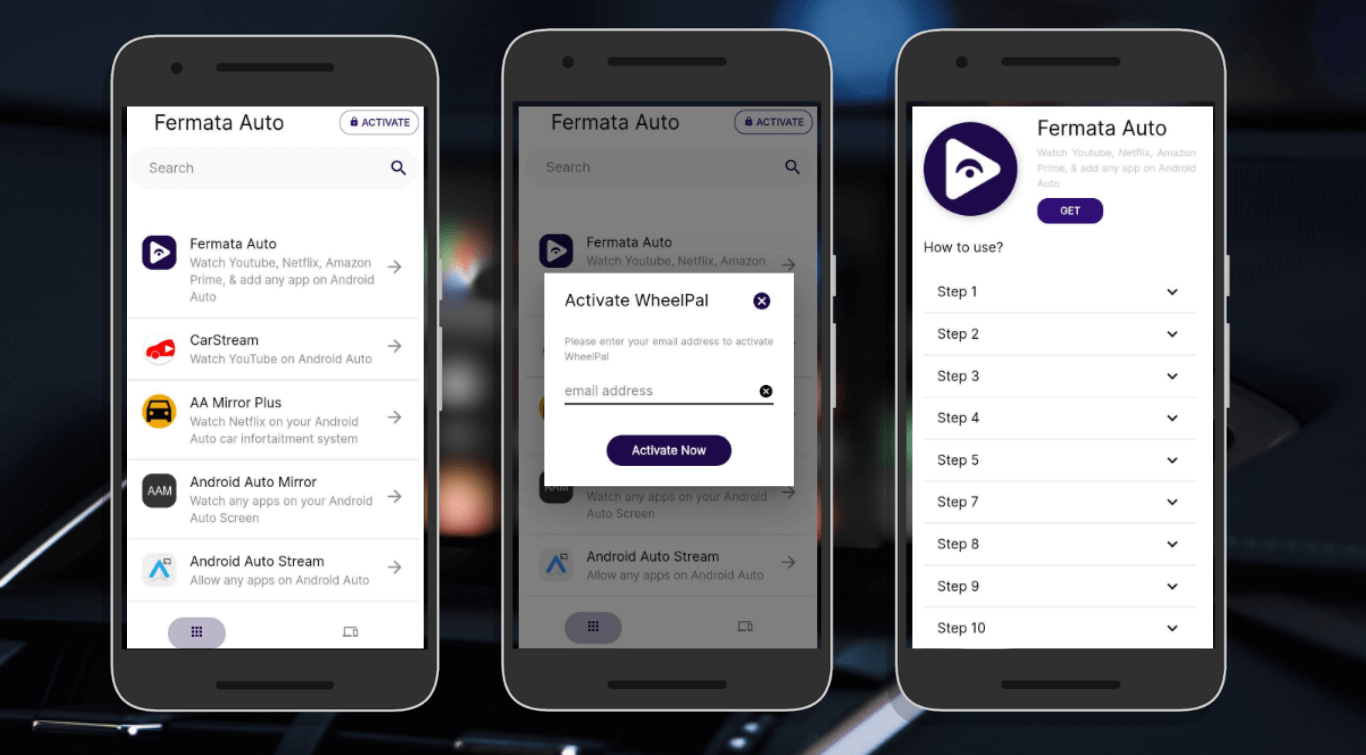
Step 5: Open the App
Find Fermata Auto in your app list and launch it.
Step 6: Activate WheelPal
Enter your email address to enable WheelPal features.
Step 7: Tap the GET Button
Follow the instructions on the redirected page, then tap GET.
Step 8: Start Streaming
You’re now ready to stream Prime Video or YouTube,Netflix and other video app.
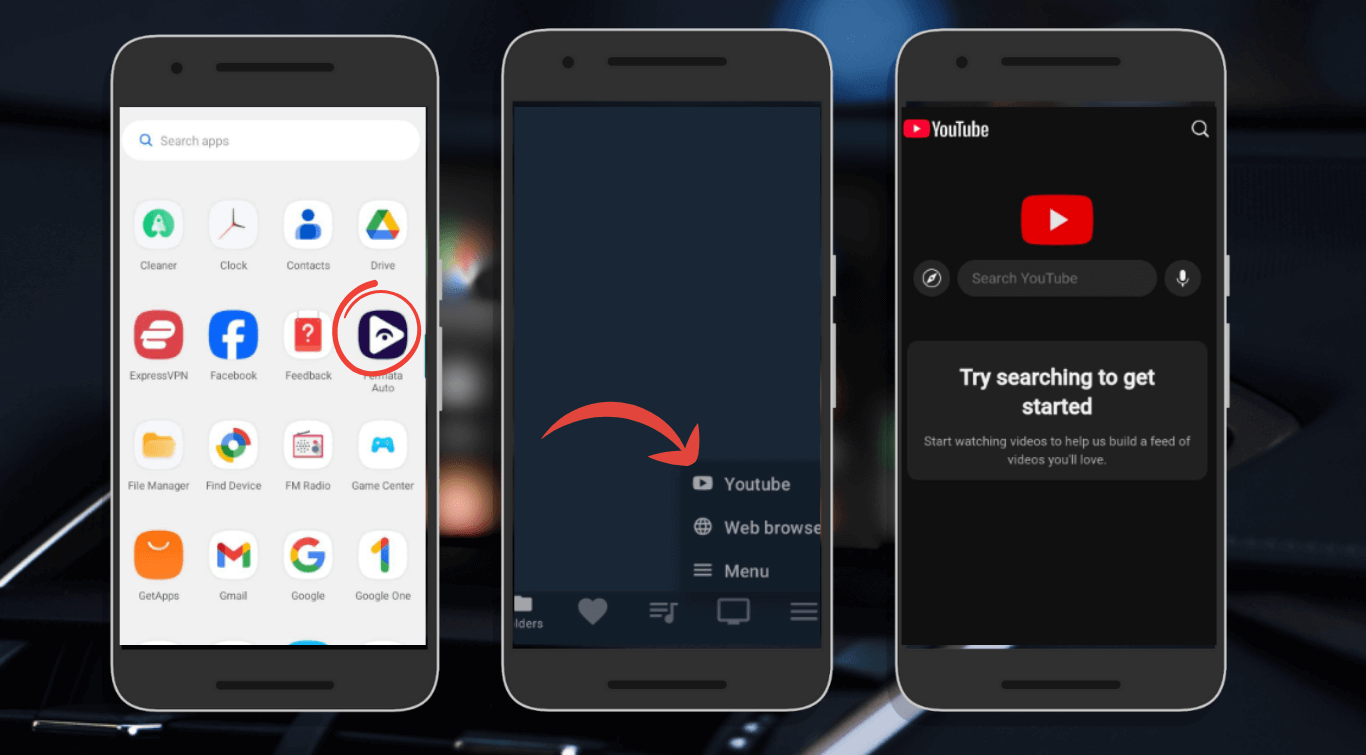
Quick tip : If the app seems a bit slow when you start using it try closing apps that are running in the background.
How to Watch Prime Video
This part was super simple:
Step 1: Open Fermata Auto on my phone.
Step 2: Prime Video was not showing up at first so just added Prime Video manually.
Step 3: Sign in to Amazon account picked a movie and hit the play button.
Step 4: Lowered the video quality of Prime Video slightly so Prime Video would not buffer while driving through areas with signal.
You can paired my phone to the car’s speakers via Bluetooth, and the sound was amazing like having a mini cinema in the car.
What Makes Fermata Auto Useful
A few other nice things:
- It works with almost every major car brand.
- It supports wireless Android Auto too, no cables cluttering the dashboard.
- It doesn’t just work with Prime Video; I’ve also used it for Netflix and YouTube.
Tips for Smooth Playback
- Keep your phone plugged into the charger while watching videos. This is because videos use a lot of battery power.
- Use Wi-Fi when you are, at home to save your data.
- If the video is not playing smoothly try reducing the video quality a bit.
- If you can't find an app you can add it yourself it only takes a seconds.
Supported Devices and Cars
Fermata Auto works with most Android phones (Android 8 or above) and many cars, including:
- Android Auto compatible infotainment systems.
- Wireless Android Auto supported vehicles.
- Popular brands, like Toyota, Honda and BMW are well known. Kia and Hyundai are also popular.
Check the official Fermata Auto site for the full compatibility list.
Common Problems and Fixes
- Prime Video missing: Add it manually through Fermata Auto.
- App freezing or crashing: Close all the apps that are running in the background, restart your phone, or reinstall the app.
- Not appearing on Android Auto: Make sure that your phone and your car both support Android Auto. You also have to make sure that Fermata Auto is updated.
Explore more fixes of Fermata Auto : Common issues & fixes of Fermata Auto
Frequently Asked Questions (FAQs)
- Can I watch while driving?
Yes but for safety reasons, it’s only for parked cars or passengers during trips.
- What Android version do I need?
Anything from Android 8 upwards (including Android 15).
- Can I use other video apps?
Yes, Netflix, YouTube, and almost anything else.
- Does it work wirelessly?
Yes, if your car supports wireless Android Auto.
- What if it crashes?
Restart your phone, update the app, or reinstall it, that usually fixes it.