How to Set Up IPTV on Android Auto Using an M3U Playlist with Fermata Auto?

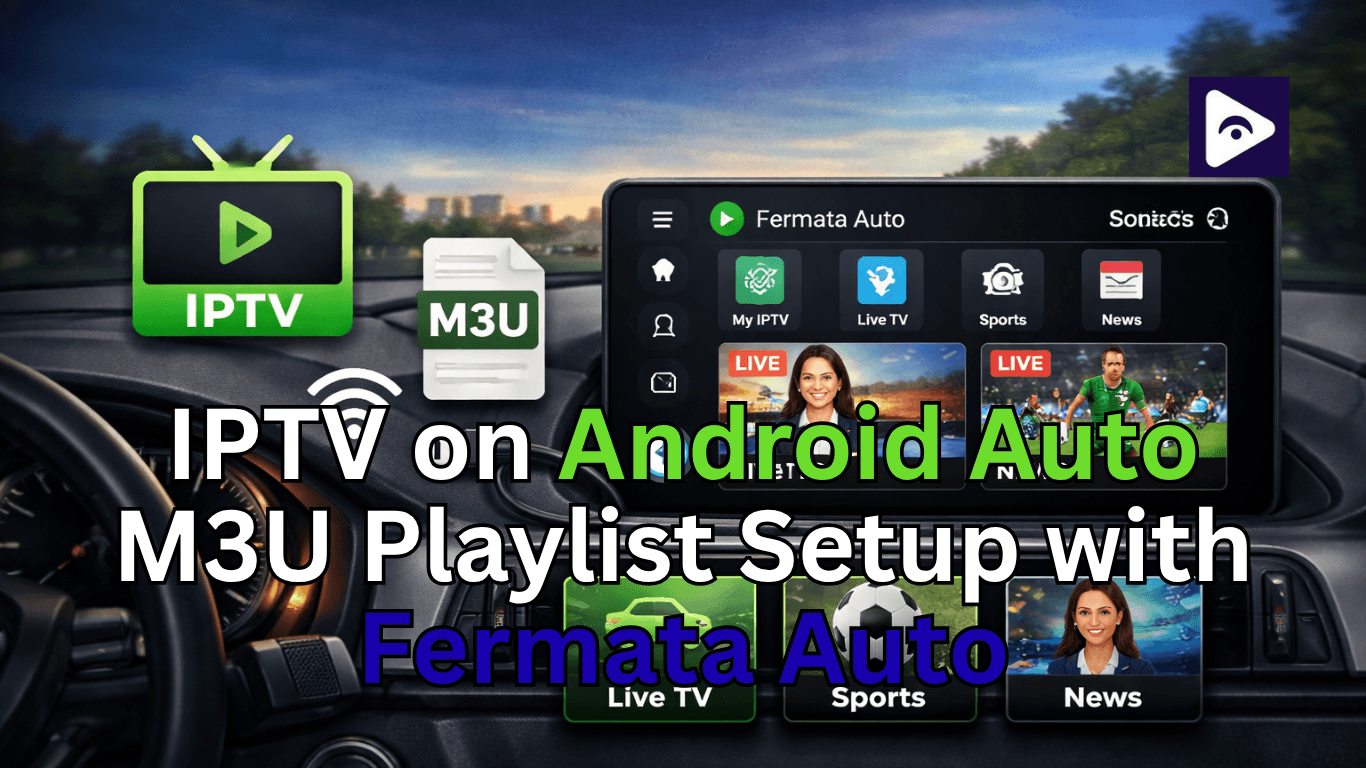
If you want to watch television inside your car you have probably looked for ways to use IPTV with Android Auto. Android Auto does not officially support video streaming applications. There are ways to make it work with IPTV and Android Auto.
Fermata Auto is one of the easiest and most reliable methods with an M3U playlist. This setup allows you to stream live TV channels directly on your car screen.
In this guide, you’ll learn everything step by step from IPTV basics to a full IPTV Fermata setup in a simple and beginner friendly way.
What is IPTV?
IPTV is Internet Protocol Television. It does not use satellite or cable to get TV channels. Instead IPTV uses the internet to get these channels.
With IPTV you can watch things like:
- Live TV channels.
- Sports broadcasts.
- News and entertainment.
- Movies and shows.
To use IPTV you need the internet to work and an app that works with IPTV.
Can You Use IPTV on Android Auto?
Officially, Android Auto does not allow video playback apps for safety reasons. Google restricts this to prevent driver distraction.
However, you can still use IPTV on Android Auto by:
- Using third party apps like Fermata Auto.
- Enabling developer settings or unknown sources.
- Adding IPTV playlists manually.
This method is widely used, but always remember: only use video features when the car is parked or for passengers.
What You Need Before Starting
Before you start setting up please check that you have everything on this list. If you miss one item it can cause issues later.
Here is what you need:
- An Android phone running Android 6.0 or higher.
- A car that supports Android Auto. (It can be built in connected via USB).
- A USB cable, or wireless Android Auto capability if your car supports it.
- The Fermata Auto app installed on your phone.
- A working IPTV M3U playlist URL from a provider.
- A stable internet connection, mobile data or a car hotspot works fine.
You do not need a car or a high end phone. As long as your car supports Android Auto and you have good mobile data you are ready to go.
All you need is a working internet connection and the Fermata Auto.
What is an M3U Playlist?
An M3U playlist is a file or link that contains a list of IPTV channels. It acts like a channel guide for your IPTV app.
A typical M3U playlist includes:
- Channel names
- Streaming URLs
- Categories (sports, news, etc.)
There are two types:
- Free M3U playlists (limited and sometimes unstable)
- Paid IPTV playlists (more reliable and high quality)
When using M3U playlist Android Auto always choose a stable and legal source.
How to Find IPTV M3U Playlists
Finding a good playlist is important for smooth streaming.
Here are some safe options:
- Official IPTV service providers.
- Trial playlists from paid services.
- Public test playlists (limited use).
Avoid:
- Illegal or pirated streams.
- Unverified random links.
A good playlist ensures better performance and fewer buffering issues.
What is Fermata Auto?
Fermata Auto is a powerful third party media player designed for Android Auto. It supports video playback, IPTV streaming, and more.
Key features:
- Supports M3U playlists.
- Works on Android Auto screen.
- Simple and clean interface.
- Supports local and online media.
Because of these features, it’s one of the best tools for IPTV Android Auto setup.
Step-by-Step Guide: IPTV Fermata Setup
Part 1: Install Fermata Auto on Android Auto
Setting up Fermata Auto is really easy. You just need to follow each step. This way is the way to get Fermata Auto started. It is easy. It works well.
Step 1: Start the Installation
Begin by tapping the “Fermata Auto Installation” button.
- If you’re using a PC, a QR code will appear.
- Scan it using your Android phone’s camera.
- You’ll be redirected to the installation page on your phone.
This ensures the setup continues on your mobile device.
Step 2: Open the Page in Chrome
Once redirected:
- Make sure the page opens in Chrome browser.
- If not, manually open it in Chrome.
Then tap the “Fermata Auto Installation” button again.
Chrome provides better compatibility for this process.
Step 3: Confirm the Installation
- A pop up will appear.
- Tap “Install” to continue.
Optional:
- Tap Chrome menu. (⋮)
- Select “Add to Home Screen” for quick access.
Step 4: Wait for the Installation
- The app will start installing.
- This may take a few seconds.
- Do not close the browser.
Once done, the app installs automatically.
Step 5: Locate the App
- Go to your home screen or app drawer.
- Find the Fermata Auto icon.
If not visible, restart your phone.
Step 6: Open Fermata Auto
Launch the app:
- Enter your email address.
- This activates WheelPal integration.
Use a valid email for proper setup.
Step 7: Access the GET Button
- You’ll be redirected to a page with a GET button.
- Follow any additional instructions shown.
Step 8: Initial Setup Complete
At this stage, Fermata Auto is ready.
Next, let’s move to IPTV setup.
Part 2: Add M3U Playlist
Step 1: Add M3U Playlist Inside Fermata Auto
- Open the menu.
- Tap “Add Playlist”.
- Select M3U URL or local file.
- Paste your playlist link.
- Save and refresh.
After a few seconds, channels will appear.
Step 2: Configure IPTV Settings
To improve performance, adjust these settings
- Increase buffer size for slow networks.
- Enable hardware decoding.
- Adjust video resolution.
- Organize channels by category.
These settings help improve live TV car streaming quality.
Step 3: Start Streaming
Now your setup is complete.
You can:
- Browse channels.
- Select live TV.
- Watch content directly on your car screen.
This completes your IPTV Android Auto setup successfully.
Also you can try:
How to Watch Live TV in Your Car
With everything set up, watching IPTV becomes simple.
Best Practices
- Use a strong 4G or 5G connection.
- Avoid areas with poor signal.
- Lower video quality if buffering occurs.
When to Use
- Long trips (for passengers).
- Waiting in parked cars.
- Travel breaks.
This makes live TV car streaming a useful feature for entertainment.
Common Issues and Fixes
Here are common problems and how to solve them.
Channels Not Loading
- Check the playlist link.
- Refresh or reload.
- Buffering Issues.
Switch network
- Lower resolution.
- Close background apps.
App Not Showing
- Re enable unknown sources.
- Restart Android Auto.
Playback Errors
- Enable hardware decoding.
- Update the app.
Pro Tips for Better Streaming Experience
Want to get the most out of your IPTV Android Auto setup? These tips come from real users who've been running this configuration for a while.
- Use a dedicated data SIM.
A separate SIM card for your car means you can stream music or videos without using up your plans data. This way you can enjoy streaming. It does not cut into your plan's data allowance.
- Build a favorites playlist.
Edit your M3U file down to only your top 10–15 channels. It loads faster, navigates easier in the car interface, and reduces the chance of lag.
- Keep Fermata Auto updated.
Android Auto updates occasionally break third party app compatibility. Updating Fermata Auto usually resolves these issues within days of a new release.
- Always use a car charger.
Streaming plus Android Auto plus your screen running is a serious battery drain. Keep your phone plugged in the time.
- Set up voice commands whenever you can.
You can use Google Assistant to change sources. This way you can keep your hands on the wheel and your eyes on the road.
- Test your streams before road trips.
Run through your playlist at home the night before a long drive. Finding out your streams are down when you're already on the highway is not fun.
FAQs on IPTV with Fermata Auto
- Can I use IPTV on Android Auto?
Yes, using apps like Fermata Auto, IPTV Android Auto is possible.
- What is the best IPTV app for Android Auto?
Fermata Auto is widely used for this purpose.
- What is an M3U playlist?
It’s a file or link that contains IPTV channel streams.
- Is IPTV legal?
Yes, if you use licensed providers.
- Why is IPTV buffering?
Due to slow or unstable internet.
- Can I watch while driving?
No, it is unsafe and not recommended.
- Do I need the internet?
Yes, IPTV requires the internet.
- How to add a playlist?
Paste M3U link in Fermata Auto.
- Are free playlists good?
They are less reliable than paid ones.
- Does it work on all cars?
It works on most Android Auto supported cars.