
Hulu on Android Auto: How to Stream While Parked (2026 Guide)

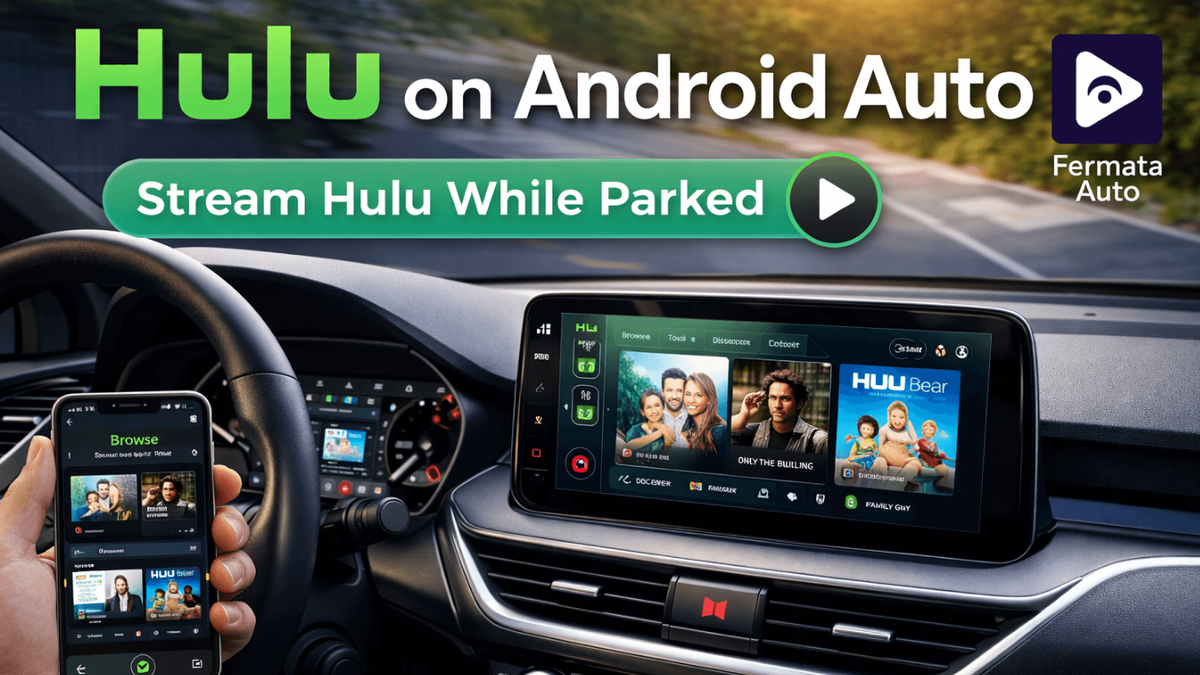
Are you looking for a simple way to use Hulu Android Auto and watch your favorite shows on your car screen? Many people spend time waiting inside their cars during school pickups, charging stops, or long trips and watching content on a small phone screen is not always comfortable.
The truth is, Hulu does not officially appear inside Android Auto. But that doesn’t mean you cannot watch Hulu in your car.
You can safely stream Hulu while your car is parked with the right setup. In this guide, you’ll learn how Hulu car streaming works, how to complete the Hulu Fermata setup, and how to enjoy Live TV or offline downloads without complicated technical steps.
Why Hulu is not available on Android Auto
Android Auto was designed mainly for driving essentials such as navigation, phone calls, and music. Google blocks video streaming apps since watching videos while driving can be dangerous to reduce distractions on the road.
That’s why apps like Hulu, Netflix, and other streaming platforms don’t normally show up in the Android Auto menu.
Even so, Android Auto does support certain media player apps. When they’re set up properly and used only while the cars are parked, these apps can display video content safely on the car’s infotainment screen.
What is Fermata Auto?
Fermata Auto is a media player made for Android Auto users who want more control over their in-car entertainment. You can stream Hulu, YouTube, Netflix, Prime videos and many more.
Instead of changing your car software or rooting your phone, it simply works as a bridge between your phone and the car screen.
Key Features Watch Hulu on Android Auto
- Supports multiple streaming platforms.
- Play videos from browser or local storage.
- Clean and easy interface.
- Works without root access.
- Compatible with most Android Auto Cars.
- Free to use and frequently updated.
That’s why many users prefer this method for Hulu car streaming.
How Hulu car streaming works
Think of Fermata Auto like a window that shows media from your phone on the dashboard display.
You are not installing Hulu into Android Auto itself. Instead, you are opening Hulu through a supported playback interface.
Because of this:
- Your car system stays untouched.
- Updates still work normally.
- You can remove everything anytime.
- It’s simple, reversible, and beginner friendly.
How to Install Fermata Auto (Step-by-Step)
There are two common ways to install it. Most users prefer the web installation because it’s quicker.
Method 1- Easy Installation (Recommended)
Step 1: Start Installation.
Open the Fermata Auto installation page on your phone.
If you are using a computer, just scan the QR code with your phone to continue.
Step 2: Open Using Chrome.
Make sure the page opens in Chrome browser. This avoids installation errors.
Tap the installation button to proceed.
Step 3: Confirm Install.
When the popup appears, tap Install.
You may also add the shortcut to your home screen for easy access later.
Step 4: Finish Setup.
Open Fermata Auto after installing.
Allow all permissions requested by the app. These permissions are necessary for video playback.
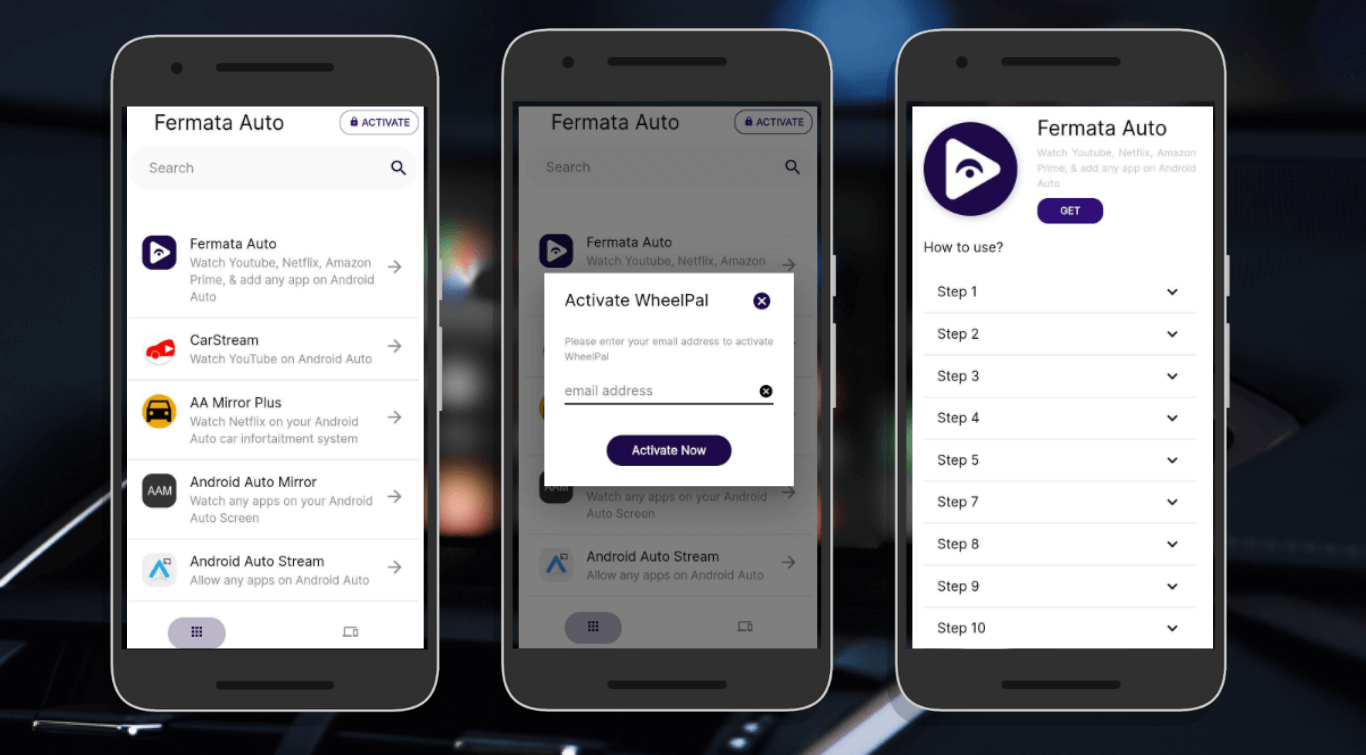
Full Guide : How to Install and Use Fermata Auto on Android Auto. (Step-by-Step Guide)
Method 2 - Manual APK Installation
Some users prefer installing manually.
Download the Fermata Auto APK from its official source.
Enable Install from Unknown Sources when asked.
Complete installation like a normal app.
Since Google restricts video apps on Android Auto, this app is not available on the Play Store.
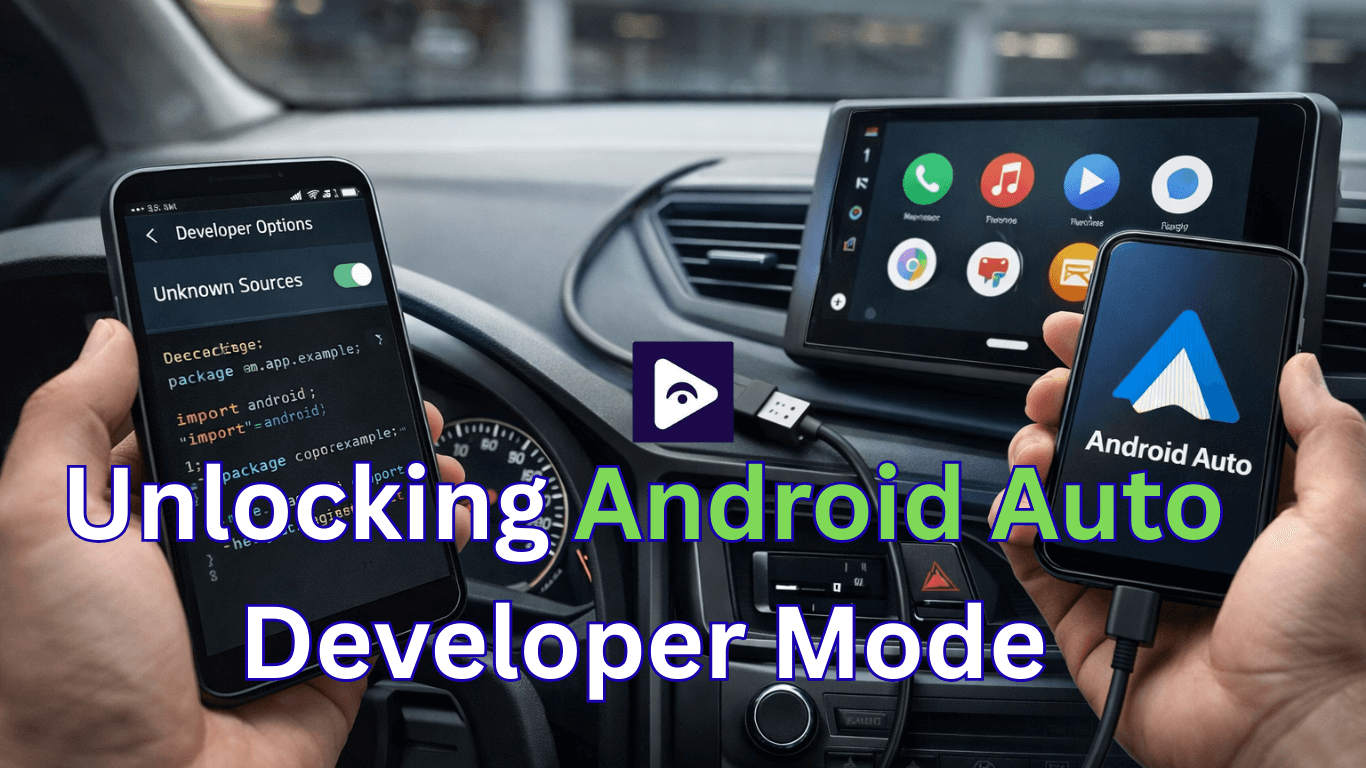
Enable Android Auto Developer Mode
Developer Mode allows third-party apps to appear inside Android Auto.
Follow these steps:
- Open Android Auto settings on your phone.
- Scroll to the Version section.
- Tap repeatedly until Developer Mode activates.
- Open Developer Settings.
- Enable Unknown Sources.
This step usually takes less than a minute.
Hulu Fermata Setup - Watch Hulu on Android Auto
Once installation is complete, you are ready to stream.
- Connect your phone using USB or wireless Android Auto.
- Open Android Auto on the car display.
- Launch Fermata Auto from the apps list.
- Open the built-in browser.
- Sign into your Hulu account.
- Choose a movie or show and press play.
Your content should now appear on the infotainment screen.
Best Settings for Smooth Hulu Streaming
Small adjustments can improve performance significantly.
Recommended Phone Settings
- Disable battery optimization for Hulu and Fermata Auto.
- Close background apps.
- Keep the phone cool during long playback.
- Use a high-quality USB cable.
Streaming Tips
- Lower video quality if buffering occurs.
- Use a strong 4G or 5G signal.
- Connect to Wi-Fi when available.
Common Hulu car streaming issues & fixes
| Problem | Possible Cause | Quick Fix |
|---|---|---|
| Hulu not visible in Android Auto | Developer Mode not enabled | Enable Developer Mode and allow "Unknown Sources" |
| Black screen but audio works | Missing overlay or display permission | Grant all permissions and restart Fermata Auto |
| Buffering or lag | Weak mobile signal or high video quality | Switch to stronger network or lower streaming quality |
| Live TV not loading | Location verification issue | Open Hulu on phone first, then restart through Android Auto |
| App crashes during playback | Phone overheating or outdated app | Cool down phone and update Hulu & Android Auto |
| Frequent disconnection | Unstable wireless Android Auto | Use USB cable for stable connection |
Advantages of using Fermata Auto to watch Hulu on Android Auto
Ever sat in your car, waiting for someone, and wished you could watch Hulu on the big screen instead of your phone? That’s exactly what Fermata Auto helps you do even though Hulu doesn’t officially work with Android Auto.
Here’s why it’s become so popular:
Bigger screen, Better comfort
Watching shows on a small phone screen can get tiring fast. With Fermata Auto, Hulu plays right on your car’s infotainment display, making movies, series, and live sports much more enjoyable while you wait.
No risky changes needed
You don’t have to root your phone or tinker with your car’s software. Fermata Auto works safely without modifying anything, so your devices stay exactly as they are.
Enjoy clearer sound
Forget tiny phone speakers. Audio goes straight through your car’s speakers, so dialogue is crisp, music is rich, and the overall experience feels more like home than a cramped car.
Works with other media too
While most people use it for Hulu, Fermata Auto can also play videos from your phone or other supported apps. It’s not just for one platform it’s flexible entertainment in your car.
Wired or wireless, You choose
Whether you like the stability of a USB connection or the convenience of wireless, Fermata Auto handles both without a hitch.
Free and easy to Set Up
The app is completely free, and even if you’re not tech-savvy, installation takes just a few minutes. You’ll be streaming Hulu in no time.
Fermata Auto turns your car into a mini entertainment hub, perfect for charging stops, long waits, or just passing time on a road trip and of course, always use it while parked.
Compatible with Electric cars
Long charging stops can feel like wasted time for EV owners. But you can stream Hulu while your car charges with Fermata Auto. Whether it’s catching up on your favorite series, watching the news, or following a live sports game, the infotainment screen keeps you entertained without having to stare at a small phone display.
Important Safety Reminder
This method should only be used while parked.
Watching video content while driving is dangerous and may violate local traffic laws. Always prioritize safety for yourself and others on the road.
FAQs - Hulu Android Auto
- Is using Fermata Auto legal?
Yes. Installing the app is legal, but always follows local driving regulations.
- Do I need the internet to watch Hulu?
Yes for streaming. Offline downloads work without the internet.
- Can I watch Hulu while driving?
No. Video playback should only be used when parked.
- Does wireless Android Auto work?
Yes, both wired and wireless connections are supported.
- Does this work on Apple CarPlay?
No. Fermata Auto supports only Android Auto.
![How to add Android Auto to Toyota [Complete Guide 2026]](/content/images/size/w600/2026/02/toyota.png)
![How to add Fermata Auto with AAAD APK [Complete Guide 2026]](/content/images/size/w600/2025/03/9.-aaad.jpg)