Best Android Auto Video Apps - Everything You Need to Know

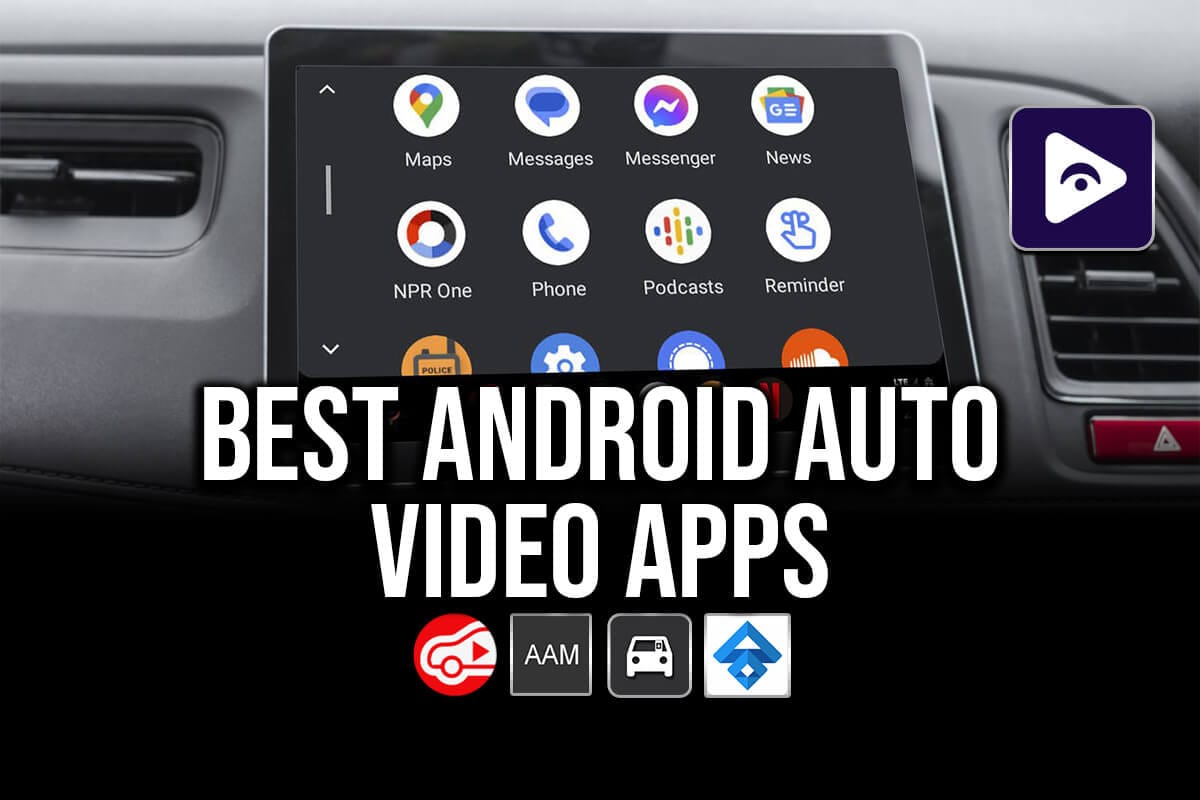
If you spend a lot of time driving, Android Auto completely changes how you use your car’s infotainment system. Navigation, music, and calls are already well optimized but one feature many users still search for is video playback.
Can you actually play video on Android Auto? Which apps work safely? And which solution is best in 2026?
This complete explainer covers the Best Android Auto Video Apps, how they work, installation methods, compatibility issues, and why some apps have become essential for modern drivers.
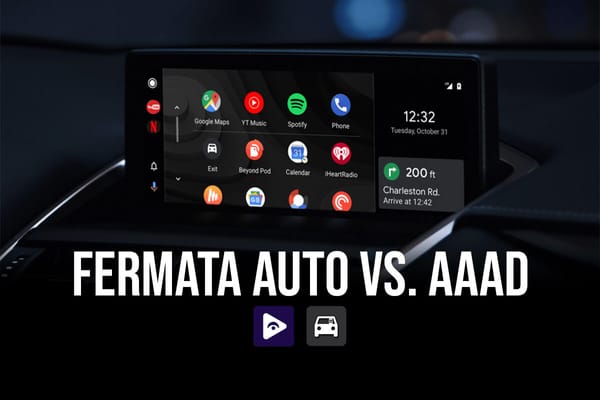
These are the alternatives we are discuss about,
Why Video Apps on Android Auto?
Originally, Android Auto was designed strictly for driving safety. Google limited entertainment features to audio only apps. However, user demand has changed how people use in car systems.
Today, many drivers want to:
- Watch videos while parked.
- Stream Netflix during charging stops.
- Play local movies during long trips.
- Use IPTV or YouTube on larger car screens.
Because of this, developers created video apps for Android Auto that work within parked mode limitations or through safe mirroring solutions.
In 2026, Android Auto video playback falls into three main categories:
- Third party video players.
- Screen mirroring solutions.
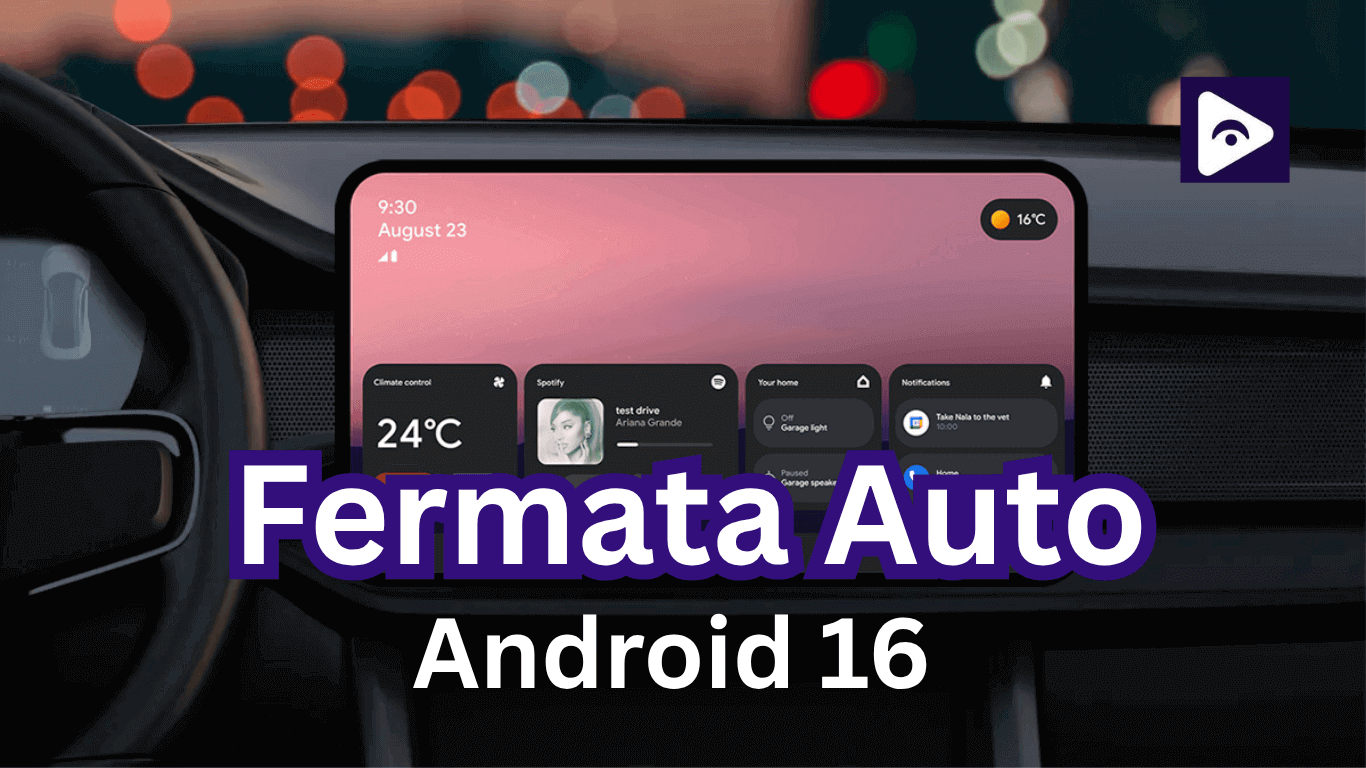
- Upcoming official Google video apps. (Android 16+)
Let’s explore each.
Best Android Auto Video Apps in 2026
1. Fermata Auto - The Best All-in-One Android Auto Video Player
Fermata Auto has quickly become the most complete Android Auto movie player available.
Unlike single purpose apps, it works as a full multimedia hub.
Key Features
- Play local videos from phone storage.
- IPTV streaming support.
- YouTube playback.
- Netflix (via supported plugins or mirroring).
- Folder based media browsing.
- Background audio mode.
Fermata Auto is popular because it behaves like a real media player instead of a workaround.
Why Users Prefer Fermata Auto
- Works on newer Android versions better than older apps.
- Stable performance.
- Supports multiple video sources in one app.
- Cleaner interface optimized for car screens.
For most users searching “android auto watch videos”, Fermata Auto is the easiest solution.
How to Install Fermata Auto on Android Auto (Step-by-Step Guide)
Step 1: Start Installation.
Tap the “Fermata Auto Installation” button. If you’re on a PC, scan the QR code using your Android phone to open the install page.
Step 2: Open in Chrome.
Make sure the page opens in Google Chrome, then tap the installation button again.
Step 3: Install the App.
A pop up will appear. Tap Install to begin downloading Fermata Auto.
Step 4: Wait for Completion.
Allow a moment for the installation to finish without closing the browser.
Step 5: Open the App.
Find Fermata Auto in your app drawer and launch it. Complete the setup or activation if requested.
Step 6: Start Using Android Auto.
Reconnect your phone to the car. Fermata Auto will now appear in Android Auto, allowing you to play videos and stream media while parked.
Tip: If the app doesn’t appear, enable Developer Mode → Unknown Sources in Android Auto settings.
2. AA Mirror
AAMirror is a well known screen mirroring app. You may mirror their smart phone's full screen on Android Auto. So you can watch videos on YouTube, watch Netflix, and other apps using AA Mirror's complete device access.
Key Features:
- Mirroring the full screen on Android Auto.
- Compatible with any app. (such as browsers, Netflix, YouTube, etc.)
- Gesture based controls.
- Need either AAMirror Plus or root access for non root users.
Limitations:
- Compatibility problems on Android 13 and newer.
- Occasional lag or delayed touch controls.
- Disconnections during playback.
- Advanced setup requirements on some devices.
How to Install AAMirror
Step 1: Download AAMirror using AAAD or a trusted installation page.
Step 2: Enable Developer Mode in Android Auto settings.
Step 3: Turn on Unknown Sources inside Developer Settings.
Step 4: Install the app and grant all required permissions.
Step 5: Connect your phone to the car and open AAMirror from Android Auto.
Note: Some devices may require additional setup or older Android versions for stable performance.
3. CarStream - Best for YouTube on Android Auto
CarStream is an Android Auto app specifically used for watching YouTube. If streaming YouTube videos is your primary objective, this app is a great alternative.
Key Features:
- You can play YouTube videos directly on Android Auto.
- Not necessary full screen mirroring.
- User friendly interface.
- Some devices can function without root.
Limitations:
- Only supports YouTube. [local media playback is not supported.]
- May require modifications on latest Android Auto versions.
How to Install CarStream
Step 1: Start Activation.
Tap “Activate & Install CarStream.”
Using a PC? A QR code will appear. Scan it using your Android phone to continue.
Using your phone? Tap Activate to move directly to the next step.
Step 2: Activate.
Your License If you are a new user, the button will show “Activate.”
- Tap Activate.
- Enter your email address.
- Select Get a License Now.
- Complete the checkout process.
After activation, the status will change to Activated.
Step 3: Install CarStream.
- Tap the GET button.
- A pop up will appear select Leave to continue.
- You’ll be redirected to the download page.
- Tap Download and wait for the file to finish downloading.
- Confirm the file is saved on your Android device.
Once installed, reconnect Android Auto and CarStream will appear in your apps list.
Screen2Auto
Screen2Auto is an advanced alternative that maximizes video playback on Android Auto and provides full screen mirroring.
Key Features:
- Full Android Auto Screen Mirroring.
- Integrated video player for local data.
- Allows for external streaming applications.
- Adjustable parameters for improved efficiency.
Limitations:
- Root access is necessary.
- Not available on the Play Store.
How to Install Screen2Auto
Step 1: Install Screen2Auto through AAAD or supported installer.
Step 2: Enable Android Auto Developer Settings.
Step 3: Allow Unknown Sources.
Step 4: Grant screen recording and accessibility permissions.
Step 5: Connect your phone and launch Screen2Auto from Android Auto.
Android Auto Apps Downloader (AAAD)
AAAD is the best solution if you're searching for a simple method to install third party Android Auto apps. It gives you access to a number of different apps, such as CarStream, AA Mirror, and Fermata Auto.
Key Features:
- Easily installs third party Android Auto apps.
- Root access is not required.
- Supports applications such as AA Mirror, Fermata Auto, and CarStream.
Limitations:
- Some apps could need extra permissions.
- Limited number of free installs per month.
How to Install AAAD (Android Auto Apps Downloader)
Step 1: Download AAAD from its official website.
Step 2: Install the APK file on your Android phone.
Step 3: Open AAAD and grant storage permissions.
Step 4: Choose the app you want (Fermata Auto, CarStream, Screen2Auto, or AAMirror).
Step 5: Tap Install, then reconnect Android Auto.
AAAD automatically prepares apps so they appear inside Android Auto.
Best Android Auto Apps - Fermata Auto, AAMirror, CarStream & Screen2Auto
| Feature | Fermata Auto | AA Mirror | CarStream | Screen2Auto |
|---|---|---|---|---|
| Installation | No root required | Requires root or workaround | No root required | Requires root |
| Streaming Services | Supports YouTube (workarounds) | Yes (mirrors phone) | Only YouTube | Yes |
| Local Media Playback | Yes | No | No | Yes |
| Performance | Optimized for Android Auto | Depends on phone | Good for YouTube | Optimized for video |
| Best For | Watching videos on Android Auto | Using all apps on Android Auto | YouTube streaming | Full mirroring & video playback |
Which Alternative Should You Choose?
- Screen2Auto & AA Mirror - For complete phone mirroring.
- CarStream - For YouTube streaming.
- AAAD - In order to access third party apps.
Fermata Auto is still the greatest option for IPTV, local media, and video playback on Android Auto for a well rounded experience.
FAQs – Best Android Auto Video Apps
- Can I use Fermata Auto in place of AA Mirror?
Yes, but Fermata Auto is a media player specifically designed for Android Auto, whereas AA Mirror only duplicates your phone's screen.
- Is CarStream better than Fermata Auto?
It depends. Fermata Auto allows for both local files and network streaming, while CarStream is excellent for YouTube.
- Is root required to install these apps?
While most apps, such as CarStream and AAAD, don't require root to function properly, AA Mirror and Screen2Auto must.
- Which YouTube alternative works best with Android Auto?
CarStream is the best alternative if you need to watch YouTube on Android Auto.
- Which Android versions are supported?
Most apps work on Android 10–13. Official Google video apps require Android 16 or higher.
- Can I stream Netflix or Prime Video?
Yes. Fermata Auto and Screen2Auto let you stream these services in parked mode.
- Can I play videos stored on my phone?
Yes. Fermata Auto supports local video files. CarStream only supports YouTube.
- Is it safe to watch videos on Android Auto?
Yes. as long as your car is parked. Videos should never be watched while driving.
- Which app is the best in 2026?
Fermata Auto is the most complete option. It supports YouTube, Netflix, local videos, and works without root.