
How to add Android Auto to Toyota [Complete Guide 2026]

![How to add Android Auto to Toyota [Complete Guide 2026]](/content/images/size/w1200/2026/02/toyota.png)
Modern drivers expect their cars to work like smartphones, fast, connected, and easy to control. That’s exactly why Toyota Android Auto has become one of the most searched features among Toyota owners worldwide.
If you recently bought a Toyota or are planning to upgrade your infotainment experience, this guide explains everything you need to know in simple terms: compatibility, setup, wireless options, troubleshooting, and even how advanced users enable video streaming safely while parked.
Whether you drive a Corolla, Camry, RAV4, or Highlander, this complete 2026 guide will help you fully understand Android Auto on Toyota cars.
What Is Toyota Android Auto?
Toyota Android Auto connects your Android smartphone directly to your car’s infotainment system, allowing selected apps to appear on your dashboard screen.
Instead of handling your phone while driving, you can safely access:
- Google Maps navigation.
- Calls and messages.
- Music streaming apps.
- Podcasts and audiobooks.
- Voice assistant controls.
Powered by Android Auto, the system creates a simplified interface designed specifically for driving.
Toyota was slower than competitors in adopting Android Auto, but since 2020, most global models now include support.
Toyota Models that support Android Auto (2020+)
Compatibility depends mainly on model year and infotainment system version. Below are the most common supported cars.
Toyota Camry (2020 and Newer)
- Android Auto added officially from 2020.
- Works through USB connection.
- Smooth performance with larger displays.
Toyota RAV4
The RAV4 quickly became one of the most popular toyota with android auto cars.
- Supported from 2020 models.
- Wired connection standard.
- Wireless available in newer trims.
Toyota Corolla Android Auto
The Toyota Corolla android auto feature arrived starting with 2020 updates.
- Sedan and Hatchback supported.
- Ideal screen layout for navigation.
- Reliable wired connection.
Toyota Highlander (2020+)
- Larger infotainment display.
- Improved voice assistant response.
- Excellent for long distance navigation.
If your Toyota is older than 2020, Android Auto may not exist natively but upgrade options are still available.
| Toyota Model | Year | Wired Android Auto | Wireless Android Auto | Video via Fermata Auto |
|---|---|---|---|---|
| Camry | 2020+ | Yes | Optional | Yes |
| RAV4 | 2020+ | Yes | Optional | Yes |
| Corolla | 2020+ | Yes | Optional | Yes |
| Highlander | 2020+ | Yes | Optional | Yes |
Understanding Toyota Infotainment Systems
Before connecting your phone, you should know which multimedia system your car uses.
Entune (Older Generation)
Older Entune systems typically lack Android Auto support.
Limitations include:
- Restricted app ecosystem.
- No smartphone projection.
- Limited updates.
Owners usually upgrade using aftermarket head units or AI boxes.
Audio Plus / Toyota Multimedia
Newer Toyota systems include:
- Faster processors.
- Smartphone mirroring.
- Better touch response.
- Built in Android Auto compatibility.
These systems make connecting Android phones extremely simple.
Wired vs Wireless Android Auto in Toyota
| Feature | Wired Android Auto | Wireless Android Auto |
|---|---|---|
| Connection Stability | Excellent | Moderate |
| Phone Charging | Yes | Sometimes |
| Response Speed | Fast & Reliable | Slight Delay Possible |
| Compatibility with Toyota Models | Works on Most Models | Limited to Newer Trims |
| Setup Difficulty | Very Easy | Moderate Setup |
| Daily Reliability | Highly Reliable | May Disconnect Occasionally |
Recommendation: Wired Android Auto provides the most stable experience on Toyota vehicles, while wireless adapters offer cable free convenience.
How to Connect Android Auto to Toyota [Step-by-Step]
Follow these steps carefully for the best results.
Step 1 - Confirm Compatibility
Check:
- Car year (2020+).
- Android Auto enabled in settings.
- Supported infotainment system.
Step 2 - Prepare your Android Phone
- Android 9.0 or higher recommended.
- Update Android Auto app.
- Enable Bluetooth and Wi-Fi.
Step 3 - Connect using USB
- Plug a high quality USB cable into the Toyota data port.
- Connect your phone.
- Accept permission prompts.
- Enable contacts and notifications.
Step 4 - Launch Android Auto
The Toyota screen automatically switches interface once connection is approved.
You now have full access to navigation and media apps.
Finally, the Toyota screen switched to Android Auto. You can see Google Maps, play music, and even send messages through voice commands all without touching my phone while driving.
How users enable video streaming on Toyota
Fermata Auto (Recommended Method)
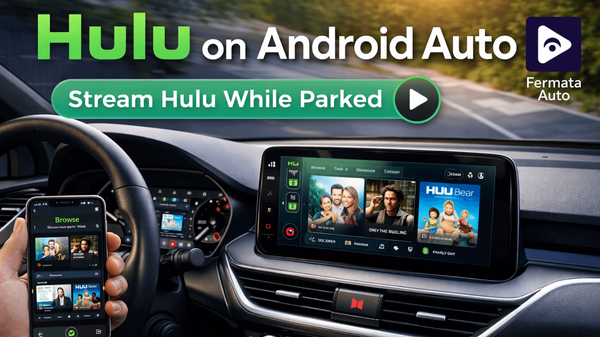
Fermata Auto is a media player designed specifically for Android Auto. Toyota’s factory system limits video playback to reduce driver distraction anyway Fermata Auto allows users to access additional media features.
Fermata Auto integrates making it easier to control from the car’s touchscreen directly into the Android Auto interface. With Fermata Auto, users can:
- Play locally stored video files.
- Stream online media content.
- Watch YouTube or supported streaming sources.
- Control playback using the vehicle display.
Many Toyota owners prefer this solution because it does not require replacing the factory infotainment system. The original dashboard, steering controls, and Android Auto functionality remain unchanged while adding extra entertainment options for parked use.
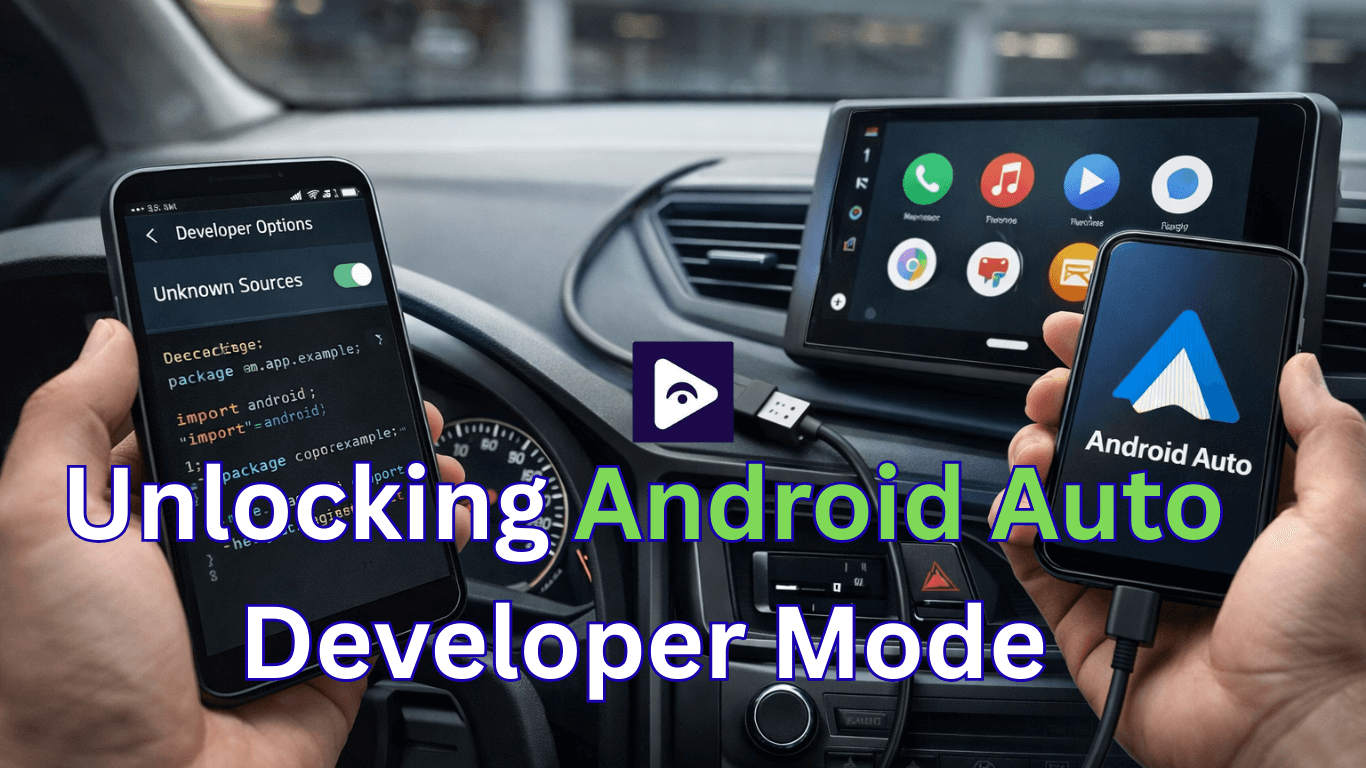
How to Install Fermata Auto on your Android Phone
Installing Fermata Auto only takes a few minutes. Just follow the steps below using your Android phone.
Step 1 - Open the installation page
Tap the button below. If you’re reading this on a computer, open the page on your phone by scanning the QR code.
Step 2 - Use Google Chrome
Make sure the link opens in Google Chrome. Other browsers sometimes block the install option.
Step 3 - Install the app
Tap the install button and confirm when the pop up appears. Wait until the download finishes and don't close the browser.
Step 4 - Open Fermata Auto
After installation, find the app in your phone’s app list and open it once. Allow any permissions it asks for.
Step 5 - Connect to your Toyota
Plug your phone back into your car and start Android Auto. Fermata Auto should now appear on the screen, ready for media playback while the car is parked.
Fermata Auto Step By Step Complete Guide
Common Toyota Android Auto Problems (and Fixes)
Android Auto Not Starting
- Enable projection in car settings.
- Restart phone.
- Try another USB cable.
Random Disconnection
- Disable battery optimization.
- Update Android Auto.
- Replace low quality cable.
Phone Charging but No Display
- Use data enabled cable.
- Clear Android Auto cache.
- Reconnect Bluetooth pairing.
Voice Commands Not Working
- Enable microphone permissions.
- Update Google services.
- Reset Bluetooth connection.
Safety tips when using Android Auto
- Use voice commands.
- Avoid touching the screen frequently.
- Watch videos only when parked.
- Set navigation before moving.
Future of Toyota Android Auto (2026+)
Toyota continues improving its multimedia ecosystem with:
- AI powered voice assistants.
- Wireless Android Auto expansion.
- Better cloud connectivity.
- Faster processors.
Frequently Asked Questions (FAQs) for Toyota Android Auto
- Does every Toyota support Android Auto?
No. Most Toyota vehicles manufactured before 2020 do not include Android Auto unless upgraded.
- Is Toyota Android Auto wireless?
Some newer models support wireless connections, but most vehicles still require USB.
- Why is Android Auto not connecting to my Toyota?
Usually caused by poor USB cables, outdated apps, or disabled permissions.
- Can I watch YouTube on Toyota Android Auto?
Not officially. Toyota blocks video apps for safety reasons.
- How do people stream Netflix on Toyota screens?
Users typically install an AI box and run apps like Fermata Auto while parked.
- Does Android Auto use mobile data?
Yes. Navigation, streaming, and online services use your phone’s internet connection.
- Which Toyota model works best with Android Auto?
Camry, Corolla, RAV4, and Highlander 2020+ models offer the best compatibility.
- Can I install Android Auto without replacing my head unit?
Yes. AI boxes or wireless adapters can enable features without dashboard modification.
- Why does Android Auto disconnect randomly?
Battery optimization, weak cables, or outdated firmware are common reasons.
- Is using video apps safe?
Video playback should only be used while parked to avoid distraction and ensure safety.
![How to add Fermata Auto with AAAD APK [Complete Guide 2026]](/content/images/size/w600/2025/03/9.-aaad.jpg)