Android Auto Spring Road Trip Apps Guide 2026

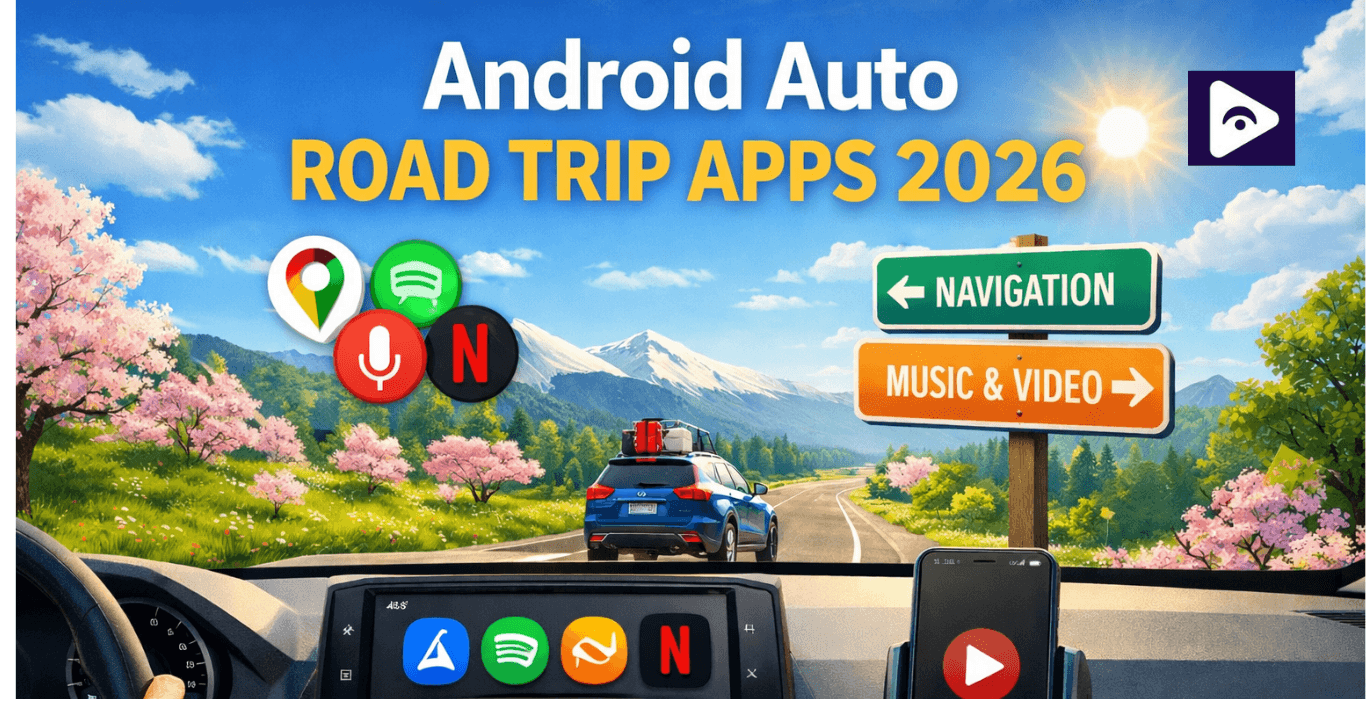
Spring is one of the best seasons for road trips. The weather is comfortable, flowers bloom, and scenic routes become even more enjoyable. If your car supports Android Auto, your journey can become smoother, safer, and more fun. You can easily navigate unfamiliar roads, discover attractions, listen to music, podcasts, or audiobooks, and even play videos safely when parked with the right apps.
In this guide, you will learn about the best Android Auto road trip apps, how to set up your system for a long drive, and tips to enhance your spring travels with technology.
Why Android Auto is perfect for spring road trips
Android Auto brings many phone features to your car’s dashboard to reduce distractions and improve your road trip experience.
Benefits of Android Auto for road trips:
- Hands free navigation: Access navigation apps like Google Maps or Waze safely.
- Voice commands: Control apps via Google Assistant.
- Entertainment for passengers: Play music, podcasts, or audiobooks.
- Real time traffic updates: Avoid delays and plan rest stops.
- Enhanced safety: Simplified interface keeps focus on the road.
Long Drive Android Auto Setup (Before Your Trip)
Proper long drive Android Auto setup ensures smooth operation during your journey.
Steps to Prepare:
- Update Android Auto & apps : Fixes bugs and improves compatibility.
- Download offline maps: Essential for areas with weak internet coverage.
- Prepare music & podcasts: Download playlists and episodes for offline use.
- Check charging setup: USB cable, car charger, and optional wireless charging.
- Mount your phone properly: Keeps your device stable and visible.
- Test connection: Ensure navigation, music, and voice commands work before departure.
Best Android Auto Road Trip Apps for 2026
Navigation Apps
| App | Key Features | Why It’s Useful |
|---|---|---|
| Google Maps | Turn by turn directions, offline maps, nearby points of interest | Reliable navigation and route planning |
| Waze | Real time traffic, hazard alerts, police notifications | Avoid traffic delays |
| Sygic GPS Navigation | Offline 3D maps, voice guided navigation, live traffic info | Useful for areas with poor connectivity |
Music & Entertainment Apps
| App | Features | Tips for Road Trips |
|---|---|---|
| Spotify | Playlists, music, podcasts | Pre download playlists for offline use |
| YouTube Music | Millions of songs and live performances | Use voice commands to switch songs |
| Amazon Music | Music streaming and offline playlists | Ideal if you already use Amazon services |
Podcast & Audiobook Apps
| App | Features | Benefits |
|---|---|---|
| Audible | Thousands of audiobooks | Engages passengers or solo drivers |
| Pocket Casts | Podcast management | Resume episodes seamlessly |
| Stitcher | Variety of podcast genres | Entertainment during long drives |
Spring Road Trip Planning with Android Auto
Spring road trips are fun, but a little preparation makes the drive much easier. Before you leave, spend a few minutes setting things up on Android Auto so everything works smoothly during the trip.
Plan Your Route Ahead
Check your route using a navigation app before starting your drive.
- Check the total driving distance.
- Look at possible traffic during busy hours.
- Review the weather along the route.
- Find gas stations or charging stops on the way.
Planning your route early helps avoid delays and surprises.
Download Offline Content
Internet signals can drop during long drives, especially in rural areas. It’s a good idea to prepare some offline content.
- Download offline maps in Google Maps.
- Save music playlists from Spotify or YouTube Music.
- Download podcast episodes.
- Save audiobooks for longer drives.
This way, you still have navigation and entertainment even without internet.
Organize Your Apps
Android Auto shows several apps on your car screen. Setting them up before the trip makes them easier to use.
- Keep your navigation app ready to open
- Set your favorite music app for quick access
- podcasts or audiobooks as backup entertainment
Keeping apps organized helps reduce distractions while driving.
Essential Safety Tips for Long Android Auto Drives
Safety Tips Every Driver Should Follow
- Use voice commands whenever possible.
- Avoid touching the screen while driving.
- Set your navigation before you start the trip.
- Take a short break every 2-3 hours.
- Keep your phone charged and properly connected.
Google Assistant lets you control many features without taking your hands off the wheel.
For example, you can say:
“Navigate to the nearest gas station”
“Play my road trip playlist”
“Call home”
Using voice commands helps you stay focused on the road and makes driving safer.
Watch Videos in Your Car with Fermata Auto
Fermata Auto unlocks video streaming on Android Auto to make in car entertainment simple and safe.
Fermata Auto Supported Apps
You can stream popular apps with Fermata Auto:
- YouTube
- Netflix
- Amazon Prime Video
- Disney+
- HBO Max (Max app)
- VLC Media Player
- Local videos stored on your phone
| App | Playback Method | Notes |
|---|---|---|
| YouTube | Direct playback | Most reliable option |
| Netflix | Browser playback | May show DRM black screen on some devices |
| Amazon Prime Video | Browser playback | Depends on device compatibility |
| Disney+ | Browser playback | May require login via browser |
| HBO Max | Browser playback | DRM may block video on some devices |
| VLC Player | Local playback | Best for offline movies |
| Local Video Files | Direct playback | Supports multiple formats |
How to Install Fermata Auto
Fermata Auto isn’t available on Google Play, so installation requires a manual process. Here are two ways to get started:
Method 1: Easy Installation (Recommended)
Step 1: Start the Installation
Tap “Fermata Auto Installation”. If you’re on a computer, scan the QR code to open the page on your phone.
Step 2: Open in Chrome
Make sure to use Google Chrome to load the installer page. Tap “Fermata Auto Installation” again to continue.
Step 3: Confirm Installation
A pop up will ask for permission to install. Tap Install. Optionally, add a shortcut to your home screen for faster access.
Step 4: Complete Setup
Open Fermata Auto, grant the necessary permissions, and follow the on-screen instructions to finish setup.
Method 2: Manual APK Installation
Step 1: Download the APK
Get the official Fermata Auto APK from GitHub or a trusted source.
Step 2: Enable Unknown Sources
Go to your phone settings and allow installation from unknown sources.
Step 3: Activate Developer Mode in Android Auto
Open Android Auto settings → tap Version Number repeatedly until Developer Mode is activated.
Step 4: Enable installation from unknown sources.
Step 5: Connect Your Phone to the Car
Use a USB cable or wireless Android Auto if supported.
Step 6: Launch Fermata Auto
Open the app from Android Auto’s apps list.
Step 7: Start Watching Videos
Select YouTube, HBO Max, or any other supported video app, and enjoy content while parked safely.
Quick Comparison of Fermata Auto Alternatives
| App | Main Function | Best Use Case | Root Required | Android Auto Compatible |
|---|---|---|---|---|
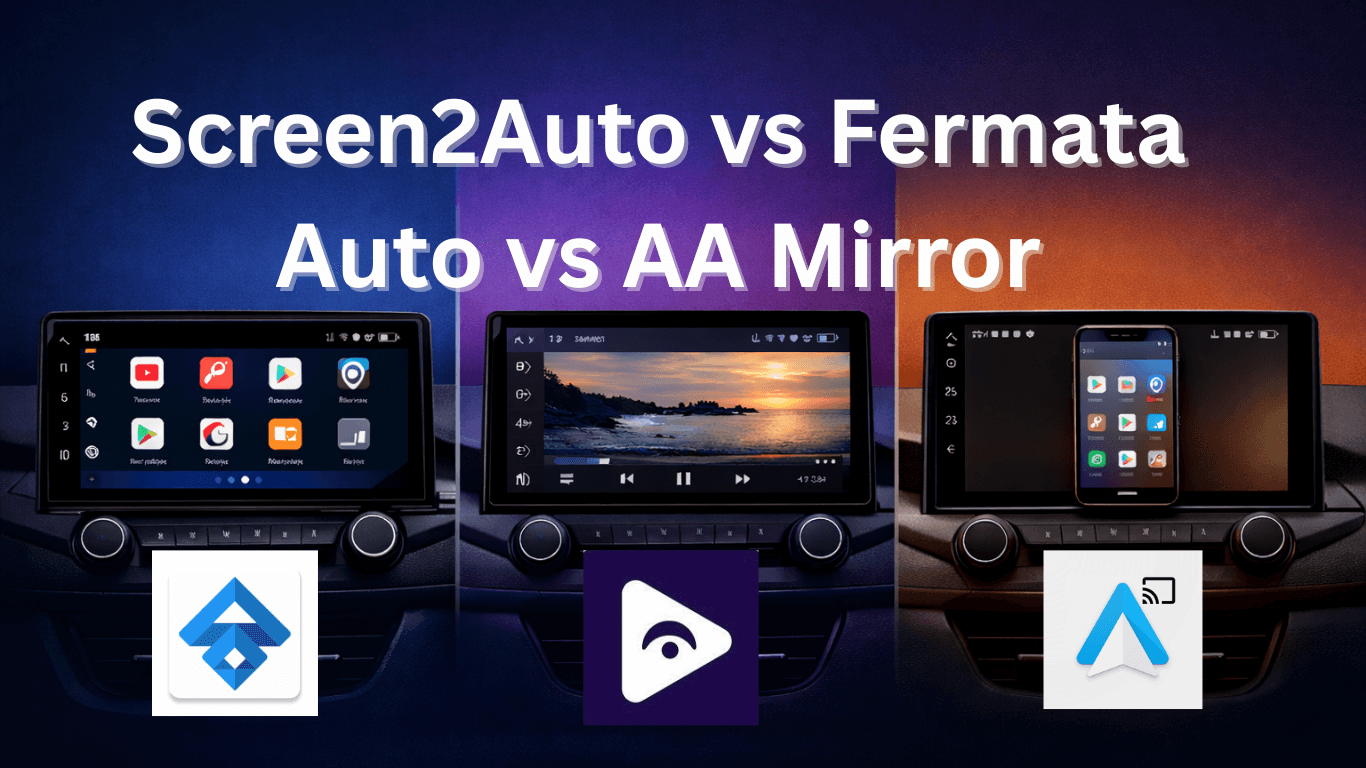
| Fermata Auto | Media player and streaming support | Watching videos and local media | No | Yes |
| Screen2Auto | Full phone screen mirroring | Running multiple apps | Sometimes | Yes |
| AA Mirror | Basic screen mirroring | Simple mirroring setup | Sometimes | Yes |
| CarStream | YouTube video streaming | Watching YouTube | No | Yes |
| AAStream | Advanced screen mirroring | Running any phone app | Often | Yes |
Common Android Auto Problems During Road Trips
| Problem | Solution |
|---|---|
| Connection issues | Reconnect USB or restart devices |
| App crashes | Update apps through Google Play Store |
| GPS errors | Enable location services |
| Slow app loading | Close background apps |
Android Auto Road Trip FAQs
- Best apps for road trips?
Google Maps, Waze, Spotify, YouTube Music, Audible, and Pocket Casts help with navigation, music, and podcasts for a smooth drive.
- Can I stream multiple devices to one Android Auto display?
No. Android Auto supports one connected device at a time, so Fermata Auto will run only on the connected phone.
- What is Fermata Auto?
A third party media player for Android Auto that supports video streaming.
- Is Fermata Auto on Google Play?
No. It must be installed via the Fermata Auto Official Website.
- Is it safe to use Fermata Auto on long trips?
Yes, as long as videos are played only while parked. Audio playback (music/podcasts) is safe while driving.
- Why do some apps show a black screen?
Streaming services like Netflix, HBO Max, and Disney+ use DRM, which can block mirrored video.
- How to prepare for a long drive?
Update Android Auto, download offline maps, prep playlists, install travel apps, and test your phone-car connection.
- Does Android Auto work offline?
Yes, for offline maps, downloaded music, and audiobooks. Streaming and live traffic require the internet.
- Will Fermata Auto work with all car models?
It works on most vehicles compatible with Android Auto, but screen resolution and car firmware may affect video playback quality.
Are there alternatives to Fermata Auto for video in Android Auto?
Yes. Some alternatives include:
- Screen2Auto – full phone mirroring
- AA Mirror – simple mirroring functionality