How to Get Android Auto on Tesla - Complete Guide 2026

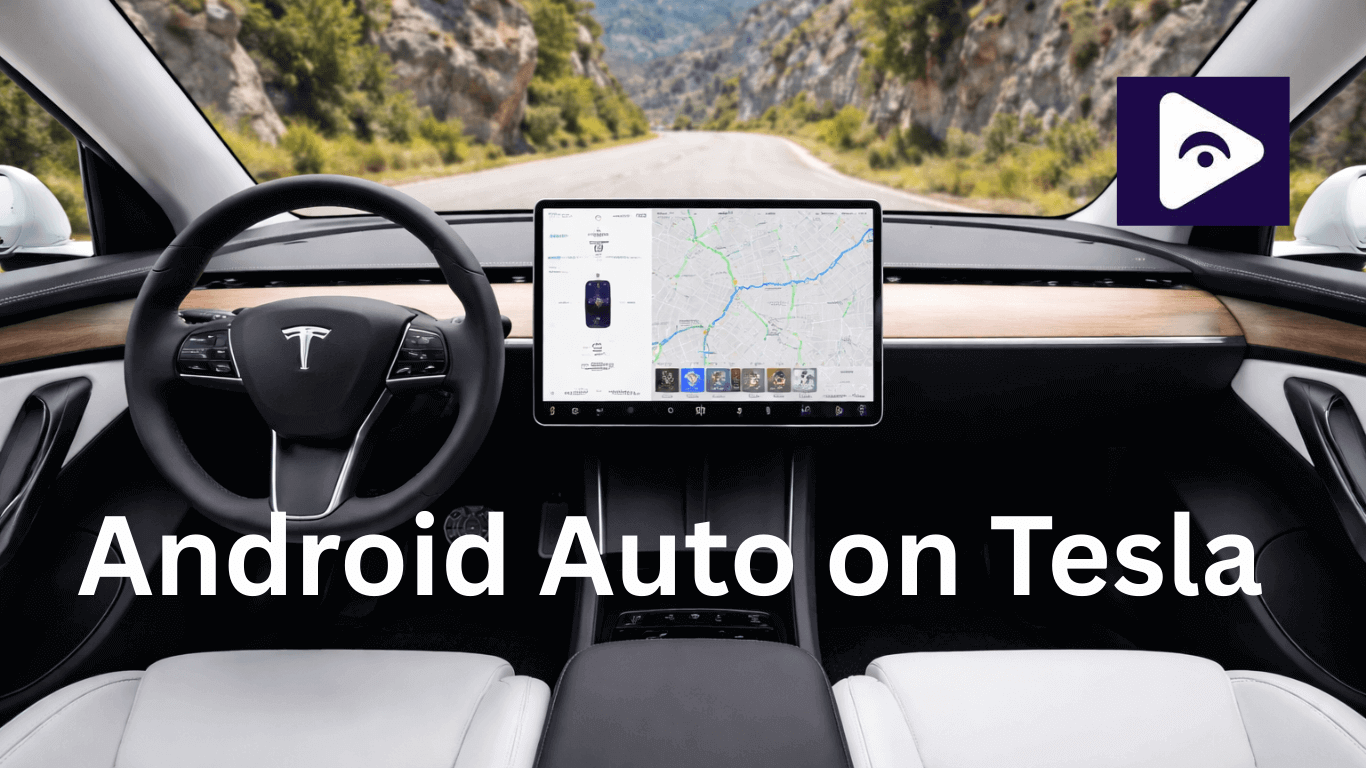
Tesla cars are amazing to drive. They look stylish, feel fast, and their huge touchscreens make everything easy to control. But if you use an Android phone, there’s one annoying issue: you can’t use Android Auto on a Tesla.
That means you can't use your favorite Android apps like Google Maps, Waze, or Spotify directly on that Tesla screen.
Luckily, there are ways to fix this. In 2026, Fermata Auto is the easiest and most reliable option. It lets you run Android apps on your Tesla without complicated tricks or extra devices.
Here’s what we’ll cover:
- Why Tesla doesn’t let you use Android Auto.
- Android Auto on Tesla – Simple Comparison Table.
- Tips for Using Fermata Auto.
- Common Issues & Solutions.
- FAQs Android Auto on Tesla.
By the end of this guide, you’ll know exactly how to use Android Auto on your Tesla and which method is the simplest for you.
Why Tesla doesn’t support Android Auto
Tesla’s infotainment system is designed around its own ecosystem:
- Tesla Navigation.
- Tesla Theater (for streaming apps).
- Spotify and other music services.
This setup gives a smooth, integrated experience, but it comes with a drawback: Android Auto doesn't work. That leaves Android users without direct access to the apps they’re used to.
For drivers, this means:
- Google Maps and Waze don’t work natively.
- Android Auto apps can’t be used directly.
- Access to some media and navigation apps is limited.
Many Tesla owners look for ways to get around these restrictions. The main options are:
- Fermata Auto – A software solution that brings Android apps and navigation right onto the Tesla screen.
- Dongles or adapters – Hardware devices that let you use some Android Auto functions.
- Screen mirroring apps – Let you mirror your phone’s screen onto the Tesla touchscreen.
Of these options, Fermata Auto stands out as the safest, fastest, and most reliable. It provides the closest experience to using native Android Auto without complicated setups.
1. Fermata Auto (Recommended)
Fermata Auto is a simple software solution that lets Tesla owners run Android apps and navigation directly on the car’s touchscreen. You don’t need any extra devices—just your Android phone.
Why Tesla Users Love Fermata Auto
- No extra hardware – Works entirely through your phone.
- Access all your apps – Stream YouTube, Netflix, Prime Video, Spotify, and more.
- Supports most Tesla models – Full support for Model 3 and Model Y, partial support for Model S and Model X.
- Smooth performance – Minimal lag compared to typical screen mirroring apps.
- Keeps up with Tesla updates – Regular updates handle firmware changes reliably.
- Voice commands – Makes it safer to use while driving.
How to Install Fermata Auto on Android Auto
Step 1: Tap the Fermata Auto Installation button.
If you’re using a PC, scan the QR code to open the page on your Android phone.
Step 2: Open in Chrome
Make sure the installation page opens in Chrome for a smooth setup.
Step 3: Confirm Installation
A pop-up labeled “Fermata Auto Android” will appear. Tap Install.
Optional: add a shortcut to your home screen for quick access.
Step 4: Open Fermata Auto
Launch the app and activate WheelPal using your email.
Step 5: GET Button
Tap the GET button to finish the setup and see instructions for use.
Step 6: Start Streaming
Once installed, you can stream apps like YouTube, Netflix, Prime Video, Spotify, or even add other apps manually.
Pro Tip: Fermata Auto is ideal for everyday driving. It works smoothly, avoids hardware problems, and integrates naturally with your Tesla.
Follow the step-by-step installation full guide
2. Tesla Android Auto Dongles & Adapters – Comparison Chart
| Adapter | Android Auto | Best Tesla Models | Key Notes |
|---|---|---|---|
| Carlinkit AI Box | Yes | Model 3, Y | Stable, popular, but expensive |
| Ottocast Adapter | Yes | Model 3, Y | Smooth UI, occasional lag |
| CarPlay2Air | Partial | Model 3, Y | Easy setup, limited Android |
| Generic AI Box | Varies | Model 3, Y | Cheap, unstable, poor updates |
3. Tesla Screen Mirroring Apps – Comparison Chart
| Screen Mirroring App | Connection Type | Tesla Models | Best For | Pros | Cons |
|---|---|---|---|---|---|
| ApowerMirror | Wi-Fi / USB | All Tesla Models | Quick mirroring, media apps | Easy setup, no hardware needed | Touch delay, navigation lag |
| LetsView | Wi-Fi | All Tesla Models | Basic screen sharing | Free, simple interface | Unstable connection, low quality |
| TeslaMirror (Browser-based) | Local Network / Browser | All Tesla Models | Temporary mirroring | No extra app on Tesla | Browser limits, poor interaction |
| Generic Mirror Apps | Wi-Fi | All Tesla Models | Occasional use | Many free options | High latency, unreliable |
Android Auto on Tesla – Simple Comparison Table
| Feature / Solution | Fermata Auto | Dongle / Adapter | Screen Mirroring |
|---|---|---|---|
| Hardware Required | No | Yes | No |
| App Access | Full | Limited | Limited |
| Streaming Media | Yes | Yes | Yes |
| Navigation Apps | Yes | Some apps | May lag |
| Voice Command Support | Yes | Limited | No |
| Lag / Performance | Minimal | Sometimes laggy | Lag possible |
| Regular Updates | Yes | Limited | No |
| Cost | Free / Low | Medium to High | Free |
Conclusion: Fermata Auto is clearly the best solution across all Tesla models.
Tips for Using Fermata Auto
- Use high quality USB-C cables for stable connections.
- Keep Tesla firmware updated.
- Use voice commands to reduce distractions.
- Test apps before driving.
- Ensure a strong internet connection.
- Close background apps on your phone.
- Restart Tesla touchscreen occasionally for performance.
Common Issues & Solutions
- Connection Drops: Reconnect phone or restart Tesla touchscreen.
- App Crashes: Update Fermata Auto, clear cache, or reinstall.
- Streaming Lag: Close background apps and ensure fast internet.
Dongle Not Recognized: Try a different USB port, check Tesla model compatibility.
FAQs Android Auto on Tesla
1. Can I install Android Auto on Tesla?
Yes. using Fermata Auto, dongles, or screen mirroring. Fermata Auto is easiest and most reliable.
2. Which Tesla models support Fermata Auto?
- Full: Model 3 & Y
- Partial: Model S & X
3. Do I need a dongle for Fermata Auto?
No. Fermata Auto works entirely as a software solution.
4. Can I stream YouTube/Netflix/Prime Video?
Yes. with a stable internet connection.
5. Can I use Google Maps or Waze?
Yes. especially on Model 3 & Y.
6. Is Fermata Auto safe while driving?
Yes. supports voice commands for navigation and media control.
7. Does Fermata Auto mirror the phone or touchscreen?
It runs on your Android phone and mirrors apps to Tesla touchscreen.
8. Do I need Tesla firmware updates?
Yes. for full compatibility.
9. What if Fermata Auto stops working?
Restart Tesla touchscreen, update, or reinstall the app.
10. How is Fermata Auto better than dongles or screen mirroring?
It requires no hardware, offers full app access, supports voice commands, receives regular updates, and integrates smoothly with Tesla screens.