
How to Enable Android Auto Developer Mode 2026

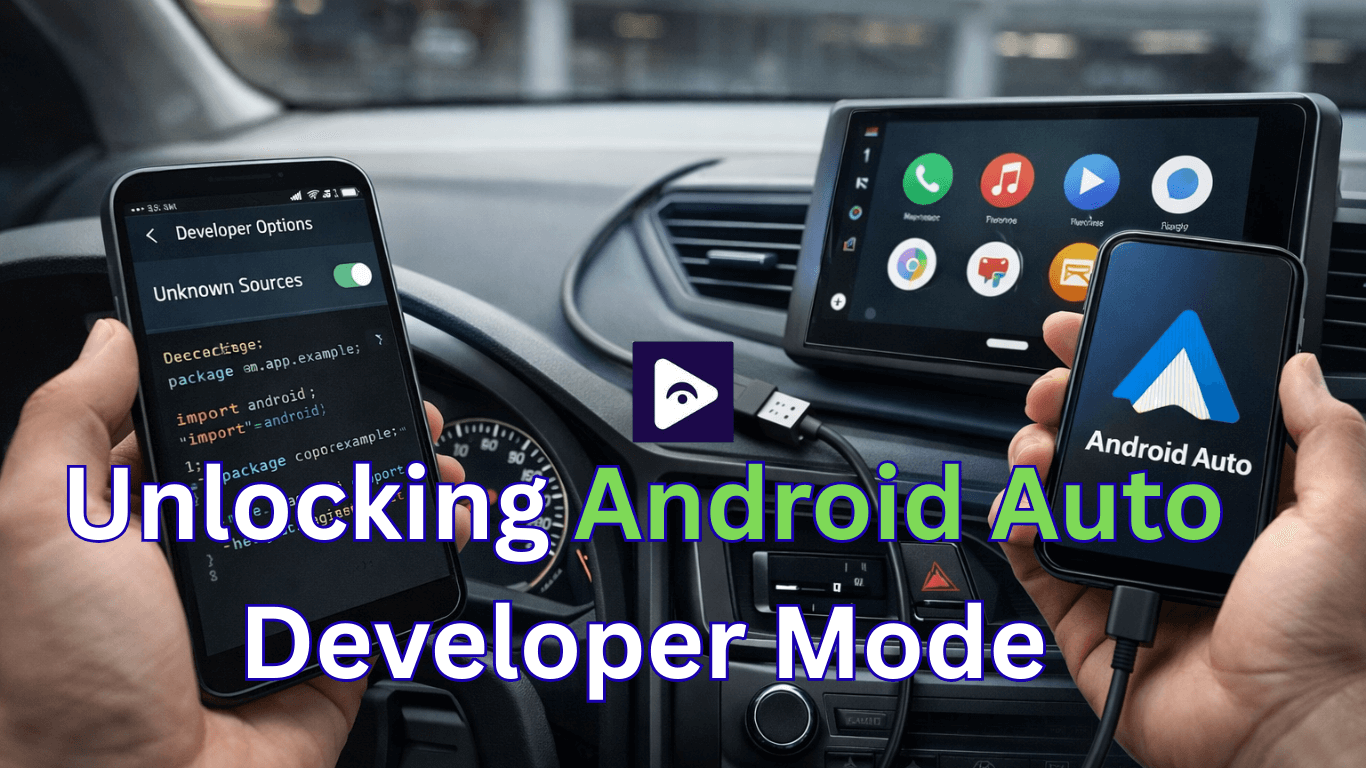
Android Auto has become one of the most essential features for modern drivers. It allows you to safely access navigation, music, calls, and messages directly from your car’s infotainment screen. However, many advanced features remain hidden from normal users. That is where android auto developer mode comes in.
In 2026, more users are installing third party Android Auto apps, testing wireless adapters, and customizing their in car experience. Unfortunately, these apps do not appear automatically because Android Auto blocks unapproved software by default.
Developer Mode unlocks hidden settings that allow you to:
- Access advanced Android Auto configuration tools.
- Enable sideloaded apps like media or video players.
- Fix connection issues.
- Use wireless Android Auto adapters properly.
- Troubleshoot Android 14+ restrictions.
This guide explains everything step by step in simple language, whether you are using Samsung, Pixel, or any other Android phone.
What is Android Auto Developer Mode?
Android Auto Developer Mode is a hidden menu made for developers and advanced users who want more control over how Android Auto works. By default, Android Auto only shows apps approved by Google to keep the driving experience safe and distraction free. Because of this, some manually installed apps stay hidden.
When you enable Developer Mode, additional options become available, including:
- Access to the Android Auto developer settings menu.
- App testing and debugging tools.
- Detailed debug logging.
- Wireless projection configuration controls.
- Screen resolution and display adjustments.
- The Unknown Sources option for unsupported apps.
Enabling this mode does not permanently change your car system. It simply unlocks advanced settings on your phone that are normally hidden.
Why you need Developer Mode in 2026
Over the last few Android updates, security rules have become stricter. Starting from Android 13 and especially Android 14, sideloaded apps are heavily restricted.
If you install an Android Auto compatible app outside the Play Store:
App installs successfully.
App does not appear on car screen.
This happens because Android Auto hides non approved apps.
Enabling developer options android auto allows you to manually approve these apps through the Unknown Sources setting.
Without developer mode, third party apps will never show no matter how many times you reinstall them.
How to turn on Android Auto Developer Mode [Step-by-Step]
Follow these steps slowly. The process takes less than two minutes.
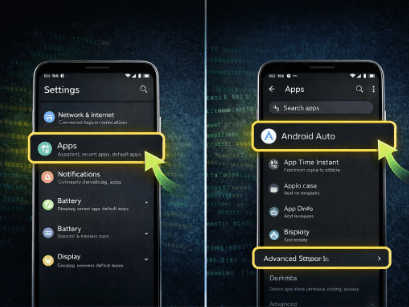
Step 1 : Open settings on your phone unlock your phone.
- Open the settings app.
- Tap apps or apps & notifications.
- Tap see all apps so you can view every installed app.
Step 2 : Find Android Auto scroll through the list and tap Android Auto.
- If you cannot see it:
Use the search bar and type “Android Auto.”
Some phones hide system apps, so turn on Show System Apps if needed.
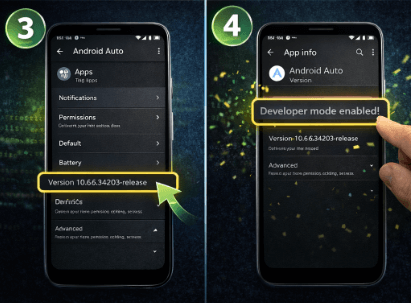
Step 3 : Find the version number inside the Android Auto app info screen:
- Scroll down until you see the version.
This is the hidden area used to activate developer mode.
Step 4 : Tap version 10 times tap the version number quickly about 10 times.
A message will appear saying:
- Developer mode enabled.
That’s it. Developer mode is now turned on.
With developer mode enabled, apps like YouTube, Netflix ,Hulu and etc can appear in Android Auto once Unknown Sources is turned on.
How to open developer settings
Now that developer mode is active:
- Open the Android Auto app on your phone.
- Tap the three dot menu in the top right corner.
- Select Developer Settings.
You will now see options that were previously hidden.
Turn on unknown sources (Very Important)
This is the step many people miss.
Inside Developer Settings:
- Scroll down.
- Find Unknown Sources.
- Turn it ON.
This setting allows Android Auto to show apps that were installed outside the Play Store.
If you skip this step, third party apps will not appear even though they are installed correctly.
Using Developer Mode with Fermata Auto
One of the main reasons users enable developer mode is to use Fermata Auto.
Many people install Fermata Auto and expect it to show immediately on their car screen. Instead, nothing appears. This causes confusion, but the problem is usually simple.
Android Auto hides apps that are not officially approved. After you enable developer mode and turn on Unknown Sources, Android Auto is allowed to display them.
To make Fermata Auto appear:
- Install the app on your phone.
- Open it once so Android registers it.
- Enable developer mode.
- Turn on Unknown Sources.
- Disconnect and reconnect your phone to the car.
After reconnecting, Fermata Auto should appear in the Android Auto app list.
How to Install Fermata Auto on Android (Step by step guide)
Instructions for Samsung Phones
If you use a device from Samsung, menus may look slightly different.
Helpful tips:
- Enable show system apps if Android Auto is missing.
- Allow background activity for Android Auto.
- Disable battery optimization if apps disappear.
Samsung software sometimes restricts background services, which can hide apps temporarily.
Instructions for Pixel and Other Android Phones
Google Pixel phones usually follow the exact steps shown above.
For Xiaomi, OnePlus, Oppo, or Vivo devices:
- Look under App Management instead of Apps.
- Allow background running permissions.
- Remove Android Auto from battery restrictions.
These small changes often fix visibility problems.
Using Developer Mode with wireless Android Auto
If you use a wireless adapter like AAWireless, developer settings can also help improve stability.
Developer options allow you to:
- Check connection logs.
- Fix resolution issues.
- Troubleshoot startup problems.
- Improve wireless detection.
If wireless Android Auto disconnects often, enabling developer mode is a good first step.
Apps Not Showing in Android Auto? Troubleshooting Fixes
If your apps are still not appearing in Android Auto after enabling developer mode, don’t worry. This is a common issue, especially on newer Android versions.
The table below explains the most common problems and the simple fixes you can try to make your apps appear correctly.
| Problem | Why It Happens | Simple Fix |
|---|---|---|
| Apps not visible in Android Auto | Unknown Sources is turned OFF | Enable Unknown Sources inside Developer Settings |
| App installed but not showing | Installed before enabling developer mode | Reinstall the app after enabling developer mode |
| App appears then disappears | Battery optimization blocks background activity | Disable battery optimization for Android Auto |
| Android Auto not refreshing apps | Old cache data stored | Clear Android Auto cache and reconnect |
| Wireless connection issues | Phone and car not synced properly | Connect once using USB before wireless |
| Developer settings missing | Developer mode not activated | Tap Version number 10 times again |
| Apps still hidden on Android 14+ | New Android security restrictions | Restart phone and reconnect to car |
Developer Mode OFF vs Developer Mode ON (Feature Comparison)
| Feature | Developer Mode OFF | Developer Mode ON |
|---|---|---|
| Access to Developer Settings | Not Available | Available |
| Show Third-Party Apps | Blocked | Allowed (with Unknown Sources enabled) |
| Unknown Sources Option | Hidden | Visible and configurable |
| Fermata Auto Visibility | Does not appear | Appears in Android Auto launcher |
| Wireless Debug Options | Unavailable | Available |
| Troubleshooting Tools | Limited | Advanced options enabled |
| App Testing & Logging | Disabled | Enabled |
| Customization Control | Basic usage only | Advanced control available |
Frequently Asked Questions (FAQs)
- Is Android Auto Developer Mode safe?
Yes, it’s safe. Turning on developer mode doesn’t harm your phone or car. It simply unlocks hidden settings in Android Auto so you can do more with your apps.
A few tips for safety:
- Only install apps you trust.
- Never watch videos while driving.
- Use the extra features responsibly.
Even in developer mode, Android Auto keeps safety features active to protect you on the road.
- Why aren’t my apps showing in Android Auto?
This is a common problem. Most of the time, apps don’t appear because:
- Unknown Sources isn’t turned on.
- You didn’t reconnect your phone after enabling developer mode.
- Apps were installed before developer mode was activated.
- Cached data or battery restrictions are blocking the app.
How to fix it:
- Enable Unknown Sources in the Developer Settings.
- Clear the Android Auto cache.
- Reinstall the app if needed.
- Disconnect and reconnect your phone to your car.
- Doing this usually makes the apps appear.
- What mistakes do people usually make?
Small mistakes cause most issues. Make sure you:
- Turn on Unknown Sources.
- Reconnect the phone after making changes.
- Install apps only after developer mode is active.
- Disable battery optimization that could block Android Auto.
Following these simple steps solves most problems quickly.
- What are the benefits of developer mode?
Once you turn it on, Android Auto becomes much more flexible:
- You can see apps that normally don’t show, like Fermata Auto or CarStream.
- It helps fix connection issues faster.
- You can test new features or advanced settings.
- Wireless Android Auto works more reliably.
- You get more control over how the system behaves.
For many users, developer mode turns Android Auto from a basic app into a powerful tool for media, navigation, and customization.
- Can I turn off developer mode later?
Yes. To go back to normal:
- Go to Settings → Apps → Android Auto.
- Clear the app data.
- Restart your phone.
Developer options will disappear, and Android Auto will return to its default state.
- Will enabling developer mode affect my car warranty?
No. Developer mode only changes settings on your phone. It doesn’t affect your car or its warranty in any way.
![How to add Android Auto to Toyota [Complete Guide 2026]](/content/images/size/w600/2026/02/toyota.png)
![How to add Fermata Auto with AAAD APK [Complete Guide 2026]](/content/images/size/w600/2025/03/9.-aaad.jpg)